
Context & Why
Between two 2TB Google One subscriptions and an iCloud tier, our household was spending $36 a month—over $430 a year—just to store family media and personal archives across four smartphones. Worse, our files were completely fragmented. If someone needed a copy of our house deed or tax records, it meant digging through email threads and messaging apps. We also felt uncomfortable with commercial cloud providers using our personal archives to train AI models.
I needed a private alternative that passed the "family approval test": seamless background camera uploads, fast photo gallery browsing, in-browser document editing, and simple link sharing.
Deploying vanilla Nextcloud from scratch often turns into a second job. You find yourself tuning PHP-FPM worker pools, balancing Redis memory constraints, managing PostgreSQL upgrades, and debugging Collabora socket handshakes. When an upstream release breaks a dependency, your entire weekend vanishes into forum threads.
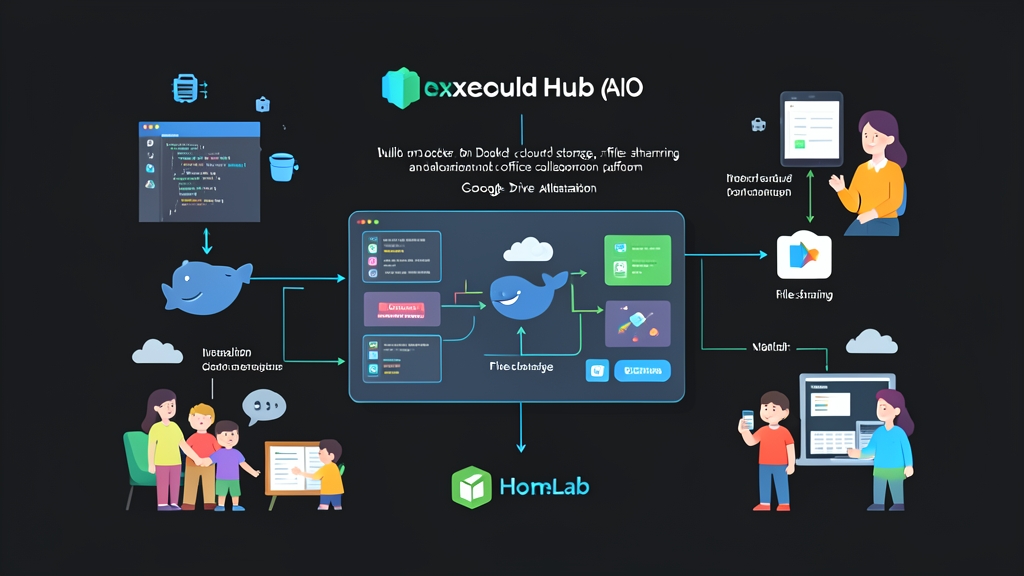
Nextcloud All-in-One (AIO) removes this administrative drag. Maintained directly by Nextcloud, AIO orchestrates a stack of dedicated microservice containers—PostgreSQL 16, Redis, Apache, Collabora, and BorgBackup—coordinated by a lightweight supervisor daemon.
Six months in, our instance manages 1.4 TB of data and roughly 88,000 photos across four active users. Software updates take five minutes through a single web button, and the stack has run without a single crash or data sync conflict.
Installation
Hardware requirements are very approachable. I host this on a repurposed HP EliteDesk mini PC with an Intel Core i5-8500T (6 cores), 16 GB of DDR4 RAM, a 256 GB NVMe boot drive, and an external 4 TB Western Digital Red Plus drive for file storage. Any Debian 12 or Ubuntu 22.04 LTS server with Docker Engine and Docker Compose will work smoothly.
Forward ports 80, 443, and 8080 on your router to your server’s local IP address. Then, point a DNS A record (such as cloud.yourdomain.com) to your home’s public IP address.
1. Create Directory Structure
Create a dedicated folder for your compose configuration:
mkdir -p /opt/nextcloud-aio
cd /opt/nextcloud-aio
2. Define the Docker Compose File
Create a docker-compose.yml file. We bind the Docker socket so the AIO supervisor can spawn and manage the worker containers dynamically. Note that port 443 is deliberately omitted from the master container’s ports list; the supervisor creates a dedicated nextcloud-aio-apache container that binds to port 443 directly:
services:
  nextcloud-aio-mastercontainer:
    image: nextcloud/all-in-one:latest
    init: true
    container_name: nextcloud-aio-mastercontainer
    restart: always
    ports:
      - "80:80"
      - "8080:8080"
    environment:
      - APACHE_PORT=443
      - APACHE_IP_BINDING=0.0.0.0
      - NEXTCLOUD_DATADIR=/mnt/storage/nextcloud_data
    volumes:
      - nextcloud_aio_mastercontainer:/mnt/docker-aio-config
      - /var/run/docker.sock:/var/run/docker.sock:ro

volumes:
  nextcloud_aio_mastercontainer:
    name: nextcloud_aio_mastercontainer
Point NEXTCLOUD_DATADIR to your actual storage mount point (such as an ext4 mount, a ZFS dataset, or a dedicated RAID array).
3. Launch the Master Container
Start the supervisor daemon:
docker compose up -dFetch your one-time setup passphrase from the container startup logs:
docker logs nextcloud-aio-mastercontainerCopy the password printed in the output, then open https://<your-server-ip>:8080 in your browser.
Configuration
1. Domain Verification and Add-on Selection
Bypass your browser’s self-signed certificate warning on port 8080, enter your setup passphrase, and submit your public domain name. The master container spins up a temporary ACME challenge listener on port 80 to verify domain ownership and issue valid Let’s Encrypt certificates.
Once verified, select the add-on modules for your setup:
- Nextcloud Office (Collabora Online): Real-time browser editing for DOCX, XLSX, and PPTX files.
- Imagick / Memories: High-speed thumbnail caching. Crucial if you want fast scrolling through 48 MP smartphone photos.
- Talk: Encrypted private messaging and video calls for the family.
- ClamAV: On-access antivirus scanner. Leave this disabled unless your host has at least 16 GB of RAM, as the ClamAV virus signature database alone eats over 1.5 GB of RAM.
2. Initiating Containers and Admin Credentials
Click Start Containers. The master container pulls validated images for PostgreSQL, Redis, Apache, and Nextcloud Core, bringing up each service in dependency order. On a standard 100 Mbps home connection, this process takes about four minutes. When complete, copy the generated administrator credentials immediately into your password manager.
3. Hardening and Performance Tuning
Sign in at https://cloud.yourdomain.com and check Administration settings > Overview for configuration warnings. Resolve common localized warning flags via the occ command line:
# Set regional phone code to format contact numbers correctly
docker exec --user www-data -it nextcloud-aio-nextcloud php occ config:system:set default_phone_region --value="US"

# Schedule routine database indexing and file sweeps at 1:00 AM
docker exec --user www-data -it nextcloud-aio-nextcloud php occ config:system:set maintenance_window_start --type=integer --value=1
If your family regularly uploads 4K home videos exceeding 2 GB, increase upload limits by adding PHP_UPLOAD_LIMIT=16G and PHP_MEMORY_LIMIT=2048M to the master container’s environment block in your Compose file.
4. Client Onboarding and Mobile Auto-Upload
Under Users, create accounts for each family member with individual quotas (e.g., 250 GB per user). Have them download the Nextcloud app from Google Play or the iOS App Store:
- Configure Auto-upload for camera folders, organized by year and month.
- Enable Upload only on Wi-Fi and Only while charging to preserve battery life and cellular data.
- Install the community app Memories from the Nextcloud App Store. It replaces the stock photo viewer with an interface that matches Google Photos, complete with timeline scrubbing, facial recognition, and reverse geocoding.
Verification & Monitoring
1. Verifying System Health
Confirm that all spawned microservices are running in good order:
docker ps --format "table {{.Names}}\t{{.Status}}\t{{.Ports}}"Your process table should list healthy containers for nextcloud-aio-database, nextcloud-aio-redis, nextcloud-aio-apache, nextcloud-aio-collabora, and nextcloud-aio-nextcloud.
2. Monitoring Logs and Cron Execution
Background tasks index incoming files, prune expired links, and generate preview thumbnails. Check Administration settings > Background jobs to verify that the scheduler is set to Cron and ran within the last five minutes.
To inspect real-time sync transactions and catch mobile sync failures as they happen:
docker logs -f --tail=100 nextcloud-aio-nextcloud3. Automated Backup Validation
Untested backups are wishful thinking. Nextcloud AIO bundles native, encrypted snapshots via BorgBackup. In the AIO interface (:8080), configure a secondary internal hard drive or an NFS share on a NAS as your backup destination.
Before any container update, the supervisor automatically halts traffic, takes a clean PostgreSQL dump, creates a deduplicated Borg snapshot, and restarts the containers. On our 1.4 TB dataset, daily differential backups complete in under seven minutes. You can inspect your snapshot history anytime from the terminal:
docker exec -it nextcloud-aio-borgbackup borg list /mnt/backup/borgMigrating to Nextcloud AIO ended our recurring subscription bills and returned our private documents to hardware we physically control. The setup took one evening, routine updates take five minutes a month, and our files never leave our home network unencrypted.