Approach Comparison: How to Host Digital Comic Collections
At 2:15 AM, my tablet hung on a 504 Gateway Timeout while opening a 420MB digital omnibus. On the server, swap usage sat at 98%, both CPU cores pegged at 100%, and the background indexer had crashed thirty minutes earlier. Storing 4TB of digitized graphic novels and manga like standard video files inside conventional media servers will inevitably bite you.
Before settling on a stable stack, I tested three distinct setups across my lab environment:
- Generic Media Servers (Plex / Jellyfin with comic plugins): Books remain an afterthought here. These engines unpack entire archives into temporary RAM buffers before rendering page one. Try opening an 80-issue comic arc on an Intel Celeron J4125 or Raspberry Pi 4. The Linux out-of-memory (OOM) killer steps in almost immediately.
- Bare-Metal Calibre / Calibre-Web: Calibre handles EPUB metadata and ISBN lookups with ease. However, its SQLite database locks up frequently under concurrent reads over NFS or SMB shares. Reading double-page spreads or right-to-left manga on its web reader remains clumsy.
- Dedicated OPDS Engines (Komga / Kavita): Komga was designed specifically for comics, manga, and graphic novels. It reads CBZ, CBR, PDF, and EPUB files directly off your disk. Instead of decompressing a 500MB zip archive into host memory, Komga streams individual WebP-converted pages on demand. Thumbnails decode in background worker pools without locking active reader sessions.
Pros and Cons: The Reality of Running Komga
Running a Spring Boot microservice in Docker requires upfront tuning, especially on entry-level hardware. Here is what daily operation looks like:
Advantages
- True Cross-Platform Progress Synchronization: Your reading position, bookmarks, and read status sync instantly across browsers and native apps like Mihon, Tachiyomi, Chunky, and Panels using OPDS-PSE (Page Streaming Extension).
- Non-Destructive Library Management: Komga treats comic directories as strictly read-only when configured properly. It never modifies original zip checksums, touches metadata XMLs, or reorders scans.
- Granular Multi-User ACLs: Set up separate household accounts with age restrictions and genre tag blacklists. Each user maintains their own independent unread counters and reading history.
Trade-offs and Operational Pain Points
- JVM Memory Demands: Komga runs on Java 21. Unlike a 30MB Go binary, it demands deliberate heap allocation. During an initial library import of 15,000 chapters, memory usage easily floats between 1.2GB and 2.2GB RAM before garbage collection stabilizes it around 800MB.
- Strict Folder Hierarchies: Organization matters. Komga demands structured folders such as
Publisher/Series/Issue 01.cbzorManga/Volume 01.cbz. Dumping 3,000 flat files into a single directory slows database queries to a crawl.
Recommended Architecture: Clean Permissions and Fast Caching
Two design choices make or break this setup: isolating user permissions and buffering archive extractions in RAM. Running containers as root creates root-owned thumbnail caches on your host disks. This locks out your automated backup scripts and rsync jobs.
Here is the architecture running stably across my 4TB collection:
- Compute Node: 2 vCPUs and 4GB RAM minimum (Ubuntu 24.04 LTS or Debian 12).
- Storage Layout: Run the container configuration and SQLite database on an NVMe SSD. Keep comic files on a dedicated ZFS pool or NAS NFS mount.
- In-Memory Temp Buffer: Mount a 1GB
tmpfsvolume to/tmp. This routes page extractions straight into RAM, sparing your SSD from 30GB to 50GB of daily write wear.
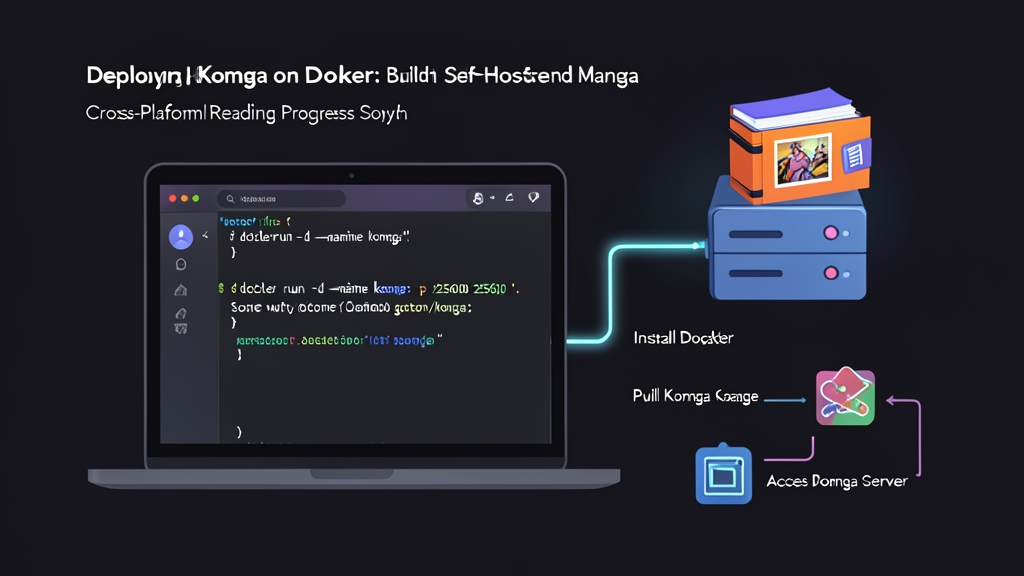
Implementation Guide: Deploying Komga via Docker Compose
Step 1: Prepare Storage Directories and Permissions
Verify the UID and GID of your dedicated media user. Avoid deploying services directly under root:
# Check your target user credentials
id
# Output: uid=1000(sysadmin) gid=1000(sysadmin)
Create your operational directories and set ownership explicitly:
sudo mkdir -p /opt/komga/config
sudo mkdir -p /mnt/storage/comics

# Ensure user 1000 owns the config directory
sudo chown -R 1000:1000 /opt/komga/config
sudo chmod -R 755 /opt/komga/config
Step 2: Construct the Production Docker Compose Configuration
Create your compose file inside /opt/komga:
cd /opt/komga
nano docker-compose.yml
Add the following configuration. It pins the container execution to non-root user 1000:1000 and sets JVM heap bounds to prevent memory bloat:
services:
  komga:
    image: gotson/komga:latest
    container_name: komga
    restart: unless-stopped
    user: "1000:1000"
    environment:
      - TZ=Etc/UTC
      # Limit heap: 512MB initial, 2048MB ceiling
      - JAVA_TOOL_OPTIONS=-Xms512m -Xmx2048m
    volumes:
      # Configuration and SQLite database
      - /opt/komga/config:/config
      # Media archive library mounted strictly read-only
      - /mnt/storage/comics:/data:ro
      # 1GB volatile RAM buffer for page extraction
      - type: tmpfs
        target: /tmp
        tmpfs:
          size: 1073741824
    ports:
      - "25600:25600"
    deploy:
      resources:
        limits:
          memory: 3072M
Step 3: Launch and Verify Container Health
Start the container in detached mode:
docker compose up -dA green “Up” status in docker ps does not guarantee a healthy Java startup. Tail the container logs to verify database migrations and port binding:
docker logs -f komgaLook for the Spring Boot startup confirmation:
INFO g.k.KomgaApplication - Started KomgaApplication in 7.842 seconds (process running for 8.611)If you encounter java.io.FileNotFoundException: /config/database.sqlite (Permission denied), the container user cannot write to the bind mount. Stop the stack with docker compose down, re-run sudo chown -R 1000:1000 /opt/komga/config, and launch again.
Step 4: Initial Configuration and Library Ingestion
- Navigate to
http://<server-ip>:25600in your browser. - Set up your primary administrator account with a strong passphrase.
- Head to Server Settings > Libraries and select Add Library. Name the library and point the root path to
/data. - Under Options, enable “Analyze comic contents”. This indexes aspect ratios, detects color pages, and tags two-page spreads automatically. In my test run, an initial scan of 12,500 CBZ files completed in roughly 24 minutes.
Step 5: Connect Mobile Clients via OPDS-PSE
Sync your reading sessions across phones and tablets without manual exporting:
- In the Komga web interface, navigate to Account Settings and copy your personal OPDS URL (for example,
http://<server-ip>:25600/opds/v1.2/catalog). - Open your mobile reader app—such as Mihon on Android or Panels on iOS.
- Create a new OPDS source using that catalog URL and enter your Komga account credentials.
- Open a volume on your tablet, skip to page 45, and check the Komga web dashboard. The reading state, percentage read, and timestamp update immediately.