The Problem With Scattered E-Books
If you’ve been collecting e-books for a few years, you know exactly what this looks like: a mix of PDFs on Google Drive, EPUBs buried in a Downloads folder, some MOBIs on an old laptop, and a few purchases on Amazon you can’t easily export. There’s no single place to browse, manage, or send anything to your Kindle without manually converting and emailing files.
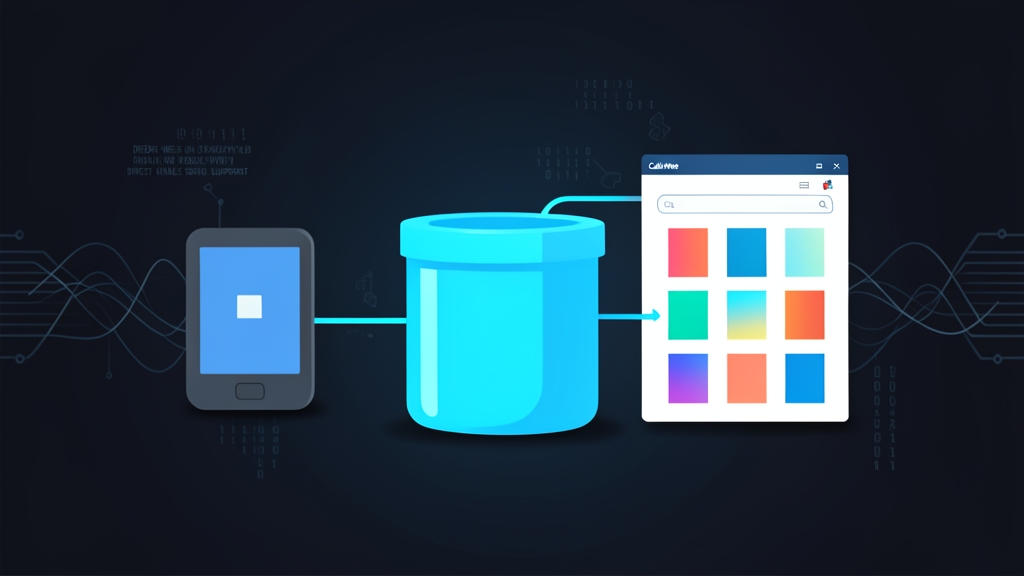
The root cause isn’t laziness — it’s that there’s no obvious self-hosted tool that handles all of this cleanly. Calibre the desktop app is powerful but isn’t designed for remote access or multi-device use. Calibre-Web fills that gap. It’s a web frontend for your Calibre library — runs in a container, accessible from any browser or Kindle, and supports Amazon’s official “Send to Kindle” email workflow.
I’ve been running this in my homelab for over a year. Once configured, you largely forget it’s there — books show up on your Kindle when you want them. That said, getting the initial configuration right, especially the SMTP part for Kindle delivery, took me a couple of tries. This guide covers the exact steps that actually work.
Installation
Prerequisites
Before starting, make sure you have:
- Docker and Docker Compose installed on your server
- An existing Calibre library (the
metadata.dbfile and your book files), or an empty folder if you’re starting fresh - A Gmail account (or any SMTP provider) for the Kindle email feature
- Your Kindle’s
@kindle.comemail address from your Amazon account settings
Directory Structure
Set up your folders first. This keeps everything organized and makes backups simple:
mkdir -p ~/homelab/calibre-web/config
mkdir -p ~/homelab/calibre-web/books
If you have an existing Calibre library, copy or mount the folder containing your metadata.db into ~/homelab/calibre-web/books. The directory must contain the Calibre metadata file or Calibre-Web will initialize an empty library.
Docker Compose File
Create the compose file:
nano ~/homelab/calibre-web/docker-compose.ymlversion: "3.8"
services:
calibre-web:
image: lscr.io/linuxserver/calibre-web:latest
container_name: calibre-web
environment:
- PUID=1000
- PGID=1000
- TZ=Asia/Tokyo
- DOCKER_MODS=linuxserver/mods:universal-calibre # enables ebook conversion
volumes:
- ./config:/config
- ./books:/books
ports:
- 8083:8083
restart: unless-stoppedA few notes on this config:
- PUID/PGID: Run
idin your terminal to get your actual user and group IDs. Using correct values avoids permission errors on mounted volumes. - DOCKER_MODS: The
universal-calibremod installs the full Calibre binaries inside the container. This is required for format conversion (e.g., EPUB to MOBI) and for the Kindle send feature to work. Without it, the “Send to Device” button is grayed out. - Port 8083: Default Calibre-Web port. Change the left side if that port is already in use on your host.
Start the container:
cd ~/homelab/calibre-web
docker compose up -d
The first startup takes 2–4 minutes while DOCKER_MODS downloads and installs the Calibre binaries. Watch the logs to confirm it completes:
docker compose logs -f calibre-webWait until you see a line like [ls.io-init] done. before proceeding.
Configuration
Initial Setup Wizard
Open your browser and go to http://<your-server-ip>:8083. You’ll see the initial setup screen asking for the location of your Calibre library.
Set the database path to /books (the container path, not the host path). Click “Submit”. If Calibre-Web finds metadata.db, it loads your library immediately. If not, it creates a new empty one.
Default login credentials:
- Username:
admin - Password:
admin123
Change the password immediately after first login via Admin → Edit User → admin.
Enabling Book Conversion
Head to Admin → Edit Basic Configuration → Feature Configuration. Under “External Binaries”, set:
- Path to Calibre Binaries:
/usr/bin
This tells Calibre-Web where to find the ebook-convert binary installed by the Docker mod. Without this, format conversion silently fails — no error, books just don’t arrive.
Save changes and return to the Feature Configuration page. Enable:
- Enable Uploads — allows you to upload new books via the web UI
- Enable Sending books via email — required for Kindle delivery
Configuring SMTP for Kindle Delivery
This is where most guides skip the details. Amazon’s “Send to Kindle” system works by emailing your book as an attachment to your Kindle’s @kindle.com address. Calibre-Web handles the conversion and sending automatically — you just need to give it working SMTP credentials.
Go to Admin → Edit Basic Configuration → Email Server Settings and fill in:
SMTP Hostname:  smtp.gmail.com
SMTP Port:      587
Encryption:     STARTTLS
SMTP Login:     [email protected]
SMTP Password:  (App Password — see below)
From E-mail: [email protected]Important: Gmail requires an App Password, not your regular account password, when 2FA is enabled. Generate one at Google Account → Security → App Passwords. Select “Mail” and “Other (custom name)”, name it “Calibre-Web”, and copy the 16-character password it shows you.
Back in the admin panel, open Edit User → admin and enter your Kindle address in the Kindle E-Mail field. Format: [email protected]. Find this under Amazon → Account → Manage Your Content and Devices → Preferences → Personal Document Settings.
One more step that’s easy to miss: Amazon only delivers documents from approved sender addresses. In your Amazon account, go to Manage Your Content and Devices → Preferences → Personal Document Settings → Approved Personal Document E-mail List. Add the Gmail address you configured as your SMTP sender. Skip this and every send will silently fail.
Sending a Book to Kindle
Browse to any book in your library, click the cover to open the detail page, then click Send to Kindle. Calibre-Web converts the book to the appropriate format and emails it to your Kindle address. The book appears on your device within a few minutes when connected to WiFi.
Books already in MOBI or AZW3 format land near-instantly. EPUBs need conversion first — typically 10–30 seconds depending on file size. A standard 300-page novel (~500 KB EPUB) converts in under 15 seconds.
Verification & Monitoring
Verifying the Setup Works
Check that conversion is working by uploading a small EPUB and triggering a Kindle send. Watch the container logs during the send:
docker compose logs -f calibre-web | grep -i "convert\|mail\|send\|error"A successful send looks like:
Converted book to mobi format
Mail sent to [email protected]
SMTP authentication errors almost always mean a wrong App Password or a missing approved-sender entry in Amazon. If you see “ebook-convert not found”, the DOCKER_MODS didn’t install correctly — run docker compose down && docker compose up -d and wait for the full mod installation to finish.
Persistent Logging
Calibre-Web writes logs inside the config volume. Tail them directly:
tail -f ~/homelab/calibre-web/config/calibre-web.logFor a homelab setup, the default log verbosity is fine. When troubleshooting, go to Admin → Edit Basic Configuration → Logging and temporarily set the log level to DEBUG.
Keeping the Container Updated
The LinuxServer image releases updates regularly. Add this to a weekly cron or run it manually:
cd ~/homelab/calibre-web
docker compose pull
docker compose up -d
Your library data and configuration persist in the mounted volumes, so updates are non-destructive.
Reverse Proxy (Optional but Recommended)
To access Calibre-Web from outside your home network, put it behind a reverse proxy with HTTPS. Nginx Proxy Manager or Traefik both work well — the setup is identical to any other service in your homelab stack.
Don’t expose port 8083 directly to the internet. Without HTTPS, your credentials travel in plaintext, and Calibre-Web’s admin panel gives full access to your library including upload and delete operations.
Final Thoughts
Calibre-Web earns its place fast. The send-to-Kindle feature alone justifies the setup time — no more hunting down an EPUB, running it through Calibre desktop, then emailing it as an attachment to yourself. Add a book to the library, click Send, it’s on your device.
Two things catch people out: the DOCKER_MODS line (easy to skip, quietly breaks all conversion) and Amazon’s approved sender list (undocumented, non-obvious, but required). Get those two right and nothing else should surprise you.
I’ve had Calibre-Web running for over a year without touching it. No maintenance, no breakage, no intervention needed. That kind of boring reliability is exactly what a homelab service should aim for.