Context & Why: Moving Away from Cloud-Tethered Surveillance
Six months ago, my surveillance setup hit a wall. Six Reolink 4K cameras were streaming RTSP directly to a Synology NAS, relying entirely on the cameras’ built-in pixel motion detection. The result was predictable chaos. A swaying oak branch, headlights sweeping across the blinds, or a moth fluttering past the infrared lens triggered instant alerts. My phone buzzed 40 to 60 times a night. Alert fatigue set in quickly, meaning a genuine break-in would have slipped right past unnoticed.
Consumer cloud ecosystems like Ring or Nest market smart detection, but they lock you into $10 to $20 monthly subscriptions. Worse, uploading six 4K feeds would saturate roughly 30 to 50 Mbps of upstream bandwidth while routing private video through third-party servers. If you care about local data ownership and zero-latency automations, offloading camera feeds makes zero sense.
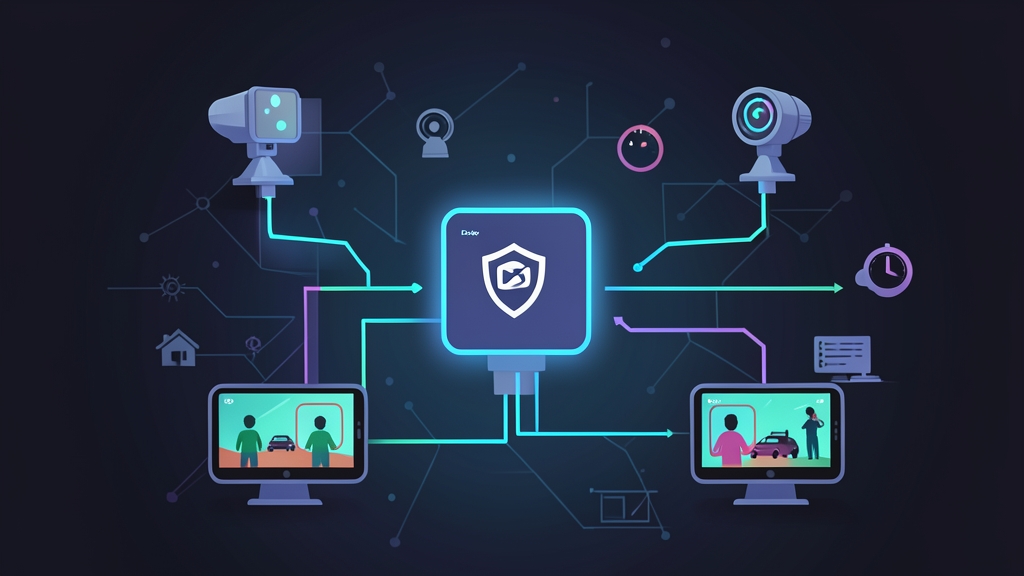
I ditched that workflow and rebuilt my surveillance stack around Frigate NVR and a Google Coral USB Edge TPU inside Docker. Frigate’s architecture is brilliant because it avoids brute-forcing AI inference across full 4K streams at 30 fps. Instead, it inspects low-resolution substreams (such as 720p at 5 fps) strictly for pixel changes. When it finds movement, it crops a tight bounding box around the affected coordinates and passes only that small crop to the Coral TPU for inference.
The performance payoff was immediate. Host CPU usage on my Intel Core i5-10400 server plummeted from 85% under OpenCV software detection to under 12%. Object inference times dropped from 160ms on x86 cores to a crisp 8.5ms on the Coral. Over six months of continuous 24/7 recording, this setup has filtered out thousands of false alarms without missing a single real event.
Installation: Host Preparation and Docker Deployment
Before launching Frigate in Docker, prepare the host kernel to talk to the Coral accelerator and allocate sufficient shared memory for inter-process frame sharing.
1. Host Preparation and USB Permissions
Plug the Google Coral USB into a native USB 3.0 port on your Debian or Ubuntu host. Run lsusb to confirm the kernel recognizes the physical device:
lsusb | grep -i "Global Unichip\|Google"
# Uninitialized devices show ID 1a6e:089a Global Unichip Corp.
# Once initialized by the Edge TPU runtime, the ID switches to 18d1:9302 Google Inc.
Notice that vendor ID change. Because the hardware alters its device identity upon loading its firmware, you must add udev rules covering both states so the container retains read/write permissions:
sudo bash -c 'cat <<EOF > /etc/udev/rules.d/99-edgetpu-accelerator.rules
SUBSYSTEM=="usb", ATTRS{idVendor}=="1a6e", MODE="0666"
SUBSYSTEM=="usb", ATTRS{idVendor}=="18d1", MODE="0666"
EOF'

sudo udevadm control --reload-rules && sudo udevadm trigger
2. Storage Layout and Shared Memory
Frigate uses shared memory (/dev/shm) as a zero-copy pipeline for raw, decoded video frames. Docker defaults to a meager 64MB, which crashes within seconds once you connect multiple high-bitrate cameras. A solid rule of thumb is 30MB per camera feed. For my six-camera rig, 256mb provides plenty of breathing room.
Set up directories on your host for persistent configuration files and recorded footage:
mkdir -p ~/frigate/config ~/frigate/storage3. The Docker Compose Specification
Here is the battle-tested docker-compose.yml file configured with Coral USB pass-through, Intel QuickSync hardware decoding, and a RAM-backed cache:
services:
  frigate:
    container_name: frigate
    privileged: true # Simplifies hardware pass-through for TPU and GPU nodes
    restart: unless-stopped
    image: ghcr.io/blakeblackshear/frigate:stable
    shm_size: "256mb"
    devices:
      - /dev/bus/usb:/dev/bus/usb # Passes the Coral USB bus
      - /dev/dri/renderD128:/dev/dri/renderD128 # Intel QuickSync / VA-API node
    volumes:
      - /etc/localtime:/etc/localtime:ro
      - ~/frigate/config:/config
      - ~/frigate/storage:/media/frigate
      - type: tmpfs
        target: /tmp/cache
        tmpfs:
          size: 1000000000 # 1GB RAM cache to curb SSD write endurance wear
    ports:
      - "5000:5000"
      - "8554:8554" # RTSP restream
      - "8555:8555/tcp" # WebRTC playback
      - "8555:8555/udp" # WebRTC playback
    environment:
      FRIGATE_RTSP_PASSWORD: "SecureRtspPassword123"
Start the container in the background:
docker compose up -dConfiguration: Optimizing Streams, Detectors, and Masks
All pipeline settings live in ~/frigate/config/config.yml. A common beginner trap is running object detection against the 4K main feed. Don’t do that. Split your camera into two separate streams: a 720p substream dedicated to the detection loop, and the full-resolution main stream for storage.
1. Complete Production Configuration
mqtt:
  enabled: true
  host: 192.168.1.10
  user: mqtt_user
  password: mqtt_password

detectors:
  coral:
    type: edgetpu
    device: usb

ffmpeg:
  hwaccel_args: preset-vaapi

record:
  enabled: true
  retain:
    days: 3
    mode: all
  events:
    retain:
      default: 14
      mode: active_objects

snapshots:
  enabled: true
  retain:
    default: 14

cameras:
  driveway:
    ffmpeg:
      inputs:
        # Substream (720p @ 5fps) for lightweight motion and TPU detection
        - path: rtsp://viewer:[email protected]:554/h264Preview_01_sub
          roles:
            - detect
        # Mainstream (4K @ 25fps) for continuous recording and snapshots
        - path: rtsp://viewer:[email protected]:554/h264Preview_01_main
          roles:
            - record
    detect:
      enabled: true
      width: 1280
      height: 720
      fps: 5
    objects:
      track:
        - person
        - car
      filters:
        person:
          min_score: 0.65
          threshold: 0.75
        car:
          min_score: 0.60
          threshold: 0.70
    motion:
      mask:
        # Mask out sky, distant treetops, and timestamps (coords in detect resolution)
        - 0,0,1280,0,1280,180,0,180
2. Critical Tuning Parameters
- Detection Framerate (5 fps): Keep detect fps pegged at 5. Bumping this to 15 or 30 triples CPU consumption without improving tracking accuracy, because walking people and rolling cars move slowly across frame bounds.
- The tmpfs RAM Cache: Frigate ingests incoming feeds in 10-second segments. Writing these transient slices to disk churns hundreds of gigabytes per day. Pointing
/tmp/cacheto a 1GB tmpfs mount handles this pipeline in memory, saving your NVMe drive from premature write exhaustion. - Motion Masks: The Coral remains completely idle until Frigate registers changed pixels. Use Frigate’s built-in web UI mask editor to cover timestamps, fluttering foliage, and distant streets. If pixels don’t trip motion, the TPU never burns a single cycle.
Verification & Monitoring: 6 Months of Operational Metrics
After six months of 24/7 runtime without unexpected service restarts, I’ve confirmed that validating your hardware accelerators early saves days of silent troubleshooting.
1. Verifying Hardware Acceleration and TPU Speeds
Open the Frigate web interface at http://<your-server-ip>:5000 and head to System. Look at the Coral inference timing:
- Target Inference Time: 7ms to 10ms is standard for the Google Coral USB. If this metric hovers above 50ms, your configuration failed to pass the USB bus and Frigate is falling back to slow CPU emulation.
- Camera Process Overhead: With Intel VA-API handling H.264/H.265 decompression, each camera process should draw just 1.5% to 3% CPU on a modern x86 chip.
Verify that your VA-API driver endpoints loaded correctly from the container shell:
docker exec -it frigate vainfo
# Verify driver outputs showing VAProfileH264Main, High, and HEVCMain profiles
2. Inspecting Real-Time MQTT Telemetry
Frigate talks directly to your home automation hub via MQTT. Track active event state and sensor payloads from your terminal with mosquitto_sub:
mosquitto_sub -h 192.168.1.10 -u mqtt_user -P mqtt_password -t 'frigate/#' -vWatch these key topics:
frigate/<camera_name>/person: Publishes1or0for instant Home Assistant triggers.frigate/events: Emits JSON payloads containing exact bounding box coordinates, detection confidence scores, and zone entries.frigate/stats: Generates periodic diagnostics including per-camera decoding fps, TPU temperatures, inference speeds, and storage consumption.
3. Operational Lessons Learned
Running this stack through summer heatwaves and heavy storms highlighted three practical considerations:
- Power and Heat on the USB Bus: The Coral USB draws up to 900mA during sustained inference bursts and gets noticeably warm (around 52°C). Plug it directly into the rear motherboard I/O ports. Running it through unpowered hubs or front-panel extensions frequently leads to USB bus resets and dropped devices.
- Separating Fast and Slow Storage: Don’t dump everything onto one disk. Put your Docker config, SQLite database (
frigate.db), and Home Assistant automations on an NVMe SSD for fast queries. Ship continuous 24/7 video streams to a secondary ZFS pool or spinning hard drives where sequential write speeds shine. - Fine-Tuning Zones and Thresholds: Tracking objects is only half the battle. Define explicit polygon zones for your driveway or porch. Set
min_score: 0.65andthreshold: 0.75for humans. This prevents parked cars from triggering repeated false positives when headlights sweep past them at midnight.
Combining Frigate NVR with a Google Coral TPU turns cheap RTSP cameras into an enterprise-grade detection engine. You get sub-second smart alerts, zero cloud subscriptions, and absolute privacy on your own home hardware.