Quick start (5 min)
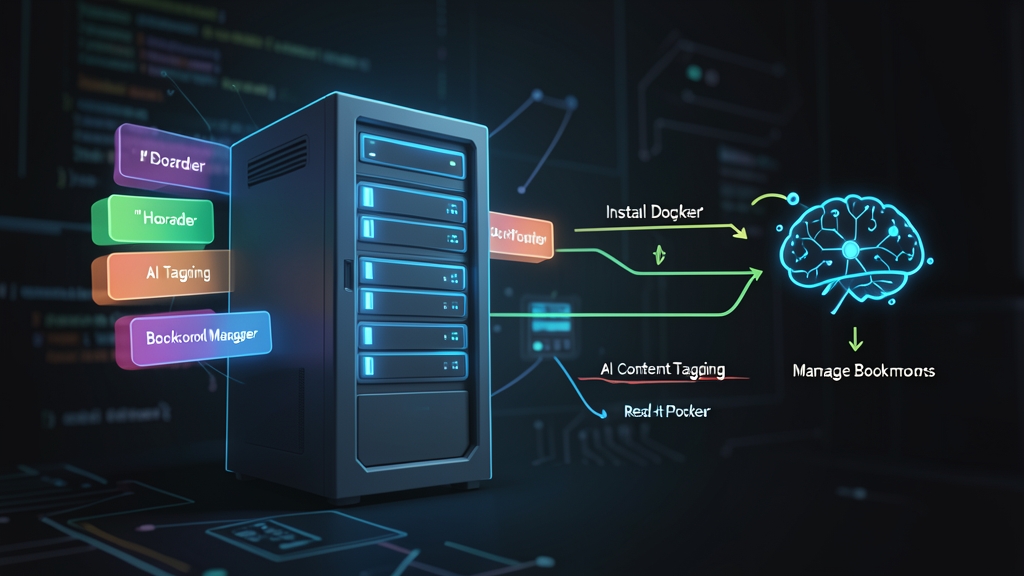
Most browser bookmark bars inevitably turn into digital graveyards. Hoarder fixes this clutter. It captures full-page snapshots, extracts readable article text, and uses language models to automatically tag your links, uploaded PDFs, and images. Think of it as a modern, self-hosted alternative to Pocket or Wallabag—with automated organization built in.
We will set up a production-ready stack using Docker Compose. On a modest server (2 vCPUs and 4 GB RAM), the base stack idles at under 450 MB of memory.
Create a dedicated directory for your configuration and jump into it:
mkdir -p ~/homelab/hoarder && cd ~/homelab/hoarderGenerate a secure 32-character secret for user authentication:
openssl rand -base64 36 | tr -dc 'a-zA-Z0-9' | head -c 32; echoSave that string. Now create your docker-compose.yml file:
services:
  web:
    image: ghcr.io/hoarder-app/hoarder:latest
    restart: unless-stopped
    ports:
      - "3000:3000"
    volumes:
      - ./data:/data
    environment:
      REDIS_HOST: redis
      MEILI_ADDR: http://meilisearch:7700
      MEILI_MASTER_KEY: "replace_with_a_secure_meili_master_key"
      BROWSER_WEB_URL: http://chrome:9222
      NEXTAUTH_SECRET: "paste_your_generated_32_char_secret_here"
      NEXTAUTH_URL: "http://192.168.1.100:3000" # Set to your host IP or reverse proxy URL
      DATA_DIR: /data
      CRAWLER_VIDEO_DOWNLOAD: "true"
      CRAWLER_JOB_TIMEOUT: 60
    depends_on:
      - redis
      - meilisearch
      - chrome

  redis:
    image: redis:7-alpine
    restart: unless-stopped
    volumes:
      - ./redis-data:/data

  meilisearch:
    image: getmeili/meilisearch:v1.11
    restart: unless-stopped
    environment:
      MEILI_NO_ANALYTICS: "true"
      MEILI_MASTER_KEY: "replace_with_a_secure_meili_master_key"
    volumes:
      - ./meilisearch-data:/meili_data

  chrome:
    image: gcr.io/zenika-hub/alpine-chrome:124
    restart: unless-stopped
    command:
      - --no-sandbox
      - --disable-gpu
      - --disable-dev-shm-usage
      - --remote-debugging-address=0.0.0.0
      - --remote-debugging-port=9222
Bring the containers up in the background:
docker compose up -dGive the services 10 to 15 seconds to initialize. Open http://<your-server-ip>:3000 in your browser to land on Hoarder’s initial setup screen, then register your primary admin account.
Deep dive
Before leaving this running as your daily driver, let’s unpack what happens under the hood when you feed a URL to port 3000.
Architecture breakdown
Hoarder avoids a monolithic design. Parsing modern client-rendered JavaScript and extracting image text (OCR) are resource-intensive tasks that require dedicated engines. The workload spans four coordinated services:
- Web (Next.js Application): Renders the web UI, handles sessions via NextAuth, coordinates background workers, and serves the REST API.
- Headless Chrome: Hoarder connects directly to Chrome over the Chrome DevTools Protocol (CDP) via port 9222. When you bookmark a page, Chrome executes client-side scripts, captures a full-viewport screenshot, and extracts clean article text.
- Meilisearch: A fast, typo-tolerant search engine. Every saved article, PDF excerpt, and OCR string gets tokenized here. You can run instant full-text searches across tens of thousands of archived pages in under 15 milliseconds.
- Redis: Manages internal job queues. Operations like thumbnail rendering, video downloads via yt-dlp, and AI inference run through Redis workers so the UI stays responsive.
Persistent volume layout
Separating persistent volumes properly protects your bookmarks from data corruption during container upgrades. A clean layout also makes routine snapshot backups straightforward.
Check your directory structure after the first launch:
tree -L 2 ~/homelab/hoarderYour tree should match this layout:
/home/ubuntu/homelab/hoarder
├── data/
│   ├── previews/
│   ├── sqlite.db
│   └── uploads/
├── meilisearch-data/
│   └── data.ms/
├── redis-data/
│   └── dump.rdb
└── docker-compose.yml
All core state—including your user profile, tag mappings, and collection lists—lives in ./data/sqlite.db. Backing up the ./data directory alongside ./meilisearch-data preserves your entire library during host migrations.
Advanced usage
Hoarder’s biggest differentiator is automated tagging. Instead of manually categorizing each bookmark, you can let an LLM parse the content and apply relevant tags automatically.
Configuring local AI tagging with Ollama
To keep your browsing habits and documents private, connect Hoarder to a local Ollama instance running on the same Docker bridge network.
Add Ollama directly to your docker-compose.yml:
  ollama:
    image: ollama/ollama:latest
    restart: unless-stopped
    volumes:
      - ./ollama-data:/root/.ollama
    ports:
      - "11434:11434"
Next, add the inference configuration to the web container’s environment block:
    environment:
      # ... existing environment variables ...
      OLLAMA_BASE_URL: "http://ollama:11434"
      INFERENCE_JOB_TIMEOUT: 180
      INFERENCE_TEXT_MODEL: "llama3.2:3b"
      INFERENCE_IMAGE_MODEL: "llava:7b"
      CRAWLER_DOWNLOAD_BANNER_IMAGE: "true"
Apply the configuration changes and pull the models:
docker compose up -d
docker compose exec ollama ollama pull llama3.2:3b
docker compose exec ollama ollama pull llava:7b
The llama3.2:3b model needs roughly 2.2 GB of RAM (or VRAM on an Nvidia host), while llava:7b requires about 5 GB. If you save an article on Linux kernel tuning, Hoarder passes the clean text to Ollama and applies tags like #linux, #performance, and #sysadmin within three seconds.
Using OpenAI instead
If your server has limited compute resources, point Hoarder to OpenAI instead. Swap out the Ollama variables in the web service for standard API keys:
    environment:
      OPENAI_API_KEY: "sk-proj-yourActualKeyHere"
      INFERENCE_TEXT_MODEL: "gpt-4o-mini"
      INFERENCE_IMAGE_MODEL: "gpt-4o-mini"
Using gpt-4o-mini processes bookmarks quickly while keeping API costs well under a dollar for thousands of links.
Reverse proxy configuration (Nginx)
Running Hoarder behind HTTPS is essential if you want browser extensions and mobile clients to sync securely. Here is a battle-tested Nginx server block:
server {
    listen 80;
    server_name bookmarks.homelab.lan;
    return 301 https://$host$request_uri;
}

server {
    listen 443 ssl http2;
    server_name bookmarks.homelab.lan;

    ssl_certificate /etc/ssl/certs/hoarder.crt;
    ssl_certificate_key /etc/ssl/private/hoarder.key;

    client_max_body_size 100M; # Accommodates large PDF uploads

    location / {
        proxy_pass http://127.0.0.1:3000;
        proxy_set_header Host $host;
        proxy_set_header X-Real-IP $remote_addr;
        proxy_set_header X-Forwarded-For $proxy_add_x_forwarded_for;
        proxy_set_header X-Forwarded-Proto $scheme;
        proxy_http_version 1.1;
        proxy_set_header Upgrade $http_upgrade;
        proxy_set_header Connection "upgrade";
    }
}
Ensure that NEXTAUTH_URL inside docker-compose.yml matches https://bookmarks.homelab.lan. A mismatch here will break session cookies and trigger CSRF errors on login.
Practical tips
- Install the official browser extensions: Search for “Hoarder” on the Chrome Web Store or Firefox Add-ons. Once installed, enter your server domain and generate a dedicated API token under User Settings > CLI & Apps. Hit
Alt+Shift+Sto save any page instantly. - Cap headless Chrome resources: Unconstrained Chromium processes can consume 2 GB or more during complex site renders. Add hard resource limits to your
chromeservice indocker-compose.yml:deploy: resources: limits: memory: 1024M - Automate live SQLite backups: Avoid copying
sqlite.dbdirectly while containers are active; uncommitted writes can corrupt your snapshot. Instead, trigger SQLite’s online backup API via cron:sqlite3 ~/homelab/hoarder/data/sqlite.db ".backup '/var/backups/hoarder-$(date +%F).db'" - Disable open signups: Once you finish onboarding, add
DISABLE_SIGNUPS: "true"under thewebenvironment block. This closes public registrations and protects your storage and LLM tokens.