Why Running Raw LLMs in a HomeLab Hits a Wall
Most homelab AI experiments start the same way. You pull an Ollama container onto an Ubuntu server, open Open WebUI, and run test prompts through a clean chat box. It is fun for an evening. But the moment you try to hook that model into actual homelab maintenance—say, summarizing 10,000 daily lines of Traefik logs or querying your Obsidian notes—the setup falls flat.
Gluing raw LLM API endpoints to DIY Python scripts spirals into maintenance headaches fast. You end up writing hundreds of lines of boilerplate just to manage token limits, sliding chat histories, and PDF text chunking. Cloud services like OpenAI or Anthropic offer slick workflow builders, but sending internal IP schemes, WireGuard configs, and home telemetry to third-party APIs defeats the whole point of self-hosting.
The Architecture: Dify for Logic, Ollama for Compute
The fix is simple: decouple raw model inference from workflow orchestration. Treat your model server like a backend database and put a dedicated application layer in front of it.
Ollama handles the heavy lifting. It loads GGUF model weights into your GPU VRAM, manages context batches, and serves raw generation over a lean REST API at port 11434.
Dify takes over everything else. It gives you a visual pipeline builder, prompt testing sandboxes, hybrid vector search, and native tool execution. Behind its web UI, Dify coordinates PostgreSQL 15 for app state, Redis 7 for task queues, Celery workers for async background jobs, and vector engines like Weaviate or Qdrant. Combining both on a single machine gives you the modular flexibility of commercial enterprise stacks while keeping every token strictly on your local network.
Hands-on Practice: Deploying and Connecting the Stack
Running multi-container stacks alongside hardware pass-through requires solid network coordination. Here is the exact configuration I run on a dedicated server equipped with an AMD Ryzen 7 5700X and an RTX 3060 12GB.
Tip 1: Prepare Ollama with Explicit Host Binding
By default, native Ollama installations often bind to 127.0.0.1:11434. That loopback lock prevents external Docker containers from reaching it. When running Ollama in Docker, bind it across all container interfaces by setting OLLAMA_HOST=0.0.0.0 and assign it to a dedicated bridge network.
Here is a battle-tested docker-compose.yml snippet with NVIDIA GPU acceleration:
services:
  ollama:
    image: ollama/ollama:latest
    container_name: ollama
    restart: unless-stopped
    ports:
      - "11434:11434"
    environment:
      - OLLAMA_KEEP_ALIVE=24h
      - OLLAMA_HOST=0.0.0.0
    volumes:
      - /opt/homelab/ollama:/root/.ollama
    deploy:
      resources:
        reservations:
          devices:
            - driver: nvidia
              count: all
              capabilities: [gpu]
    networks:
      - ai-network

networks:
  ai-network:
    name: homelab-ai-net
    driver: bridge
Pull your baseline models before starting Dify. On an 8GB to 16GB VRAM budget, pairing a quantized 8B model with an efficient embedding model hits the sweet spot for speed and accuracy:
docker exec -it ollama ollama pull llama3.1:8b
docker exec -it ollama ollama pull nomic-embed-text
Tip 2: Clone and Configure Dify’s Docker Infrastructure
Dify ships a comprehensive production compose tree. Instead of writing separate configurations for nine distinct microservices, pull the upstream repository directly into your homelab services directory:
cd /opt/homelab
git clone https://github.com/langgenius/dify.git
cd dify/docker
cp .env.example .env
Generate cryptographic keys to secure your session storage and vector database credentials:
# Generate a 32-byte secret key
openssl rand -base64 32
Insert the generated string into the SECRET_KEY variable inside .env. If you already run a reverse proxy or services like Nextcloud on port 80, remap the exposed NGINX frontend port:
EXPOSE_NGINX_PORT=8088
EXPOSE_NGINX_SSL_PORT=8443
Tip 3: Bridge Dify to Ollama via Docker Network
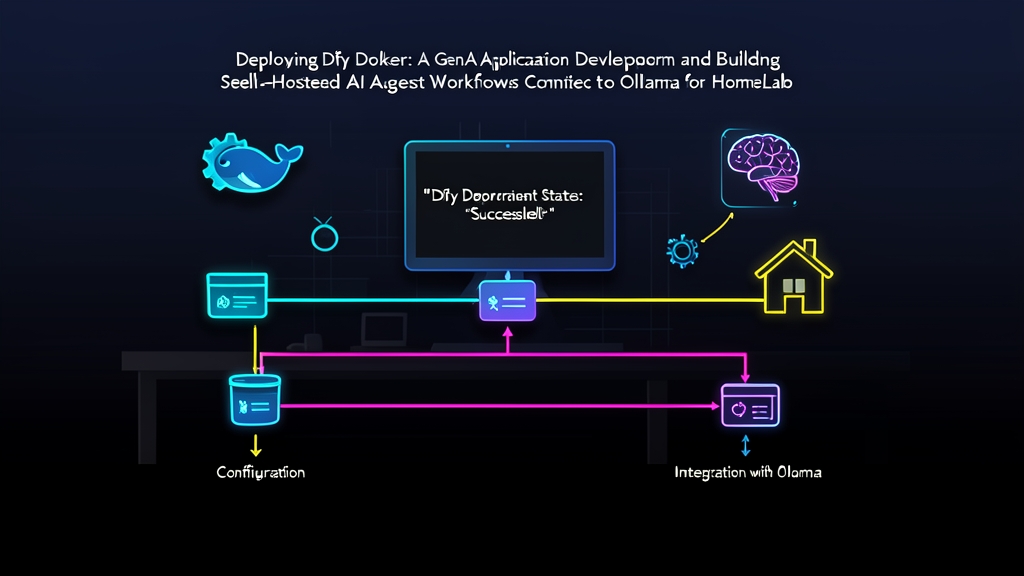
Default compose files isolate Dify inside a private bridge. To let Dify talk to your Ollama container without routing packets through your home router or physical NIC, attach Dify to your existing homelab-ai-net bridge.
Append the external network reference to the bottom of dify/docker/docker-compose.yaml:
networks:
  default:
    driver: bridge
  homelab-ai-net:
    external: true
Scroll up to the api and worker service blocks and add the network mapping to both:
    networks:
      - default
      - homelab-ai-net
Launch the entire platform in detached mode:
docker compose up -dGive the stack roughly 45 seconds to run initial database migrations. Run docker compose ps to confirm that all core services—especially api, worker, db, and web—show healthy states.
Tip 4: Configure the Ollama Provider in Dify’s Web UI
Open http://<your-server-ip>:8088 in your browser and complete the initial administrator registration. Inside the main workspace:
- Click your profile icon at top-right and open Settings.
- Select Model Provider from the left sidebar and choose Ollama.
- Click Install / Configure.
Enter these exact values in the modal:
- Model Type: LLM
- Model Name:
llama3.1:8b - Server URL:
http://ollama:11434 - Context Size:
8192
Add the embedding model next. Choose Text Embedding under Model Type and set the name to nomic-embed-text. Dify will send a test handshake to Ollama immediately. A green checkmark confirms your pipeline is operational.
Tip 5: Building a Practical Documentation Agent
With infrastructure in place, you can build production-grade workflows. Go to the Studio tab, select Create from Blank, and pick Chatflow. Chatflows use a node-based graph that tracks conditional logic and intermediate states.
Here is an effective layout for querying infrastructure playbooks:
- Start Node: Ingests the query from a chat widget or webhook payload.
- Knowledge Retrieval Node: Connects to a Dify Knowledge Base containing your homelab documentation (e.g., Markdown notes, Ansible tasks, and Docker specs). Dify segments text into 500-token chunks with 50-token overlaps, indexing them with
nomic-embed-text. - LLM Node: Passes the user prompt and the top 3 retrieved context chunks into
llama3.1:8bwith a strict system constraint: “Answer using only the provided context. If the documentation lacks the answer, output: Information not documented in runbooks.” - Answer Node: Streams the verified markdown output back to the user.
On an RTX 3060, this retrieval pipeline responds in about 1.8 seconds. It eliminates hallucinated subnet ranges and config typos while keeping sensitive infrastructure records strictly within your firewall.
Keeping Your Local AI Stack Lean and Reliable
Resource budgets require discipline. A 4-bit quantized llama3.1:8b claims roughly 5.4GB of VRAM, while nomic-embed-text takes another 400MB. That leaves about 6GB of headroom on a 12GB card. Guard that remaining margin carefully—KV cache sizes expand rapidly when processing 8,192-token context windows across concurrent user sessions.
Data integrity is just as critical. Set up an automated daily rsync or BorgBackup cron job targeting dify/docker/volumes/db and dify/docker/volumes/app/storage. If a container breaks or an upgrade corrupts a volume, restoring those directories brings your prompts, vector indices, and custom agents back online in minutes—no monthly cloud invoices required.