
The Retro Gaming Sprawl Problem
Managing retro games across multiple machines usually spirals out of control. Over fifteen years, my collection swelled past 1,800 ROM files totaling 140 GB. They sat scattered across two external hard drives, an old Synology NAS, and a desktop secondary NVMe drive. File naming was a disaster. Some ROMs used clean No-Intro conventions, others carried cryptic release-group tags from 2004, and almost none included box art, manuals, or release metadata.
Playing them was just as painful. Every client machine needed its own emulator frontend. RetroArch required custom controller bindings on every laptop. BIOS paths broke constantly, and save files never synced between the living room mini-PC and my handheld. Handing a friend a controller meant fifteen minutes of mapping button layouts and troubleshooting audio drivers.
I wanted the Jellyfin experience for retro games. Host the files centrally on an unRAID or Ubuntu server, catalog the metadata automatically, and stream gameplay straight to any browser window without installing local emulators.
Core Architecture: How RomM Handles Emulation
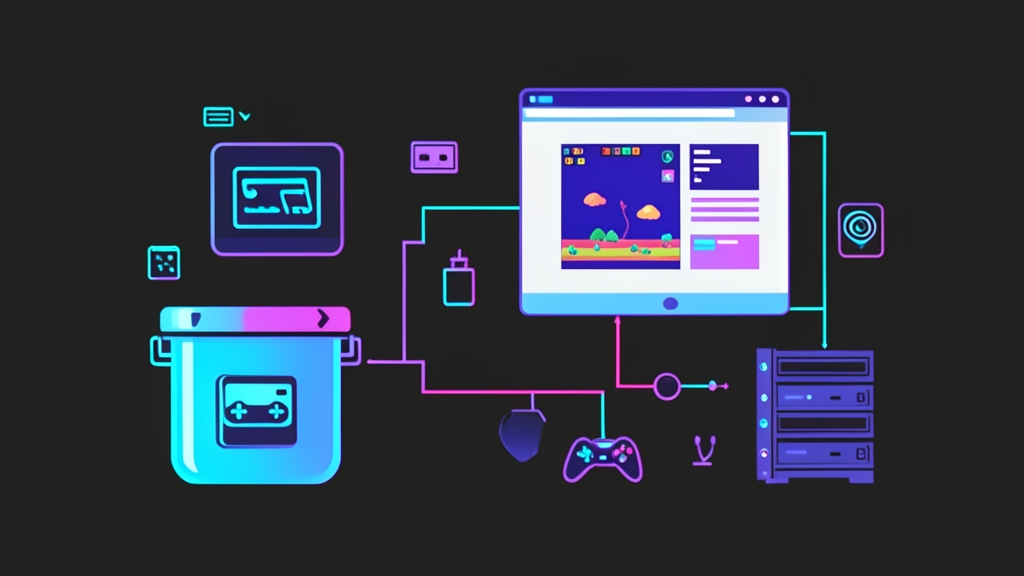
RomM (ROM Manager) delivers exactly that workflow. Built on Python with FastAPI, it combines a responsive web frontend with automated scrapers and browser-based emulators. Four core components drive the stack:
- FastAPI Backend & Database: RomM runs a lightweight Python API backed by MariaDB or PostgreSQL. The database tracks your ROM catalog, scrap status, custom tags, and multi-user authentication. Memory overhead stays low, typically sitting below 250 MB RAM on idle.
- IGDB & MobyGames Metadata Scrapers: The scanner inspects your ROM filenames and queries the Twitch-backed IGDB API. It pulls high-resolution box art, back covers, game descriptions, developer details, genres, and release dates without manual tagging.
- Clientless Emulation via EmulatorJS: RomM embeds EmulatorJS directly into its interface. Click “Play,” and RomM streams the ROM and appropriate libretro core directly to the client. The browser executes the game locally inside a WebAssembly canvas, handling controller inputs and audio through standard browser APIs.
- Deterministic Directory Slugs: RomM identifies consoles by folder names. Directories must use standardized slug identifiers—such as
snes,gba,megadrive, andpsx. If your directory names match the convention, scanning requires zero manual sorting.
Deploying RomM with Docker Compose
This deployment pairs RomM with MariaDB 11.4 on an Ubuntu 24.04 LTS host. We will create the filesystem layout, generate Twitch API credentials for automated scraping, and bring up the stack with Docker Compose.
Step 1: Prepare Host Directories and Set Permissions
Create the directory structure for application state, database storage, and game libraries:
mkdir -p ~/homelab/romm/{config,database,resources}
mkdir -p ~/homelab/romm/library/roms/{snes,gba,megadrive,psx,n64}
mkdir -p ~/homelab/romm/library/bios
cd ~/homelab/romm
RomM runs under UID 1000 by default. Set ownership on the storage folders now to prevent container permission errors when downloading cover art or writing saves:
chown -R 1000:1000 ~/homelab/romm/config ~/homelab/romm/resourcesDrop your ROM files into their respective subfolders. For instance, put Game Boy Advance .gba files into library/roms/gba/ and Super Nintendo .sfc or .smc files into library/roms/snes/. Copy any required BIOS images (such as scph5501.bin for PS1) directly into library/bios/.
Step 2: Generate Twitch Developer Credentials for IGDB
IGDB provides rich game metadata, but requests require Twitch developer credentials:
- Sign in to the Twitch Developer Console with any standard Twitch account.
- Select Register Your Application.
- Name it something descriptive (for example,
my-homelab-romm). - Set the OAuth Redirect URL to
http://localhost. - Choose Application Integration as the Category and click Create.
- Copy the displayed Client ID, then click New Secret to generate your Client Secret.
Step 3: Define the Compose Stack
Generate a random 32-character authentication key for encrypting web sessions:
openssl rand -hex 32Now create your docker-compose.yml file, substituting your generated key and Twitch credentials:
services:
  romm-db:
    image: mariadb:11.4
    container_name: romm-db
    restart: unless-stopped
    environment:
      - MARIADB_ROOT_PASSWORD=SetAStrongRootPasswordHere456
      - MARIADB_DATABASE=romm
      - MARIADB_USER=romm_user
      - MARIADB_PASSWORD=SetAStrongDatabaseUserPassword123
    volumes:
      - ./database:/var/lib/mysql
    healthcheck:
      test: ["CMD", "healthcheck.sh", "--connect", "--innodb_initialized"]
      interval: 10s
      timeout: 5s
      retries: 5

  romm:
    image: rommapp/romm:latest
    container_name: romm
    restart: unless-stopped
    depends_on:
      romm-db:
        condition: service_healthy
    environment:
      - DB_HOST=romm-db
      - DB_NAME=romm
      - DB_USER=romm_user
      - DB_PASSWD=SetAStrongDatabaseUserPassword123
      - ROMM_AUTH_SECRET_KEY=YOUR_OPENSSL_HEX_KEY_HERE
      - IGDB_CLIENT_ID=YOUR_TWITCH_CLIENT_ID_HERE
      - IGDB_CLIENT_SECRET=YOUR_TWITCH_CLIENT_SECRET_HERE
    ports:
      - "8080:8080"
    volumes:
      - ./resources:/romm/resources
      - ./config:/romm/config
      - ./library/roms:/romm/library/roms
      - ./library/bios:/romm/library/bios
Step 4: Start Containers and Run the Initial Scan
Launch the database and application containers in detached mode:
docker compose up -dMonitor startup output to verify database schema migrations execute cleanly:
docker logs -f rommWhen the logs display Application startup complete, open your browser and navigate to http://<your-server-ip>:8080. Fill in the initial prompt to set up your primary admin username and password.
To populate your library, click Settings in the navigation bar, choose Scan, and select Scan Library. RomM walks your directories, identifies file extensions, matches titles against IGDB, and downloads cover art. On a basic 4-core home server, indexing 350 SNES and GBA games takes roughly 90 seconds.
Field Notes and Troubleshooting
Running a web-based game server introduces unique edge cases around naming conventions, disc formats, and browser security policies.
- Use No-Intro and Redump Names: RomM relies on filename similarity scoring. A file named
The Legend of Zelda - A Link to the Past (USA).sfcmatches IGDB instantly with 100% confidence. By contrast, a trimmed dump namedzelda_lttp_v1.smcwill fail matching and force you into manual search screens. - Convert Multi-Disc Titles to M3U Playlists: PS1 titles like Metal Gear Solid or Final Fantasy VII span multiple discs. Store the images as compressed
.chdfiles in a dedicated game folder. Then add an.m3uplaylist file alongside them containing each disc filename on a new line. Point RomM at the.m3ufile. This prevents duplicate library entries while allowing seamless disc swaps directly inside EmulatorJS. - Serve Behind a Reverse Proxy with HTTPS: Modern Chromium and WebKit browsers restrict the HTML5 Gamepad API and Fullscreen API on insecure HTTP origins outside of
localhost. If you access RomM across your local subnet, Bluetooth controllers will not register. Place RomM behind Traefik, Caddy, or Nginx Proxy Manager with an internal TLS certificate from Let’s Encrypt or your local step-ca. - Browser Save States and Syncing: In-game SRAM battery saves persist inside browser IndexedDB storage and sync back to the RomM host upon exiting. If your browser runs aggressive privacy extensions or auto-clears site storage on tab close, you will lose progress before the sync completes. Whitelist your RomM domain in uBlock Origin or Privacy Badger.
Next Steps
You now have a clean, self-hosted web console that lets anyone on your network jump into a classic title within seconds. From here, consider configuring OIDC to link user sign-ins with Authentik or Keycloak, scheduling automated nightly dumps of your database and resources folders, or pinning RomM to your Homepage dashboard.