Context & Why
Engineers, support reps, and HR staff constantly ask for an internal assistant that can query private wikis and architecture specs. But pasting internal documents into public SaaS chatbots creates huge security liabilities. Architecture blueprints, source code, and employee records can easily leak past your firewall.
Building an internal Retrieval-Augmented Generation (RAG) system from scratch is slow. You need document parsers, chunking pipelines, vector databases, and an authentication layer with granular permissions. Most open-source UI wrappers support only a single user account. Without role-based access, a junior developer or contractor could accidentally query payroll data.
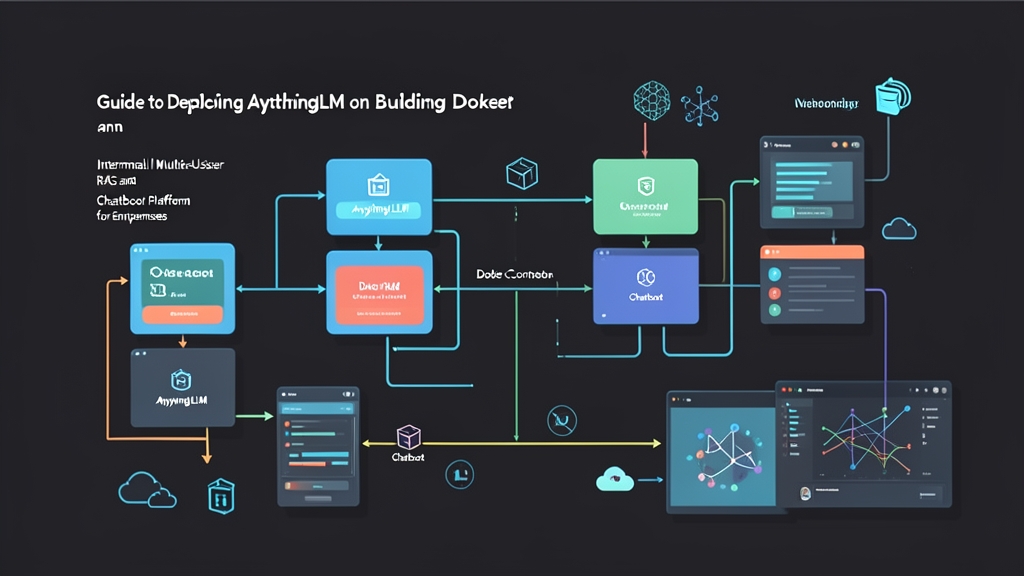
AnythingLLM solves this packaging headache. It bundles document parsing (PDF, DOCX, CSV), local vector storage via LanceDB, and multi-tenant permissions into a single container. Point it at Ollama, vLLM, or commercial APIs like Anthropic and OpenAI. Your data stays entirely on your own virtual private cloud (VPC).
Installation
Containerizing AnythingLLM keeps updates painless and isolates your storage volumes. You will need a host with Docker Engine 24.0+, Docker Compose, and at least 4 GB of RAM (scale to 8 GB or more if running local LLMs on the same box).
1. Create Directory Structure and Storage Mounts
AnythingLLM stores SQLite database records, uploaded raw files, and LanceDB vector files in a single persistent mount. Create that directory on your host:
sudo mkdir -p /opt/anythingllm/storage
cd /opt/anythingllm
sudo chown -R 1000:1000 storage
chmod -R 775 storage
2. Deploy via Docker Compose
Docker Compose tracks environment variables and makes host networking clean. Create a docker-compose.yml file in /opt/anythingllm:
services:
  anythingllm:
    image: mintplexlabs/anythingllm:latest
    container_name: anythingllm
    restart: unless-stopped
    ports:
      - "3001:3001"
    environment:
      - SERVER_PORT=3001
      - STORAGE_DIR=/app/server/storage
    volumes:
      - ./storage:/app/server/storage
    extra_hosts:
      - "host.docker.internal:host-gateway"
    healthcheck:
      test: ["CMD", "curl", "-f", "http://localhost:3001/api/ping"]
      interval: 30s
      timeout: 10s
      retries: 3
Notice the extra_hosts mapping. On Linux, this entry allows the container to communicate with services running directly on the host, such as an Ollama instance listening on port 11434.
Launch the container in the background:
docker compose up -d
Stream the startup logs to verify the initialization sequence:
docker logs -f anythingllm
Within roughly 15 to 30 seconds, you should see the server listening on port 3001.
Configuration
Open http://<your-server-ip>:3001 in your browser to begin the initial onboarding walkthrough.
1. Admin Setup and Multi-User Mode
Create your primary administrator account during the initial wizard. Once inside the dashboard, navigate to Settings > Security and enable Multi-user Mode. This activates three distinct access tiers:
- Admin: Controls global parameters, manages API tokens, configures LLM providers, and accesses all workspaces.
- Manager: Manages documents and prompts within assigned workspaces, but cannot modify global server settings.
- Default User: Can only chat within workspaces an admin explicitly shares with their account.
Workspaces provide hard boundaries between teams. For example, you can create a finance-restricted workspace for leadership and an eng-onboarding workspace for developers. Default users cannot discover or query data from workspaces they are not assigned to.
2. Connecting LLM and Embedding Providers
AnythingLLM splits completion models from embedding models. Head over to Settings > AI Providers to set up your pipeline:
- Local Stack (Ollama): Set the provider URL to
http://host.docker.internal:11434. For text generation, selectllama3.1:8borqwen2.5:7b. For embeddings, picknomic-embed-text(768 dimensions), which handles documentation indexing with minimal CPU overhead. - Cloud APIs: Enter your API key for OpenAI, Anthropic, or Azure. Pairing
gpt-4o-mini($0.15 per million input tokens) withtext-embedding-3-smallgives sub-second query responses without burning through cloud budgets.
3. Workspace Provisioning and Document Ingestion
Create a test workspace named devops-runbooks. In the workspace settings, open the document manager and upload a sample file, such as a 20-page infrastructure runbook (PDF or Markdown). Click Move to Workspace, then choose Save and Embed.
Under the hood, AnythingLLM parses the text, breaks it into segments (typically 1,000 tokens with a 200-token overlap), generates vector embeddings, and stores them in LanceDB located inside /opt/anythingllm/storage/lancedb.
Verification & Monitoring
Do not open the instance to end users without testing retrieval precision and setting up resource bounds.
1. Verifying Retrieval-Augmented Generation Accuracy
Open the chat view in your newly created workspace. AnythingLLM offers two distinct query strategies:
- Query Mode: Strict extraction. The model answers using only the uploaded excerpts. If the requested information is absent, it responds with a refusal rather than hallucinating facts.
- Chat Mode: Hybrid conversational context. The model blends retrieved chunks with its general pre-trained knowledge base.
Select Query Mode and ask a targeted question, such as: “What is our recovery point objective (RPO) for the primary Postgres cluster?” Inspect the citation pill under the response. It shows the matching text segment and the vector similarity score from LanceDB. Aim for similarity confidence scores above 0.70 for technical documentation.
2. Container Health and Resource Monitoring
Parsing 50 MB PDFs or bulk uploading CSVs will cause temporary CPU and memory spikes. Monitor live resource usage using the Docker CLI:
docker stats anythingllm --no-stream
Under baseline idle conditions, AnythingLLM consumes roughly 180 MB to 250 MB of RAM. If parsing spikes usage past host limits, cap resource usage by adding a deploy block to your docker-compose.yml:
    deploy:
      resources:
        limits:
          cpus: '2.0'
          memory: 4096M
Apply the change with docker compose up -d.
3. Automated Backup Routine
Because LanceDB and SQLite store all application data under ./storage, disaster recovery is straightforward. Add a nightly cron job to back up the directory at 02:00 AM:
0 2 * * * tar -czf /opt/backups/anythingllm-$(date +\%F).tar.gz -C /opt/anythingllm storage
Test the archive recovery periodically on a staging host. With valid snapshots, you can restore a corrupted workspace or lost database file in under two minutes.