Approach Comparison: Pure Vector vs. Keyword vs. Hybrid Search
Garbage in, garbage out. In Retrieval-Augmented Generation (RAG), generation quality hinges directly on retrieved context.
Engineering teams often start with dense vector search because models like OpenAI’s text-embedding-3-small capture high-level semantic intent. But vectors fall flat on exact matches. Query for an SKU like SKU-9921-X, an error code like ERR_AUTH_4019, or a function name like pthread_mutex_lock, and pure vector search frequently surfaces contextually related but functionally useless chunks.
Lexical search (usually BM25) works in reverse. It calculates term frequency and inverse document frequency across your corpus to rank exact token matches. It is fast and predictable. Yet it breaks down the moment users search with synonyms, natural phrasing, or descriptive questions that do not mirror your exact documentation.
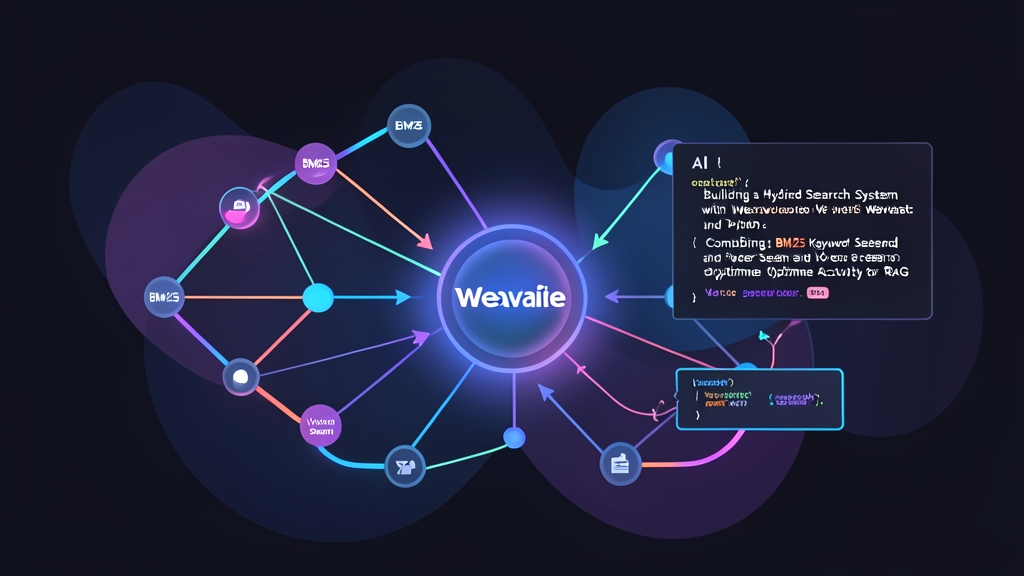
Hybrid search bridges this gap. It executes dense vector search and sparse BM25 retrieval side by side, then merges their score lists into a unified ranking. In benchmarks across technical documentation, hybrid retrieval regularly improves Recall@10 by 15% to 25% over pure vector search. Weaviate handles this fusion natively, using relative score fusion by default or Reciprocal Rank Fusion (RRF).
How Weaviate Handles the Hybrid Formula
Weaviate controls the balance between keywords and embeddings through a single weighting parameter: alpha.
alpha = 1.0: 100% vector search. Semantic similarity determines ranking, ignoring exact keywords entirely.alpha = 0.0: 100% BM25 keyword search. Dense embeddings are ignored.alpha = 0.5: An even 50/50 split between keyword matches and semantic vector scores.
Pros and Cons of Each Retrieval Strategy
Choosing the right retrieval method requires balancing latency, resource overhead, and domain specificity.
Pure BM25 Search
- Pros: Sub-5ms query latency, zero inference cost, and reliable matching for rare tokens, hex IDs, and part numbers.
- Cons: Zero semantic awareness. It misses direct synonyms (like "crash" vs. "exception") and fails on typos unless you manually configure fuzzy matching.
Pure Vector Search
- Pros: Handles messy user inputs, multi-language queries, and conceptual questions without keyword matching.
- Cons: Requires embedding generation on every query (adding 30ms to 120ms to p95 latency), struggles with out-of-vocabulary technical identifiers, and incurs API or GPU compute costs.
Hybrid Search with Weaviate
- Pros: Delivers higher recall across mixed query types. You can dynamically adjust
alphaper query based on user intent. - Cons: Storage footprint increases by roughly 20% to 35% because Weaviate maintains both an HNSW vector index and an inverted keyword index on disk.
Recommended Architecture
For production deployments, pair Weaviate in Docker Compose with the official Python v4 client (weaviate-client >= 4.9.0). The v4 client communicates over both REST (port 8080) and gRPC (port 50051). This dual-channel design dramatically speeds up batch ingestion and query parsing compared to the legacy v3 REST-only client.
Prerequisites
- Python 3.10 or newer
- Docker and Docker Compose
- An OpenAI API key with access to
text-embedding-3-smallandgpt-4o-mini
1. Spin Up Weaviate with Docker Compose
Create a docker-compose.yml file in your working directory:
services:
  weaviate:
    image: cr.weaviate.io/semitechnologies/weaviate:1.27.0
    restart: on-failure:0
    ports:
      - "8080:8080"
      - "50051:50051"
    environment:
      QUERY_DEFAULTS_LIMIT: 25
      AUTHENTICATION_ANONYMOUS_ACCESS_ENABLED: 'true'
      PERSISTENCE_DATA_PATH: '/var/lib/weaviate'
      ENABLE_MODULES: 'text2vec-openai'
      CLUSTER_HOSTNAME: 'node1'
Start the container in detached mode:
docker compose up -d2. Install Python Dependencies
Install the v4 client and OpenAI’s SDK:
pip install "weaviate-client>=4.9.0" "openai>=1.40.0"Step-by-Step Implementation
Here is how to connect, define a collection with vectorization enabled, insert sample technical documents, and run hybrid queries.
Step 1: Connect to Weaviate and Define the Collection
Create hybrid_rag.py. Weaviate v4 introduces collections with native type hinting and explicit schema configuration.
import os
import weaviate
from weaviate.classes.config import Configure, Property, DataType

os.environ["OPENAI_APIKEY"] = "your-openai-api-key-here"

client = weaviate.connect_to_local(
    headers={
        "X-OpenAI-Api-Key": os.environ["OPENAI_APIKEY"]
    }
)

print(f"Connected: {client.is_ready()}")

if client.collections.exists("TechnicalDocs"):
    client.collections.delete("TechnicalDocs")

docs_collection = client.collections.create(
    name="TechnicalDocs",
    vectorizer_config=Configure.Vectorizer.text2vec_openai(
        model="text-embedding-3-small"
    ),
    properties=[
        Property(name="title", data_type=DataType.TEXT),
        Property(name="content", data_type=DataType.TEXT),
        Property(name="code_snippet", data_type=DataType.TEXT),
    ]
)

print("Collection TechnicalDocs created successfully.")
Step 2: Ingest Sample Technical Documents
Populate the collection with three realistic support snippets. Notice how they combine broad descriptions with precise error strings and code snippets:
documents = [
    {
        "title": "Authentication Token Expiry",
        "content": "Users encounter ERR_AUTH_4019 when JWT tokens exceed 3600 seconds without auto-refresh enabled in the gateway session.",
        "code_snippet": "jwt.verify(token, secret, { maxAge: '1h' });"
    },
    {
        "title": "Database Connection Pool Exhaustion",
        "content": "Under heavy concurrent traffic, the PostgreSQL connection pool throws ERR_CONN_5003 when pool size remains configured at default 10.",
        "code_snippet": "pool = new Pool({ max: 20, idleTimeoutMillis: 30000 });"
    },
    {
        "title": "Memory Leak in Cache Eviction",
        "content": "Unbounded map caching causes progressive memory consumption until the container receives an OOM kill signal from orchestrators.",
        "code_snippet": "const cache = new LRUCache({ max: 500 });"
    }
]

with docs_collection.batch.dynamic() as batch:
    for doc in documents:
        batch.add_object(properties=doc)

print(f"Inserted {len(documents)} documents.")
Step 3: Querying with Vector, BM25, and Hybrid Modes
Consider a typical support prompt: "How do I resolve ERR_AUTH_4019 session timeout?" This query tests two requirements at once. It demands semantic comprehension of "session timeout" alongside an exact token match for ERR_AUTH_4019.
query = "How do I resolve ERR_AUTH_4019 session timeout?"

# 1. Pure BM25 Search (alpha = 0)
response_bm25 = docs_collection.query.bm25(
    query=query,
    limit=1
)

# 2. Pure Vector Search
response_vector = docs_collection.query.near_text(
    query=query,
    limit=1
)

# 3. Hybrid Search (alpha = 0.5 balances keywords and semantics)
response_hybrid = docs_collection.query.hybrid(
    query=query,
    alpha=0.5,
    limit=1
)

print("--- Hybrid Search Result ---")
for item in response_hybrid.objects:
    print(f"Title: {item.properties['title']}")
    print(f"Snippet: {item.properties['content']}")
Step 4: Feeding Top Results into the LLM
Pass the top hybrid result into an LLM context window to generate the final response:
from openai import OpenAI

ai_client = OpenAI(api_key=os.environ["OPENAI_APIKEY"])

retrieved_context = "\n".join([
    f"{obj.properties['title']}: {obj.properties['content']}"
    for obj in response_hybrid.objects
])

system_prompt = f"""You are a technical support assistant. Answer the user prompt using only the provided context.

Context:
{retrieved_context}
"""

completion = ai_client.chat.completions.create(
    model="gpt-4o-mini",
    messages=[
        {"role": "system", "content": system_prompt},
        {"role": "user", "content": query}
    ]
)

print("\n--- LLM Final Answer ---")
print(completion.choices[0].message.content)

client.close()
Tuning the Alpha Parameter in Production
Never treat alpha as a set-and-forget setting. Start with alpha=0.5 as your baseline during development. If your queries contain mostly SKU lookups, log traces, or exact code symbols, shift alpha down to 0.3 or 0.4. This favors exact BM25 hits and stops the model from hallucinating fixes for similarly worded errors. Conversely, for conversational search bars where users write free-form prose, shift alpha up to 0.7 to prioritize semantic nuance.