Quick Start (5 min): Get dhcrelay Running on Ubuntu/Debian
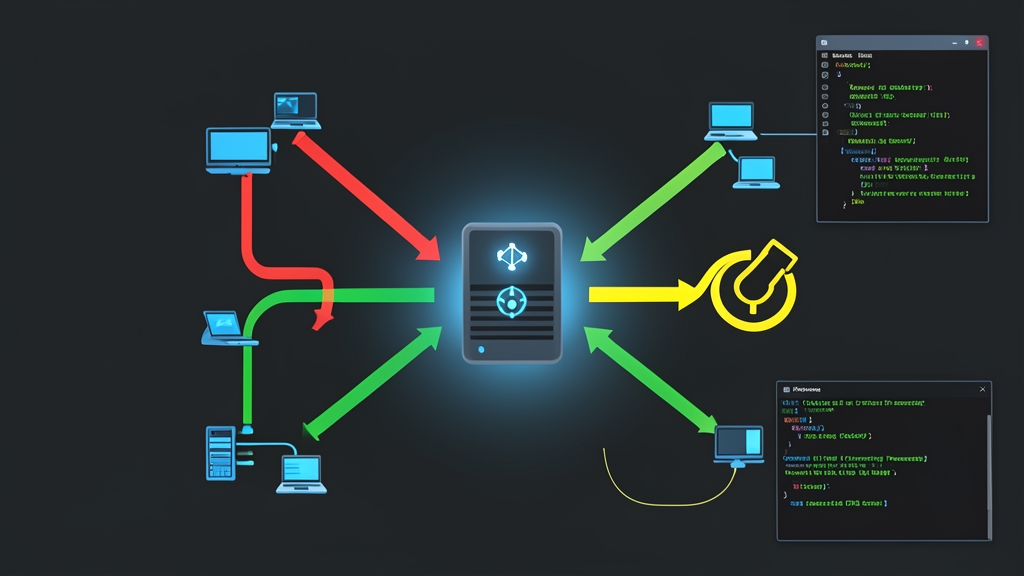
In multi-VLAN environments, DHCP discovery broadcasts stop dead at Layer 3 boundaries. Routers deliberately drop them. Running independent DHCP daemons on 20 different VLANs is a maintenance headache. Buying Layer 3 switches with built-in helper addresses everywhere gets expensive fast. A Linux router bridges this gap easily. It intercepts client broadcasts and unicasts them straight to a central DHCP server.
We will configure a bare-bones relay forwarding requests from two VLAN sub-interfaces (eth1.10 and eth1.20) to a central Kea or ISC server at 192.168.10.50.
# 1. Install ISC DHCP relay
sudo apt update && sudo apt install -y isc-dhcp-relay

# 2. Enable IPv4 packet forwarding in the kernel
sudo sysctl -w net.ipv4.ip_forward=1

# 3. Fire up dhcrelay manually to test connectivity
sudo dhcrelay -d -4 -i eth1.10 -i eth1.20 192.168.10.50
Keep this command running in your terminal. Any workstation broadcasting on VLAN 10 or 20 now gets forwarded as a unicast UDP packet to 192.168.10.50:67. Test an IP lease on a client machine. Once it works, hit Ctrl+C and move to systemd configuration so the service survives your next reboot.
Deep Dive: How dhcrelay Works Across VLAN Interfaces
Troubleshooting relay failures requires following the packet at the byte level. Clients begin with an unconfigured network stack. They broadcast a DHCPDISCOVER from source IP 0.0.0.0:68 to destination 255.255.255.255:67. Under normal conditions, Linux drops this broadcast at the interface boundary to prevent broadcast storms.
The Relay Mechanism and the GIADDR Field
When dhcrelay listens on your sub-interfaces, it captures incoming UDP port 67 frames before the kernel drops them. It does not simply mirror the packet. Instead, it rewrites the payload with two key changes:
- It populates the giaddr (Gateway IP Address) field in the DHCP payload with the IP bound to that specific VLAN interface (for instance,
10.0.10.1oneth1.10). - It encapsulates the request into a standard unicast UDP datagram. The source IP becomes the relay’s local interface IP, and the destination becomes your central DHCP server (
192.168.10.50).
The upstream server relies entirely on giaddr. Without it, the server cannot know which subnet the client belongs to. Upon reading 10.0.10.1, the server pulls an available lease from the matching 10.0.10.0/24 pool. It then unicasts a DHCPOFFER back to 10.0.10.1:67. Finally, dhcrelay unpacks the offer and delivers it to the client’s hardware MAC address on VLAN 10.
Persistent Configuration via Systemd
Debian and Ubuntu handle persistent relay parameters through /etc/default/isc-dhcp-relay. Note that you must specify both your client-facing VLANs and the upstream server-facing interface:
# /etc/default/isc-dhcp-relay

# Upstream DHCP servers
SERVERS="192.168.10.50"

# Listening interfaces (client sub-interfaces + upstream egress interface)
INTERFACES="eth1.10 eth1.20 eth0"

# Daemon startup flags
OPTIONS=""
Save the file, then restart and inspect the systemd unit:
sudo systemctl restart isc-dhcp-relay
sudo systemctl status isc-dhcp-relay
Advanced Usage: Option 82 and Redundant DHCP Clusters
Basic giaddr routing tells the server which subnet to use. It cannot, however, identify the specific switch port, rack, or tenant interface behind the request. High-density deployments solve this with DHCP Option 82 and clustered servers.
Enabling Option 82 (Circuit ID & Remote ID)
Option 82 appends vendor-specific tracking data to the DHCP packet before routing it upstream. This data includes the physical interface name or custom circuit identifiers. You can enable it using the -a flag:
# In /etc/default/isc-dhcp-relay
OPTIONS="-a -m replace"
The -m replace parameter is an essential safeguard. If a compromised machine injects forged Option 82 tags, the relay strips them and writes the verified local interface metadata instead. In ISC Kea or FreeRADIUS, you can match these Circuit IDs to enforce strict static IP policies or dynamic firewall access lists.
Relaying to Multiple DHCP Servers
Production environments should never rely on a single DHCP daemon. A crash during a morning lease renewal wave will disrupt hundreds of devices. dhcrelay handles failover by duplicating discovery packets across multiple upstream targets:
SERVERS="192.168.10.50 192.168.20.50"The relay sends identical unicast packets to both servers at the exact same moment. Whichever server replies first wins. The client accepts the first DHCPOFFER, commits it via DHCPREQUEST, and ignores slower responses. Your IP provisioning stays online even if one server reboots for kernel patches.
Production Hardening and Troubleshooting
These practices keep our core Linux routers stable while handling over 40 VLANs and thousands of concurrent DHCP leases.
1. Trace the Packet Path with tcpdump
When clients fail to pull leases, do not change config files blindly. Run tcpdump on the relay box to verify every stage of the handshake:
# Monitor DHCP exchanges across all interfaces with verbose output
sudo tcpdump -env -n -i any port 67 or port 68
A healthy handshake displays a clean sequence: an incoming broadcast DHCPDISCOVER on eth1.10, an immediate outgoing unicast to 192.168.10.50, followed by an incoming DHCPOFFER on eth0.
2. Firewall Gotchas (iptables & nftables)
The number one deployment failure is a host firewall silently dropping broadcast UDP frames. Your INPUT chain must allow DHCP before processing generic drop rules:
# Permit DHCP traffic on local relay sockets
sudo iptables -A INPUT -p udp -m multiport --dports 67,68 -j ACCEPT

# Persist kernel routing for active connections
sudo iptables -A FORWARD -m conntrack --ctstate RELATED,ESTABLISHED -j ACCEPT
3. Prevent ARP Cache Exhaustion
High client turnover churns your ARP cache rapidly. If the kernel drops an expired MAC entry before the DHCP reply completes, the relay cannot deliver the offer. Check your neighbor table when leases stall:
ip neighbor show dev eth1.10For networks with hundreds of short-lived devices (like public Wi-Fi or dynamic test labs), raise your kernel neighbor thresholds in /etc/sysctl.d/99-arp.conf by setting net.ipv4.neigh.default.gc_thresh1 = 1024 and gc_thresh2 = 2048. This prevents silent packet drops during peak traffic hours.