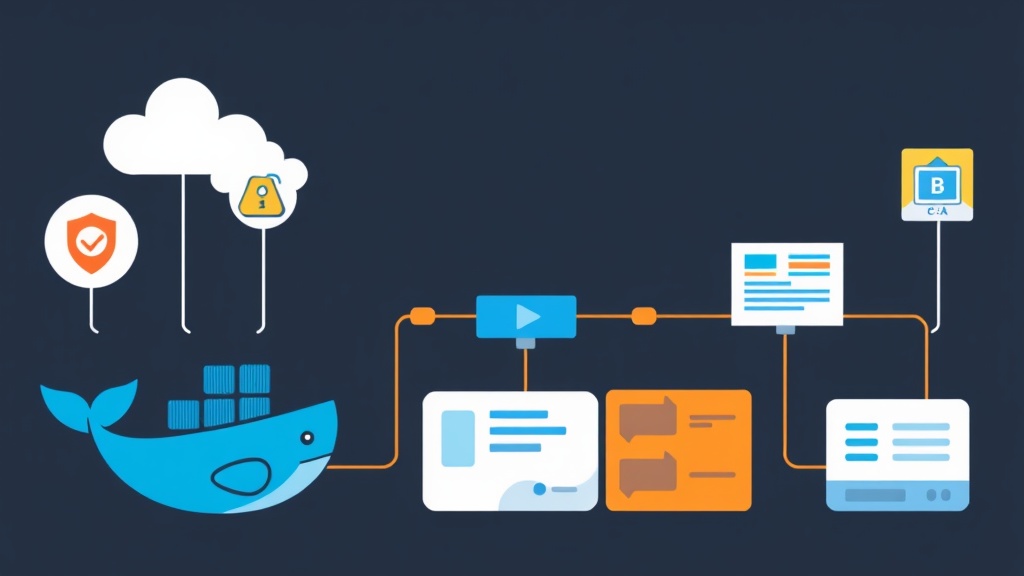
Stop SSHing Into Your Servers
I’ve spent too many late nights SSHing into a VPS, pulling code, and manually rebuilding Docker images. It’s a 20-minute process that should take two. Manual deployments are more than just a time sink; they are a breeding ground for configuration drift and human error. Switching to a CI/CD model transforms this stressful scramble into a predictable, two-minute background task.
Why choose Jenkins? While GitHub Actions is popular, Jenkins gives you total sovereignty over your build environment. This is a game-changer when you’re working on a budget-friendly VPS and need to keep everything under one roof. In my experience, this setup reduces deployment-related downtime by nearly 90% because it removes the “it worked on my machine” variable entirely.
Setting Up Jenkins via Docker
Running Jenkins inside a Docker container keeps your host system clean. It prevents your VPS from becoming a graveyard of conflicting Java versions and dependencies. To allow Jenkins to build images, we use a “Docker-out-of-Docker” (DooD) strategy. This involves mounting the host’s Docker socket directly into the Jenkins container.
Start by creating a docker-compose.yml file on your VPS:
version: '3.8'
services:
  jenkins:
    image: jenkins/jenkins:lts-jdk17
    container_name: jenkins
    privileged: true
    user: root
    ports:
      - "8080:8080"
      - "50000:50000"
    volumes:
      - jenkins_home:/var/jenkins_home
      - /var/run/docker.sock:/var/run/docker.sock
      - /usr/bin/docker:/usr/bin/docker

volumes:
  jenkins_home:
Launch the service with docker-compose up -d. By sharing /var/run/docker.sock, you enable the Jenkins container to command the host’s Docker engine. It’s efficient and lightweight. Once the container is live, grab your initial admin password using docker logs jenkins and head to port 8080 to finish the setup.
Essential Plugins
Before building your first pipeline, go to Manage Jenkins > Plugins and install these three workhorses:
- Docker Pipeline: Allows the use of Docker commands inside the script.
- SSH Agent: Securely manages SSH keys for remote deployments.
- Git Pipeline: Handles repository cloning and webhooks.
The Jenkinsfile: The Pipeline Brain
The Jenkinsfile is the heart of your automation. Storing this file in your Git repository ensures your deployment logic is versioned just like your application code. I recommend the Declarative Pipeline syntax for its readability and built-in error handling.
Below is a production-ready template. It builds an image, pushes it to a registry, and deploys it to your production environment.
pipeline {
    agent any

    environment {
        DOCKER_REGISTRY = "your-dockerhub-username"
        APP_NAME = "my-awesome-app"
        IMAGE_TAG = "${env.BUILD_NUMBER}"
        DOCKER_CREDENTIALS_ID = 'docker-hub-creds'
    }

    stages {
        stage('Clone Source') {
            steps {
                checkout scm
            }
        }

        stage('Build Image') {
            steps {
                script {
                    appImage = docker.build("${DOCKER_REGISTRY}/${APP_NAME}:${IMAGE_TAG}")
                }
            }
        }

        stage('Push to Registry') {
            steps {
                script {
                    docker.withRegistry('', DOCKER_CREDENTIALS_ID) {
                        appImage.push()
                        appImage.push("latest")
                    }
                }
            }
        }

        stage('Deploy to VPS') {
            steps {
                sshagent(['vps-ssh-key']) {
                    sh '''
                        ssh -o StrictHostKeyChecking=no user@your-vps-ip "
                            docker pull ${DOCKER_REGISTRY}/${APP_NAME}:latest && \
                            docker stop ${APP_NAME} || true && \
                            docker rm ${APP_NAME} || true && \
                            docker run -d --name ${APP_NAME} -p 80:3000 ${DOCKER_REGISTRY}/${APP_NAME}:latest
                        "
                    '''
                }
            }
        }
    }

    post {
        always {
            sh "docker rmi ${DOCKER_REGISTRY}/${APP_NAME}:${IMAGE_TAG} || true"
        }
    }
}
Secure Credential Management
Hardcoding passwords is a cardinal sin in DevOps. Use the Jenkins Credential Store (Manage Jenkins > Credentials) to hide your secrets. Map docker-hub-creds to your registry login and vps-ssh-key to your private SSH key. This keeps your Jenkinsfile safe to share with your team.
Refining the Deployment Logic
In the deployment stage, I use docker stop followed by docker rm. This is the simplest way to clear the path for a new container version. If you are managing multiple services, consider using docker-compose up -d --pull always instead. It handles network links and environment variables more gracefully.
Pro tip: Always tag your images with the Jenkins BUILD_NUMBER. If a new release breaks your site, you can roll back to a known working version in seconds. Relying solely on the latest tag makes rollbacks a guessing game.
Maintenance and Monitoring
Automation requires oversight. Monitor the “Console Output” in Jenkins for real-time feedback. If the build stalls during the “Push” stage, your credentials likely expired. If it fails at “Deploy,” check if your VPS firewall allows SSH traffic from the Jenkins container’s IP address.
Keeping the VPS Lean
Docker builds eat disk space rapidly. Each build creates a new layer that lingers on your drive. I include a post block in the Jenkinsfile to remove the local image after pushing it to the registry. You should also run a weekly cron job on your host to prune old data:
# Cleans up images older than 24 hours
docker image prune -af --filter "until=24h"
Final Health Checks
A successful pipeline doesn’t always mean a working app. Add a final stage that uses curl to ping your application’s health endpoint. If it doesn’t return a 200 OK within 30 seconds, the pipeline should fail and trigger an alert. This ensures you never accidentally deploy a broken container to your users.
Mastering Jenkins and Docker is a core skill for any developer. By shifting your logic into a versioned Jenkinsfile, you create a deployment process that is documented, repeatable, and entirely hands-off.