The Security Hole That Keeps Kubernetes Admins Up at Night
When you first set up a CI/CD pipeline on Kubernetes, the quickest way to build Docker images is to mount the Docker socket from the host node into your build pod. It works immediately, everyone does it, and then three months later your security team flags it as a critical vulnerability.
Mounting /var/run/docker.sock into a container gives that container full control over the Docker daemon running on the host node. Any process inside that build pod can pull images, spawn privileged containers, escape to the host filesystem, and effectively own the node. For a CI/CD system that runs arbitrary build scripts — sometimes from contributors you don’t fully trust — this is a serious exposure.
I ran into this exact problem while setting up a CI/CD pipeline for a Kubernetes cluster at a previous company. The team had been mounting the Docker socket for months, and nobody had questioned it until an internal audit flagged it. The fix wasn’t just a config change — it required rethinking how image builds work in a Kubernetes context. Once an audit catches it, the remediation is straightforward. You’d just rather not get there the hard way.
Why the Docker Daemon Clashes with Kubernetes Security
Docker’s traditional architecture relies on a central daemon (dockerd) that runs as root. When you run docker build, the CLI communicates with this daemon over a Unix socket, and the daemon does the actual heavy lifting. This design made sense when Docker was a local dev tool, but it clashes fundamentally with what Kubernetes expects:
- The daemon requires root privileges to manage namespaces, cgroups, and filesystem layers
- Pods with socket access bypass Kubernetes RBAC entirely — they’re talking directly to the node’s daemon
- Multi-tenant clusters where different teams share nodes become impossible to isolate properly
- Pod Security Standards at the “restricted” level explicitly block
hostPathmounts of socket files
The root cause isn’t bad configuration — it’s that the Docker daemon was never designed for the multi-tenant, least-privilege environment that Kubernetes expects.
Three Approaches to Daemon-Free Builds (And Why Two of Them Fall Short)
Docker-in-Docker (DinD)
Docker-in-Docker runs a full Docker daemon inside the build container. It avoids mounting the host socket — but the inner daemon still needs --privileged mode to function. That grants the same host access you were trying to eliminate.
There’s a performance cost too: the inner daemon has no persistent storage between jobs, so every build starts cold. Add the I/O overhead of running overlay2 inside overlay2, and builds can take 2-3x longer than necessary. For security-conscious environments, you’ve traded one problem for a slightly different one.
Buildah
Buildah from Red Hat is a solid rootless image builder that works without any daemon. It integrates well with Podman-based workflows. The catch for Kubernetes: rootless Buildah still requires user namespaces on the host. Some managed Kubernetes offerings — EKS with hardened node AMIs, certain GKE configurations — disable these by default. It’s also a harder sell if your team has years of Docker muscle memory to unlearn.
Kaniko (The Right Tool for Kubernetes)
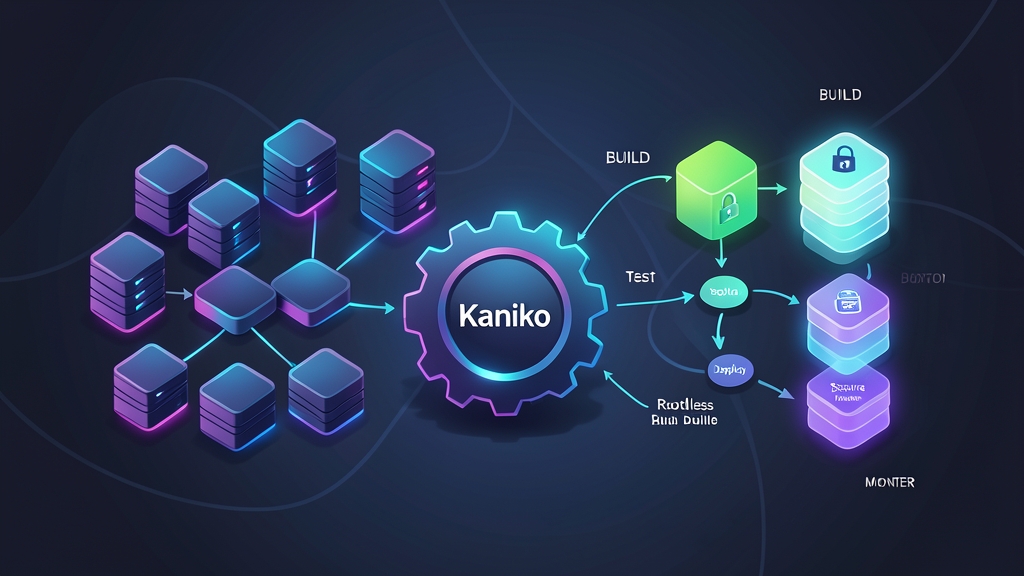
Kaniko, built by Google, was designed specifically to build container images inside Kubernetes without requiring any elevated privileges. It runs entirely in userspace, executes each Dockerfile command without needing a daemon, and pushes the result directly to a registry. No privileged mode, no socket mounts, no root required on the host. For Kubernetes CI/CD specifically, nothing else comes close.
Setting Up Kaniko: A Complete Working Example
Prerequisites
- A running Kubernetes cluster (1.19+)
- kubectl configured with cluster access
- A container registry (Docker Hub, GCR, ECR, or a private registry)
- Your application Dockerfile
Step 1: Create a Registry Secret
Kaniko needs credentials to push the built image. Create a Kubernetes secret with your registry credentials:
# For Docker Hub
kubectl create secret docker-registry regcred \
  --docker-server=https://index.docker.io/v1/ \
  --docker-username=YOUR_USERNAME \
  --docker-password=YOUR_PASSWORD \
  --docker-email=YOUR_EMAIL \
  -n ci-build

# For Google Container Registry (using a service account JSON key)
kubectl create secret generic gcr-credentials \
  --from-file=config.json=/path/to/service-account-key.json \
  -n ci-build
Step 2: Create the Kaniko Build Job
Here’s a Kubernetes Job manifest that builds an image from a Git repository and pushes it to Docker Hub:
apiVersion: batch/v1
kind: Job
metadata:
  name: kaniko-build
  namespace: ci-build
spec:
  template:
    spec:
      restartPolicy: Never
      containers:
        - name: kaniko
          image: gcr.io/kaniko-project/executor:latest
          args:
            - "--dockerfile=Dockerfile"
            - "--context=git://github.com/yourorg/yourrepo.git#refs/heads/main"
            - "--destination=yourdockerhubuser/yourapp:latest"
            - "--cache=true"
            - "--cache-repo=yourdockerhubuser/yourapp-cache"
          volumeMounts:
            - name: docker-config
              mountPath: /kaniko/.docker/
      volumes:
        - name: docker-config
          secret:
            secretName: regcred
            items:
              - key: .dockerconfigjson
                path: config.json
Notice there’s no privileged: true, no hostPath mount, and no security context exceptions. This job runs cleanly on nodes with restricted Pod Security Standards.
Step 3: Building from a Local Workspace Context
If your Dockerfile and source code arrive via a PersistentVolumeClaim or a mounted workspace volume, adjust the context argument accordingly:
args:
  - "--dockerfile=/workspace/Dockerfile"
  - "--context=dir:///workspace"
  - "--destination=yourdockerhubuser/yourapp:$(BUILD_TAG)"
Step 4: GitLab CI Integration
For GitLab CI using the Kubernetes executor:
build-image:
  stage: build
  image:
    name: gcr.io/kaniko-project/executor:debug
    entrypoint: [""]
  script:
    - mkdir -p /kaniko/.docker
    - echo "{\"auths\":{\"${CI_REGISTRY}\":{\"auth\":\"$(echo -n ${CI_REGISTRY_USER}:${CI_REGISTRY_PASSWORD} | base64)\"}}}" > /kaniko/.docker/config.json
    - /kaniko/executor
        --context "${CI_PROJECT_DIR}"
        --dockerfile "${CI_PROJECT_DIR}/Dockerfile"
        --destination "${CI_REGISTRY_IMAGE}:${CI_COMMIT_SHORT_SHA}"
        --cache=true
  rules:
    - if: $CI_COMMIT_BRANCH == "main"
The debug image variant includes a busybox shell, which GitLab Runner requires when it overrides the container entrypoint to execute the script block.
Step 5: GitHub Actions with Kaniko
name: Build and Push

on:
  push:
    branches: [main]

jobs:
  build:
    runs-on: ubuntu-latest
    steps:
      - uses: actions/checkout@v3

      - name: Build with Kaniko
        uses: aevea/action-kaniko@master
        with:
          image: yourorg/yourapp
          tag: ${{ github.sha }}
          username: ${{ secrets.DOCKERHUB_USERNAME }}
          password: ${{ secrets.DOCKERHUB_TOKEN }}
          cache: true
          cache_registry: yourorg/yourapp-cache
Common Issues You’ll Hit in Practice
Build Context Too Large
If Kaniko slurps in your entire repo including node_modules or build artifacts, add a .dockerignore file — Kaniko respects it the same way Docker does:
node_modules/
.git/
*.log
dist/
.env
Layer Cache Not Working
Unlike Docker’s local layer store, Kaniko caches to a remote registry. That means you need to point it at a cache repository via --cache-repo. Without it, every build starts completely cold. Also check that the registry credentials you created have push access to that cache repo — silent mid-build failures happen when they don’t.
RUN Commands Failing with Permission Errors
If your Dockerfile has commands that need root (like apt-get install), they work fine in Kaniko — it runs those commands as root within its own isolated namespace, without needing root on the host. If you’re still seeing errors, check whether your base image requires real kernel capabilities. NET_ADMIN, SYS_PTRACE, and similar flags are beyond what Kaniko can provide.
Verifying That Builds Are Actually Rootless
After deploying Kaniko jobs, confirm they’re running without privilege escalation:
# Check the security context of a running Kaniko pod
kubectl get pod kaniko-build-xxxxx -n ci-build \
  -o jsonpath='{.spec.containers[0].securityContext}'

# Should return empty or show allowPrivilegeEscalation: false
# If you see: privileged: true — something is wrong
You can enforce this at the namespace level with a Pod Security standard label, so no future job can accidentally regress back to privileged mode:
kubectl label namespace ci-build \
  pod-security.kubernetes.io/enforce=restricted \
  pod-security.kubernetes.io/warn=restricted
With this label applied, Kubernetes rejects any pod in that namespace that tries to run privileged or mount host sockets — including if someone accidentally reverts to DinD. It’s a safety net that costs nothing to add.
The transition from socket-mounted Docker builds to Kaniko took our team about a day. The result: a pipeline security auditors were happy to sign off on, builds that ran identically on shared multi-tenant clusters and dedicated build namespaces, and no scrambling when the next audit came around. That tradeoff is worth making early.