Context & Why
Triaging headless Linux boxes over SSH is second nature for most sysadmins. But when an on-call alert jolts you awake at 2 AM, hunting down bottlenecks across multiple terminal tabs costs precious time. Running top, iostat -xz 1, journalctl -xe, and ip link in sequence works, but it slows you down. If your team includes developers or junior engineers who do not live inside bash all day, a responsive web console speeds up incident resolution dramatically.
Cockpit targets this exact problem. Spearheaded by Red Hat and available across almost every major distribution, Cockpit provides a modular, browser-based management dashboard that talks directly to standard Linux APIs. It is not like legacy control panels such as Webmin or cPanel.
Those tools often run heavy persistent daemons and rewrite your configuration files with proprietary schemas. Cockpit leaves your files untouched. Instead, it relies on systemd sockets, PAM authentication, NetworkManager, and UDisks2. When no active browser session is connected, the service sits idle and draws roughly 0 MB of RAM and zero CPU cycles.
Over three years managing a cluster of 14 production Ubuntu and Rocky Linux VPS nodes, I treated every web-exposed admin interface with skepticism. Exposing root access to HTTP requires caution. Cockpit avoids common panel traps because it adheres directly to native Linux security primitives, honoring existing sudo rules, SELinux policies, and SSH key permissions without custom middleware.
Installation
Cockpit ships in the default package repositories for most modern distributions. Rather than installing a bloated monolithic binary, the project splits features into lightweight modular plugins for storage, networking, and package maintenance.
Ubuntu / Debian Systems
On Ubuntu 22.04/24.04 LTS and Debian 12 systems, pull the core console and the standard management modules via apt:
sudo apt update
sudo apt install -y cockpit cockpit-storaged cockpit-networkmanager cockpit-packagekit
RHEL, AlmaLinux, Rocky Linux, and Fedora
Enterprise Linux 8 and 9 distros keep Cockpit readily accessible in their base repositories:
sudo dnf install -y cockpit cockpit-storaged cockpit-networkmanager cockpit-packagekit
Running KVM hypervisors? Add cockpit-machines to manage virtual machines and assign virtual NICs directly from the web UI.
Configuration
With the packages in place, configure socket activation and open the correct firewall port.
1. Enabling Systemd Socket Activation
Cockpit avoids running a continuous background web daemon by using on-demand systemd socket activation. The cockpit-ws process spins up only when incoming traffic hits the port. Enable and trigger the socket now:
sudo systemctl enable --now cockpit.socket
Verify that systemd is listening on TCP port 9090:
sudo systemctl status cockpit.socket
ss -tulpn | grep 9090
You should see systemd bound to *:9090 or :::9090 with an active listening status.
2. Firewall Rules
Cockpit accepts traffic on port 9090 by default. Punch a hole through your host firewall before attempting to connect.
On systems running UFW (Ubuntu/Debian):
sudo ufw allow 9090/tcp comment 'Cockpit Web Console'
sudo ufw reload
On systems running firewalld (RHEL, Rocky, AlmaLinux):
sudo firewall-cmd --add-service=cockpit --permanent
sudo firewall-cmd --reload
3. Hardening and Custom Configuration
Cockpit reads its overrides from /etc/cockpit/cockpit.conf. The installer does not generate this file automatically. Create it manually to enforce shorter session timeouts, limit concurrent login attempts, and reject unencrypted traffic:
sudo mkdir -p /etc/cockpit
sudo tee /etc/cockpit/cockpit.conf <<'EOF'
[WebService]
MaxStartups = 5
IdleTimeout = 15
AllowUnencrypted = false

[Session]
Banner = /etc/issue.net
EOF
Apply the updated rules by bouncing the socket:
sudo systemctl restart cockpit.socket
Verification & Monitoring
Open your browser and navigate to https://<your-server-ip>:9090. Cockpit generates a self-signed TLS certificate under /etc/cockpit/ws-certs.d/ during initial launch. Your browser will flash an untrusted HTTPS warning. Bypass this warning for internal network tests. For public-facing environments, drop a valid Let’s Encrypt certificate pair into that directory instead.
1. Authentication and Privilege Escalation
Log in with any standard system account. Cockpit authenticates against PAM. Regular users land in an unprivileged, read-only session. To execute tasks like stopping services or mounting disks, click Turn on administrative access in the top header and authenticate with your sudo password.
2. System Resource Overview
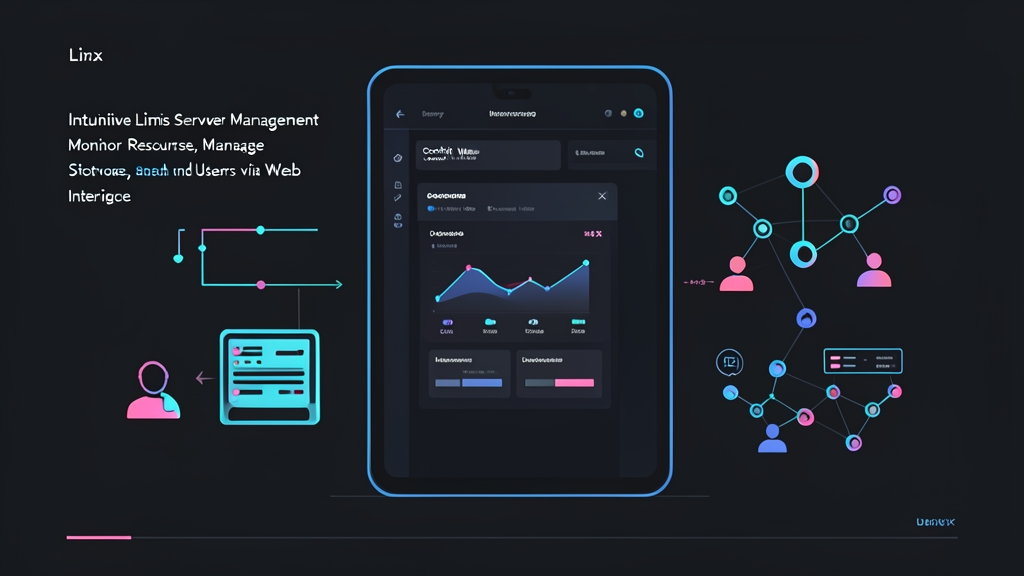
The Overview screen delivers smooth, 1-second interval graphs that refresh without page reloads:
- CPU Utilization: Visualizes core usage spikes, showing whether an issue is caused by system wait or high user-space compute.
- Memory Footprint: Splits active RAM usage, OS buffer/cache reserves, and swap utilization into clear color-coded bars.
- Disk Throughput: Graphs concurrent read/write IOPS and MB/s alongside system load averages.
- Network Traffic: Tracks inbound and outbound traffic in real time across each physical interface.
3. Storage Subsystem Management
Skip repetitive lsblk and fdisk -l commands by switching to the Storage tab. You can inspect NVMe, SATA, and block storage devices at a glance:
- Create LVM volume groups, assign thin pools, and expand logical volumes with two clicks.
- Format partitions using EXT4 or XFS and configure persistent mount paths directly in
/etc/fstab. - Read disk S.M.A.R.T. health attributes, including reallocated sector counts and drive operating temperatures, to catch hardware degradation early.
- Monitor software RAID arrays and track live rebuild sync progress.
4. Networking and User Controls
Head to the Networking screen to review your IP addresses, subnet masks, DNS nameservers, and gateway routes. You can bind interfaces into LACP bonds, set up 802.1Q VLANs, and check per-port dropped packet counters without touching NetworkManager configuration scripts.
Under Accounts, you can create new users, lock compromised accounts, assign wheel/sudo memberships, and paste public SSH keys directly into user profiles without hand-editing ~/.ssh/authorized_keys files.
5. Services, Logs, and Terminal Fallback
The Services panel categorizes systemd targets, timers, and services, offering one-click service restarts and inline logs for units in a failed state. When graphical buttons fall short, click the Terminal tab. Cockpit hands you an interactive root-capable terminal right inside the browser, complete with full tmux, htop, and 256-color support. You keep the speed of a GUI without surrendering the raw power of the command line.