Approaches to Kubernetes Disaster Recovery: GitOps vs Storage Snapshots vs Backup Operators
Stateless apps are easy to recover. Stateful workloads are not. When an accidental kubectl delete namespace, a botched migration, or an etcd corruption hits, simply reapplying your manifests leaves you with empty volumes and broken dependencies.
Production teams typically rely on three distinct recovery patterns:
- GitOps & Infrastructure as Code (IaC): Tools like ArgoCD or Flux synchronize manifests directly from Git. They rebuild stateless deployments, Services, and CRDs within seconds. However, GitOps is completely blind to actual runtime state. It won’t bring back your Postgres tables or Kafka topics.
- Cloud Storage Volume Snapshots: Taking scheduled block snapshots (such as AWS EBS, GCP PDs, or Ceph RBD) protects raw bytes. Yet these snapshots run outside Kubernetes awareness. Without pausing write operations or tying disks back to active pod definitions, restoring them across namespaces usually turns into an error-prone scripting headache.
- Kubernetes-Native Backup Operators (Velero): Velero runs directly inside your cluster, querying the API server and orchestrating backups to S3-compatible storage. It bundles both planes: Kubernetes API resources and persistent volume data (via CSI volume snapshots or file-level node agents like Kopia).
Evaluating Backup Approaches: Pros and Cons
Selecting the right recovery architecture boils down to your Recovery Point Objective (RPO) and operational complexity.
GitOps Repositories
- Pros: Version-controlled audit trails, pull-request approvals, automated drift correction.
- Cons: Zero state protection; dynamic secrets generated by operators and actual disk contents require a secondary tool.
Raw Storage Provider Snapshots
- Pros: Fast block-level replication (often sub-minute RPOs on 500GB+ volumes), zero CPU impact on worker nodes.
- Cons: Cloud vendor lock-in, hard to coordinate across distributed nodes, tricky cross-cluster migrations.
Velero with S3 Object Storage
- Pros: Complete cluster portability across bare-metal and public clouds, granular label/namespace filtering, and built-in Kopia node-agent support.
- Cons: Filesystem-level backups (Kopia) consume node CPU/memory during reads, and transfer speeds depend directly on your object storage network bandwidth.
Recommended Architecture: Velero Paired with MinIO
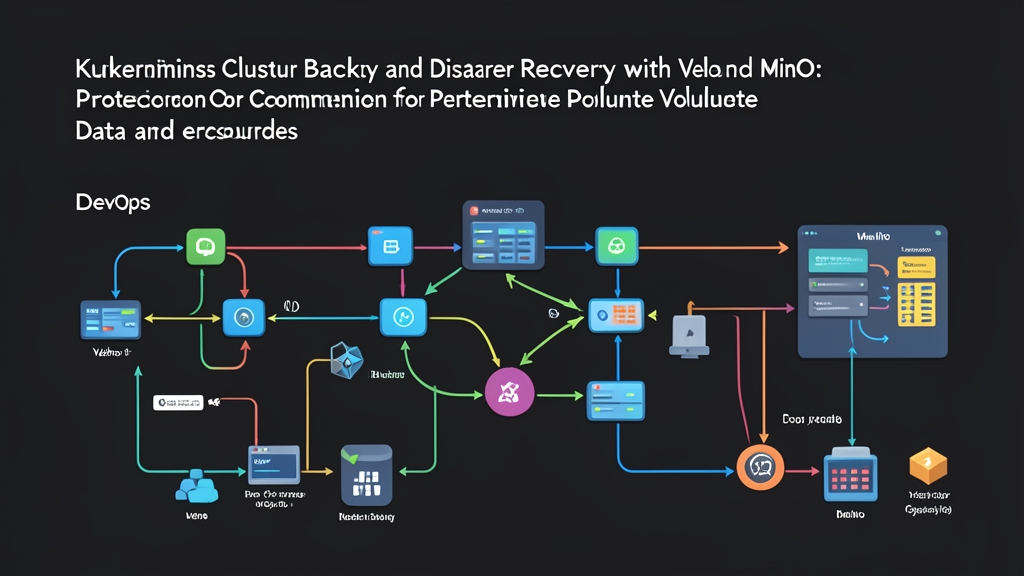
For hybrid clouds, bare-metal clusters, or air-gapped data centers, pairing Velero with a dedicated MinIO cluster provides the ideal mix of speed and autonomy.
Velero coordinates API queries and backup hooks. Meanwhile, MinIO offers lightweight, S3-compatible object storage delivering up to multiple gigabytes per second across local NVMe drives—entirely free of cloud egress charges.
Velero operates as a controller deployment in your cluster. During a backup run, it packages selected API manifests into a compressed tarball and pushes it to MinIO. For PersistentVolumes, the Velero node-agent DaemonSet uses Kopia to stream file data into the same bucket. When an unexpected control plane glitch or corrupt release strikes at 2 AM, running a single restore command recovers your entire application stack in minutes.
Step-by-Step Implementation Guide
The following walkthrough sets up MinIO, deploys Velero with file-level backups enabled, and tests an end-to-end backup and recovery cycle.
1. Deploy MinIO Object Storage
If you don’t already have an external MinIO deployment, stand up this standalone instance for testing:
# Create a namespace for MinIO
kubectl create namespace minio

# Deploy standalone MinIO with persistent storage
kubectl apply -n minio -f - <<EOF
apiVersion: apps/v1
kind: Deployment
metadata:
  name: minio
spec:
  replicas: 1
  selector:
    matchLabels:
      app: minio
  template:
    metadata:
      labels:
        app: minio
    spec:
      containers:
      - name: minio
        image: minio/minio:RELEASE.2024-05-10T01-41-38Z
        args:
        - server
        - /data
        - --console-address
        - :9001
        env:
        - name: MINIO_ROOT_USER
          value: "admin-velero"
        - name: MINIO_ROOT_PASSWORD
          value: "StrongSecretKey123"
        ports:
        - containerPort: 9000
        - containerPort: 9001
        volumeMounts:
        - name: storage
          mountPath: /data
      volumes:
      - name: storage
        emptyDir: {}
---
apiVersion: v1
kind: Service
metadata:
  name: minio
spec:
  ports:
    - port: 9000
      targetPort: 9000
      name: api
  selector:
    app: minio
EOF
Next, log into the MinIO Console at port 9001 or use the MinIO client (mc) to create a bucket named velero-backups.
2. Install the Velero CLI and Configure Credentials
Grab the Velero CLI (v1.13+) for your OS and store your MinIO credentials locally in an INI-formatted file:
# Create credentials-velero file
cat <<EOF > credentials-velero
[default]
aws_access_key_id = admin-velero
aws_secret_access_key = StrongSecretKey123
EOF
3. Install Velero Server with Node-Agent Enabled
Deploy Velero into your cluster. Point it at the in-cluster MinIO service endpoint and pass --use-node-agent to support file-level volume backups without cloud snapshot plugins:
velero install \
  --provider aws \
  --plugins velero/velero-plugin-for-aws:v1.9.0 \
  --bucket velero-backups \
  --secret-file ./credentials-velero \
  --use-node-agent \
  --backup-location-config region=minio,s3ForcePathStyle="true",s3Url=http://minio.minio.svc.cluster.local:9000
Confirm the deployment and the node-agent DaemonSet are healthy:
kubectl get pods -n veleroAll controller and node-agent pods should transition to Running status within 30 to 60 seconds.
4. Deploy a Sample Stateful Workload
Create a test namespace containing an Nginx web server mounted to a 1Gi PersistentVolumeClaim:
kubectl create namespace production-app

kubectl apply -n production-app -f - <<EOF
apiVersion: v1
kind: PersistentVolumeClaim
metadata:
  name: web-data
spec:
  accessModes: [ "ReadWriteOnce" ]
  resources:
    requests:
      storage: 1Gi
---
apiVersion: apps/v1
kind: Deployment
metadata:
  name: web-server
spec:
  replicas: 1
  selector:
    matchLabels:
      app: web
  template:
    metadata:
      labels:
        app: web
    spec:
      containers:
      - name: nginx
        image: nginx:alpine
        volumeMounts:
        - mountPath: /usr/share/nginx/html
          name: storage
      volumes:
      - name: storage
        persistentVolumeClaim:
          claimName: web-data
EOF
Write sample data to the volume to verify retention after recovery:
POD_NAME=$(kubectl get pod -n production-app -l app=web -o jsonpath="{.items[0].metadata.name}")
kubectl exec -n production-app $POD_NAME -- sh -c 'echo "Cluster Disaster Recovery Succeeded!" > /usr/share/nginx/html/index.html'
5. Execute a Full Namespace Backup
Instruct Velero to back up the production-app namespace along with its PVC data:
velero backup create production-backup \
  --include-namespaces production-app \
  --default-volumes-to-fs-backup \
  --wait
Inspect the backup status once the command returns:
velero backup describe production-backup --detailsYou should see phase Completed with 0 errors and a recorded Kopia volume backup under the snapshot list.
6. Test Disaster Recovery
Simulate accidental data loss by deleting the production namespace:
kubectl delete namespace production-app
kubectl get namespace production-app
Once Kubernetes purges the namespace, restore the application and volume from MinIO:
velero restore create --from-backup production-backup --wait
velero restore get
Check that the pod is running and inspect the restored file contents:
RESTORED_POD=$(kubectl get pod -n production-app -l app=web -o jsonpath="{.items[0].metadata.name}")
kubectl exec -n production-app $RESTORED_POD -- cat /usr/share/nginx/html/index.html
The shell will print Cluster Disaster Recovery Succeeded!. Your manifests, PVCs, and file data are completely restored.