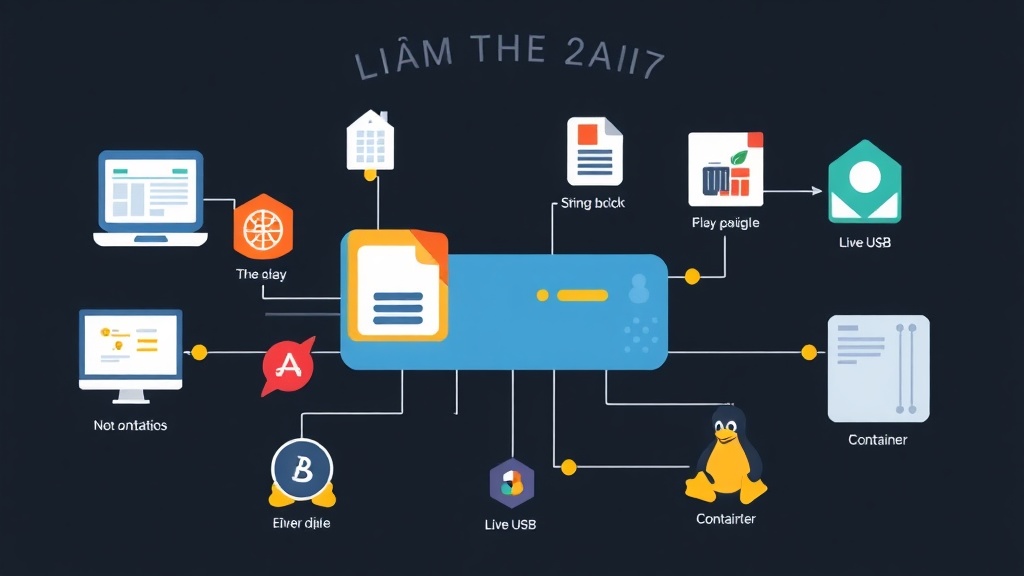
I wasted way too many hours early in my career trying to solve a single headache: providing a standardized OS for developers that they could tweak without wrecking the base system. Backups were slow. Disk cloning was overkill. Then I found OverlayFS. It changed everything by allowing me to layer filesystems—keeping a ‘golden image’ pristine while capturing every change in a lightweight directory.
The Union Filesystem Battle: OverlayFS vs. The Old Guard
Before OverlayFS hit the Linux kernel in version 3.18, we wrestled with AUFS (Advanced Multi-Layered Unification Filesystem). AUFS was powerful but messy. Because it never made it into the mainline kernel, sysadmins had to maintain custom patches. It was a stability nightmare.
Device Mapper snapshots were another option. These work at the block level. However, if you change one byte in a 100MB file, the system has to manage blocks rather than files. This is inefficient for most workloads. OverlayFS operates at the file level instead. It is significantly faster for containerization and Live USB environments.
Think of the ‘merge’ as a stack of glass. You have a lower directory (read-only) and an upper directory (read-write). Looking through the merged mount point, you see both. The upper layer always wins. If a file exists in both, the version in the upper directory is the one you see and edit.
The Good, the Bad, and the Inodes
In production, the benefits are immediate. But there are traps. After managing 20+ Linux nodes over five years, I’ve learned that file locking can still be a wildcard on overlay mounts.
The Advantages
- Blazing Performance: OverlayFS skips the overhead of block-level translation. It talks directly to your host filesystem, like ext4 or XFS.
- Memory Savings: Multiple containers can share the same ‘lower’ layers in the page cache. In one project with 30 containers, we cut RAM usage by nearly 4GB.
- Instant Cleanups: Want to factory-reset a system? Just wipe the ‘upper’ directory. It takes milliseconds and is far safer than a recursive delete on a live root.
The Drawbacks
- Inode Exhaustion: Every file uses an inode on the base disk. If you’ thumb through millions of small files across layers, you’ll hit the inode limit long before you run out of GBs.
- POSIX Quirks: Operations like
rename()can get messy when moving files between layers. Most modern apps are fine, but older database engines might throw a fit. - Hard Link Breakage: Editing a file with multiple hard links triggers a ‘copy up.’ This effectively breaks the link for the edited version in the merged view.
The Ideal Architecture
Success with OverlayFS depends on your directory strategy. A common mistake is putting the ‘work’ directory on a different partition than the ‘upper’ directory. They must live on the same filesystem for atomic moves to function.
Standard Directory Structure
/mnt/storage/base: Your read-only source (Lower)./mnt/storage/diff: Where the changes live (Upper)./mnt/storage/work: A required empty folder for internal metadata (Work)./mnt/unified: Where you actually work with the files (Merged).
Hardware Tip
For high-performance hosts, put your upper and work directories on an NVMe SSD. While the lower directory can sit on a slower HDD, keeping everything on flash storage reduces latency from 10ms down to microseconds during ‘copy up’ operations.
Hands-on Implementation
You don’t need extra software. If you’re on Ubuntu, Debian, or AlmaLinux, the module is already there.
1. The Basic Mount
Let’s build a test environment:
mkdir -p /tmp/overlay_test/{lower,upper,work,merged}
echo "Base layer file" > /tmp/overlay_test/lower/base.txt

sudo mount -t overlay overlay \
  -o lowerdir=/tmp/overlay_test/lower,upperdir=/tmp/overlay_test/upper,workdir=/tmp/overlay_test/work \
  /tmp/overlay_test/merged
Check /tmp/overlay_test/merged and you’ll see base.txt. Create a new file there, and it physically lands in upper. The lower folder stays untouched.
2. Stacking Layers
This is the secret sauce behind Docker. You can stack multiple lower directories, such as a base OS, a web server, and then your app code.
sudo mount -t overlay overlay \
  -o lowerdir=/dir3:/dir2:/dir1,upperdir=/upper,workdir=/work \
  /merged
Priority flows from left to right: dir3 is the top dog here.
3. Persistence via fstab
To make the mount survive a reboot, add this to /etc/fstab. Use full paths and keep the options comma-separated.
overlay /mnt/unified overlay noatime,lowerdir=/mnt/base,upperdir=/mnt/diff,workdir=/mnt/work 0 04. The Persistent Live USB Trick
Live USBs usually run off a compressed, read-only squashfs. By using OverlayFS, you can use that squashfs as the lowerdir and a writable USB partition as the upperdir. Users can install packages and save work that survives reboots, while the core OS stays bulletproof.
Troubleshooting the ‘Wrong FS Type’ Error
If your mount fails with a generic error, run dmesg | tail. It’s usually one of two culprits:
- Dirty Workdir: The work directory isn’t empty.
- XFS ftype: OverlayFS needs
d_typesupport. If you’re on an old CentOS 7 system using XFS, it might have been formatted withftype=0. You needftype=1for OverlayFS to work. Check this withxfs_info /mountpoint.
OverlayFS is a low-level tool that delivers high-level flexibility. Whether you are cutting Docker storage costs or building a tamper-proof kiosk, it provides the safety net every sysadmin needs.