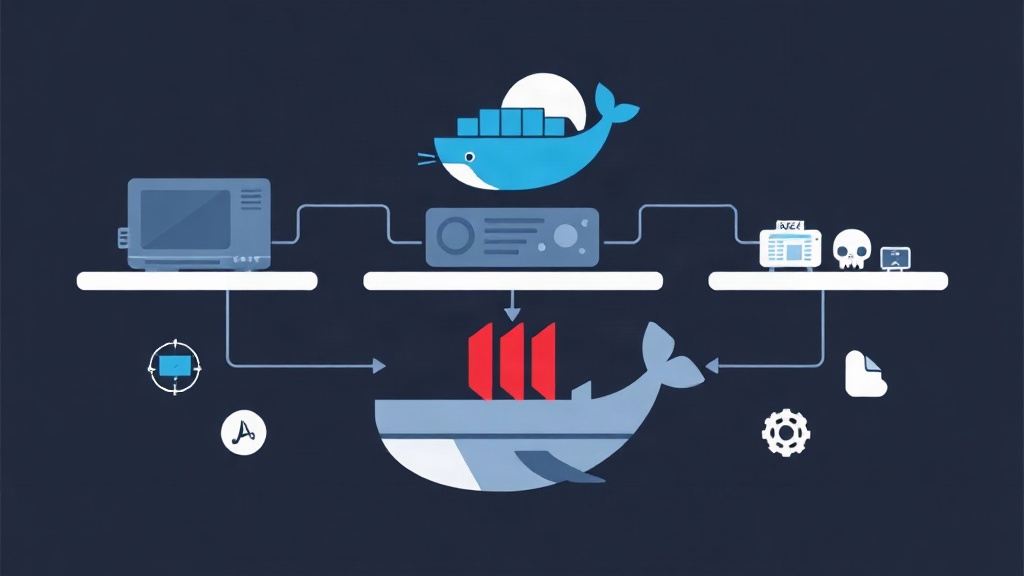
The Real-World Problem: The 4K Playback Meltdown
You set up a low-power mini PC—perhaps an Intel N100 or an older 8th-Gen Core i5—for your Linux HomeLab. You deploy Jellyfin in Docker, add a 65 Mbps 4K HDR movie to your library, and press play in a browser on your laptop.
Instead of video, you get an endless loading spinner. The server cooling fan suddenly spins up to full speed. A glance at htop shows all CPU cores pinned at 100%, with FFmpeg crawling along at 8 frames per second. The stream buffers every few seconds. Your silent media box just turned into a space heater.
Root Cause Analysis: Why Your CPU Chokes on Modern Media
To eliminate stuttering, we need to trace how video moves from storage to your screen.
Direct Play vs. Transcoding
When a client like an Apple TV 4K natively supports the media file’s codecs, container, and bitrate, Jellyfin uses Direct Play. The server simply reads raw data from disk and passes it over the network. CPU usage stays well below 2%.
Issues start when the playback device lacks native codec support. Web browsers rarely decode 10-bit HEVC (H.265), and mobile apps often struggle with high-bitrate TrueHD audio or PGS subtitles. When this mismatch happens, Jellyfin must convert the stream in real time. That process is called transcoding.
The Software Encoding Trap
Without hardware acceleration, Jellyfin relies on software encoding through raw CPU instructions. Software decoding of a 4K 10-bit HEVC stream combined with H.264 re-encoding will overwhelm standard processor cores. Even a 6-core Intel Core i5-12400 will run at 95% load and still drop below 24 fps in dense scenes. Result: continuous buffering and stuttering.
Docker’s Isolation Barrier
Most Intel chips from 7th Gen Kaby Lake onward feature an integrated GPU with Intel Quick Sync Video (QSV). QSV provides dedicated silicon designed exclusively for video encoding and decoding. However, Docker isolates containers from host hardware by default. Unless you pass through the render node (/dev/dri) and configure the proper group permissions, Jellyfin remains locked out of your iGPU.
Solutions Compared: Finding the Right Fix
Before jumping into terminal commands, let us compare the typical ways HomeLab operators handle transcoding bottlenecks.
| Approach | Pros | Cons |
|---|---|---|
| 1. Batch Pre-transcoding (Tdarr / Handbrake) | Zero live server load; guaranteed Direct Play across all clients. | Takes 20–45 minutes per title; duplicates disk storage; risks discarding HDR10 metadata. |
| 2. Upgraded High-Core CPU | No GPU drivers, mapping, or permission issues to manage. | Draws 125W+ under load; loud fans; unsuited for compact mini PCs. |
| 3. Discrete GPU (NVIDIA NVENC) | Handles 6+ concurrent 4K streams with ease; excellent codec support. | Adds $150–$300 to build costs; idles at 10W–25W; demands a full PCIe slot. |
| 4. Intel QuickSync iGPU Passthrough (Recommended) | Runs under 15W total system power; converts 4K HDR at 70+ fps; uses built-in hardware. | Requires mapping host group IDs and device nodes into Docker. |
The Best Approach: Step-by-Step Implementation
Configuring QSV passthrough gives you instant 4K HDR transcoding while keeping server CPU usage below 5%.
Step 1: Verify Intel GPU Drivers and Permissions on the Host
SSH into your Linux machine and check whether the kernel exposes the Intel graphics devices:
ls -l /dev/dri
Your terminal should return output structured like this:
total 0
drwxr-xr-x  2 root root         80 Oct 15 10:00 by-path
crw-rw----+ 1 root video      226,   0 Oct 15 10:00 card0
crw-rw----+ 1 root render     226, 128 Oct 15 10:00 renderD128
The card0 device controls video output, while renderD128 handles compute workloads and hardware decoding. Next, find the numerical Group ID (GID) of the host groups controlling these nodes:
getent group render | cut -d: -f3
getent group video | cut -d: -f3
Note these numbers. On Debian 12 and Ubuntu 22.04/24.04, render is typically 107, 108, or 110, while video is usually 44.
Step 2: Install GPU Monitoring Tools on the Host
Install intel-gpu-tools to monitor hardware encoder activity in real time:
sudo apt update && sudo apt install -y intel-gpu-tools
Step 3: Deploy Jellyfin with Docker Compose
Prepare the directory layout for your Jellyfin stack:
mkdir -p ~/homelab/jellyfin/{config,cache}
cd ~/homelab/jellyfin
nano docker-compose.yml
Paste the following compose file. Update the GID values in group_add and adjust the media volume mounts to match your file system:
services:
  jellyfin:
    image: jellyfin/jellyfin:latest
    container_name: jellyfin
    user: 1000:1000
    network_mode: "host"
    group_add:
      - "107"  # Replace with host 'render' GID
      - "44"   # Replace with host 'video' GID
    devices:
      - /dev/dri/renderD128:/dev/dri/renderD128
      - /dev/dri/card0:/dev/dri/card0
    volumes:
      - ./config:/config
      - ./cache:/cache
      - /mnt/storage/media/movies:/data/movies:ro
      - /mnt/storage/media/shows:/data/shows:ro
    restart: unless-stopped
    environment:
      - TZ=UTC
      - JELLYFIN_PublishedServerUrl=http://192.168.1.100:8096
Launch the container in the background:
docker compose up -d
Step 4: Enable Intel QuickSync in the Jellyfin Dashboard
- Open your browser and navigate to
http://192.168.1.100:8096(substituting your server’s IP). - Finish the initial setup wizard by creating your admin account and setting your media library folders.
- Open the sidebar and navigate to Dashboard > Playback.
- Under Transcoding, change Hardware acceleration to Intel QuickSync (QSV).
- Under Enable hardware decoding for, check
H.264,HEVC,MPEG2,VC1, andVP9. CheckAV1only if your system runs an 11th Gen Core chip, an Intel N100, or newer. - Check Enable Hardware Encoding.
- Enable both VPP Tonemapping and Tone mapping. This prevents 4K HDR10 and Dolby Vision titles from displaying as washed-out, milky gray pictures on standard SDR displays.
- Scroll down and click Save.
Step 5: Verify Hardware Transcoding Under Load
To verify the pipeline, open Jellyfin in a web browser, start a 4K HEVC movie, and manually switch quality to 1080p - 10Mbps in the video player settings. This forces an active transcode.
Switch back to your SSH terminal and start the GPU monitor:
sudo intel_gpu_top
Look at the Video engine row. You should see it actively running at 35%–65% capacity. Meanwhile, host CPU utilization stays well under 10%, transcoding speeds stay above 60 fps, and server fans remain silent.
Troubleshooting Common Pitfalls
- Permission Denied on /dev/dri/renderD128: If container logs (
docker compose logs -f) returnDevice creation failed: -13 (Permission denied), the non-root container user cannot access the device node. Re-check your host group IDs usinggetent group renderand update thegroup_addvalues in your YAML file. - Washed-Out Colors or OpenCL Transcode Crashes: If tone mapping fails or logs show OpenCL initialization errors, confirm you are running the official
jellyfin/jellyfinDocker image. The official image bundles the requiredintel-opencl-icdpackage and non-free Intel compute runtimes out of the box.