The 2 AM Tab Crisis
It’s 2:15 AM, and I’m staring at a browser cluttered with 24 open tabs. One for Proxmox, another for Portainer, three for different Raspberry Pis, and a messy handful of ‘Arr’ services. My bookmarks bar looks like a graveyard of forgotten IP addresses and port numbers.
If you’ve run a HomeLab for more than a week, you know this chaos. You need a single pane of glass, but most dashboards are just glorified bookmark lists. They won’t tell you if a container crashed or how many Linux ISOs are currently downloading.
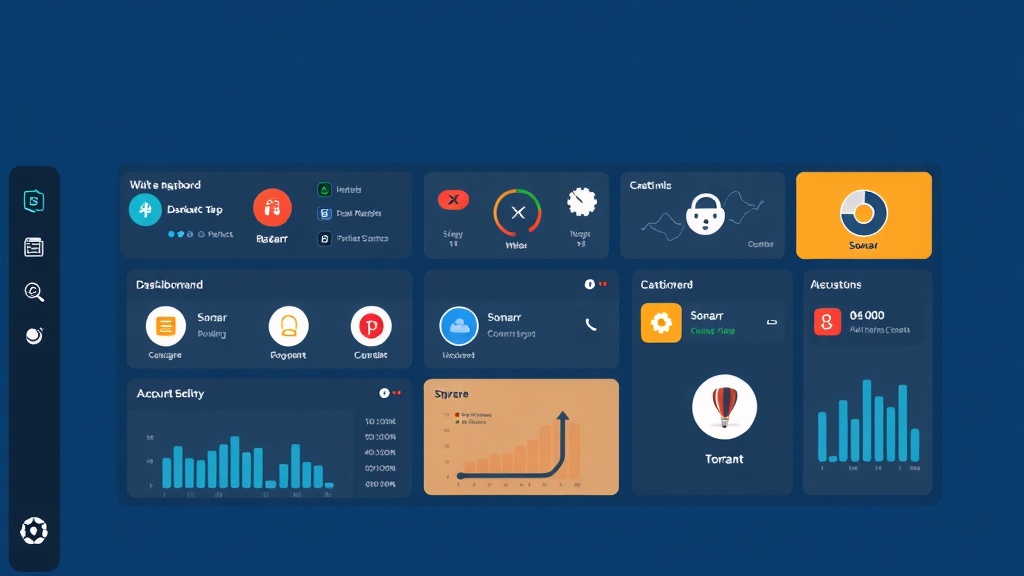
That’s why I switched to Homarr. Unlike static alternatives like Homer or Dashy, Homarr actually talks to your services. It doesn’t just link to Sonarr; it pulls your release calendar directly onto the grid. It doesn’t just link to Transmission; it displays live download speeds. I’ve run this setup for months. It’s rock-solid, usually consuming less than 150MB of RAM while centralizing management for over 30 services.
Quick Start: Deploying Homarr in 5 Minutes
Let’s get your dashboard live. Docker Compose is the best route here because it makes future updates or server migrations a breeze. First, create a dedicated directory for your Homarr data.
mkdir -p ~/homelab/homarr/configs
mkdir -p ~/homelab/homarr/icons
cd ~/homelab/homarr
nano docker-compose.yml
Paste this configuration into your file. I’ve stripped away the fluff to keep it lean and functional:
version: '3'
services:
  homarr:
    container_name: homarr
    image: ghcr.io/ajnart/homarr:latest
    restart: unless-stopped
    volumes:
      - /var/run/docker.sock:/var/run/docker.sock # Allows Homarr to see other containers
      - ./configs:/app/data/configs
      - ./icons:/app/public/icons
    ports:
      - '7575:7575'
Now, pull the image and fire it up:
docker compose up -dOnce the container settles, head to http://your-server-ip:7575. You’ll see the Homarr onboarding screen immediately. There is no need to mess with complex YAML files for every single button; we’ll handle the layout through the web interface.
The Technical Bits: Why This Setup Works
You might wonder why we mount docker.sock. Homarr includes a built-in Docker management widget. By passing the socket into the container, Homarr monitors the health of every other service on that host. You can start, stop, or restart containers directly from your dashboard without opening a terminal.
Persistence Matters
The volume mappings for /app/data/configs and /app/public/icons are vital. Homarr stores your entire layout, user credentials, and custom icons here. If you move your HomeLab to a new N100 mini-PC next year, just zip this folder and move it. Your dashboard will look exactly the same on the new machine.
Choosing the Right Image
We use the ghcr.io/ajnart/homarr:latest image. The developers are active, often pushing updates that improve widget performance and add new API integrations. While some prefer pinning specific version tags for stability, the latest tag has proven remarkably reliable in my testing.
Connecting Your Ecosystem
A dashboard that doesn’t interact with its services is just a landing page. The magic happens when you connect widgets for Sonarr, Radarr, and your torrent client.
1. Integrating Sonarr & Radarr
To see your media calendar and activity on the dashboard, try this:
- Enter “Edit Mode” by clicking the pencil icon in the top right.
- Click “Add Widget” and select Calendar.
- Grab your API key from Sonarr (Settings > General > API Key).
- Enter the internal Docker URL (like
http://sonarr:8989) or your local IP.
Now, instead of hunting through tabs to see when the next episode of The Last of Us airs, the date is right there on your main screen.
2. Real-time Torrent Monitoring
Monitoring downloads is usually what keeps me tab-hopping. Homarr supports qBittorrent, Transmission, and Deluge. Add the Download Speed widget and enter your credentials. You’ll get a live feed of your bandwidth usage. This is a lifesaver when the internet feels sluggish and you need to see which container is hogging the pipe.
3. Service Status Pings
For simple services like a custom script or a network share, use the Status Robot. Set a check interval—every 30 or 60 seconds is usually plenty. If the service returns a 200 OK, the icon stays green. If your server crashes, it turns red. This immediate feedback beats finding out three hours later when a family member complains that the media server is down.
Pro-Tips for a Production-Grade Dashboard
I’ve learned a few tricks to keep Homarr snappy and secure over the last few months.
Aesthetics and Custom Icons
Default icons are boring. Homarr supports high-res PNGs and SVGs. I recommend the Walkxcode Dashboard Icons repository. Download a set and drop them into your ./icons folder. A consistent icon set makes the dashboard much easier to navigate at a glance.
Locking Down Your Dashboard
Don’t leave your dashboard wide open. Head into settings and enable User Management immediately. Create an admin account for yourself and a ‘viewer’ account for family. This prevents guests from accidentally deleting your containers. If you access this outside your home, always use a VPN like WireGuard or a reverse proxy with Authelia. Never expose this port directly to the web.
Performance Optimization
If you have 50+ widgets, the initial load might feel sluggish. You can fix this by increasing the ‘refresh interval’ for specific widgets. Your Sonarr calendar only needs to update every 3600 seconds (one hour), not every 10 seconds. This small change significantly reduces the load on your browser and server CPU.
The Bottom Line
Setting up Homarr transformed my HomeLab from a pile of disconnected services into a cohesive system. It’s the first page I check in the morning and the last one I monitor at night. By following this guide, you’ve graduated from simple link-lists to real-time infrastructure monitoring. Keep your configs backed up, keep your API keys private, and enjoy the clarity of a truly organized HomeLab.