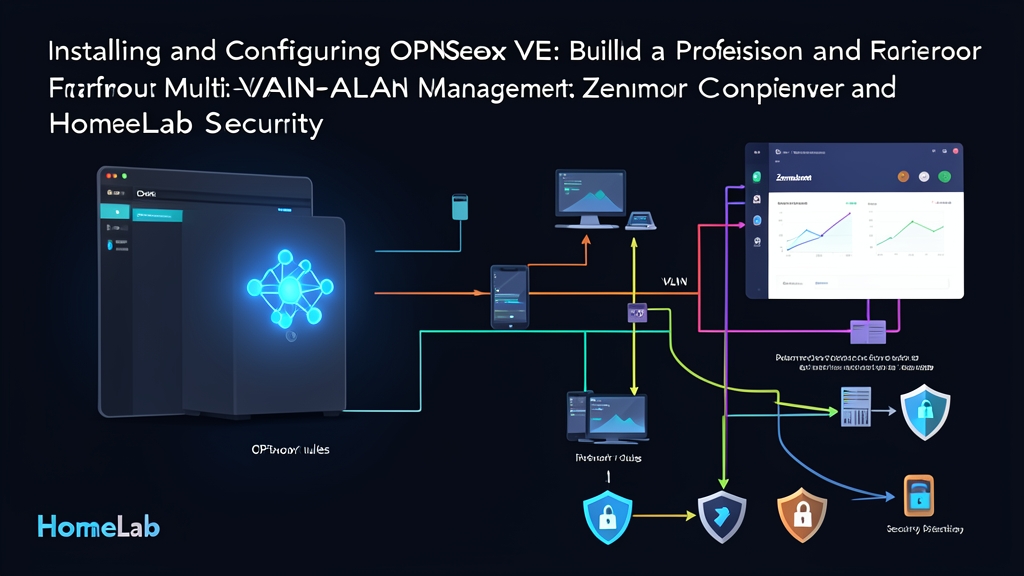
Context & Why
At 2:15 AM on a Tuesday, my syslog server threw over 14,000 alerts in under two minutes. An unbranded Android TV streaming box had caught a Mirai variant. It immediately flooded my flat 192.168.1.0/24 subnet with SYN scans, hammering the Proxmox web GUI at 192.168.1.2:8006 with 450 auth attempts a second. Having an untrusted $30 media player probe your hypervisor control plane is an immediate wake-up call.
Flat subnets amplify risk. When your storage arrays, personal workstations, and smart plugs share one Layer 2 broadcast domain, a single compromised gadget exposes your whole environment. Moving OPNsense inside Proxmox VE isolates these segments without needing five dedicated appliances. You gain instant ZFS rollback snapshots before kernel updates, unified power consumption, and flexible software switching across virtual and physical ports.
Passing raw PCIe network cards directly to the VM eliminates hypervisor-level flexibility. Instead, we use Proxmox VLAN-aware Linux bridges. A single dual-port 2.5GbE or 10GbE NIC can carry tagged traffic for WAN, hypervisor management, trusted endpoints, and quarantine zones. OPNsense manages inter-VLAN routing, and Zenarmor inspects Layer 7 packet payloads in real time.
Installation
First, configure the Proxmox networking layer to pass 802.1Q tagged frames straight into guest virtual NICs. SSH into your Proxmox node and inspect /etc/network/interfaces.
1. Prepare the Proxmox VLAN-Aware Bridge
Define two logical bridges: one dedicated bridge for the ISP gateway handoff, and one trunk bridge handling all internal traffic:
# /etc/network/interfaces snippet
auto lo
iface lo inet loopback

iface eno1 inet manual
# Dedicated physical NIC for ISP WAN modem handoff

iface eno2 inet manual
# Physical trunk to managed L2+ switch (e.g., UniFi Pro, TP-Link Omada)

auto vmbr0
iface vmbr0 inet manual
	bridge-ports eno1
	bridge-stp off
	bridge-fd 0
# WAN Bridge (Direct Layer 2 bridge to modem)

auto vmbr1
iface vmbr1 inet manual
	bridge-ports eno2
	bridge-stp off
	bridge-fd 0
	bridge-vlan-aware yes
	bridge-vids 2-4094
# Internal Trunk Bridge

auto vmbr1.10
iface vmbr1.10 inet static
	address 192.168.10.2/24
	gateway 192.168.10.1
# Proxmox Management Interface isolated on VLAN 10
Apply the new interface configuration immediately using ifupdown2 without rebooting the host:
ifreload -a2. Provision the OPNsense VM via Proxmox CLI
Download the official OPNsense DVD ISO into your local ISO directory. Then provision the virtual machine with optimal hypervisor flags:
qm create 100 --name "OPNsense-Core" \
  --memory 8192 --cores 4 --cpu host \
  --net0 virtio,bridge=vmbr0,firewall=0 \
  --net1 virtio,bridge=vmbr1,firewall=0 \
  --scsihw virtio-scsi-pci \
  --scsi0 local-lvm:32,discard=on,ssd=1 \
  --boot order=scsi0;ide2 \
  --ide2 local:iso/OPNsense-dvd.iso,media=cdrom \
  --ostype other --onboot 1 --startup order=1
Two flags make a measurable performance difference:
- CPU model set to
host: Passes instruction extensions like AES-NI and SHA directly to FreeBSD. This allows line-rate WireGuard cryptographic throughput with minimal CPU overhead. - VirtIO adapters configured with
firewall=0: Bypasses Linux ebtables and iptables filters on the bridge. This prevents duplicate packet tracking and spurious dropped states before traffic hits the firewall engine.
3. Base Installation and Hardware Offload Toggles
Power on VM 100 and open the noVNC console. Log in with the username installer and password opnsense. Select ZFS as the root filesystem, which handles unexpected host reboots much better than standard UFS. Once installation finishes, detach the installer ISO and restart the guest.
During the initial console setup wizard, assign the primary network adapters:
- WAN interface:
vtnet0(bound to WAN bridgevmbr0) - LAN trunk interface:
vtnet1(bound to trunk bridgevmbr1)
Access the OPNsense web GUI at https://192.168.1.1. Navigate immediately to Interfaces > Settings and enable these three suppression options:
- Disable Hardware Checksum Offload
- Disable Hardware TCP Segmentation Offload
- Disable Hardware Large Receive Offload
FreeBSD VirtIO drivers (vtnet) frequently drop bridged frames when hardware offloads stay active inside KVM virtual machines. Save changes, click Apply, and reboot the VM from the web console.
Configuration
1. Multi-VLAN Setup
To organize your subnets, open Interfaces > Other Types > VLAN. Add virtual sub-interfaces on top of the parent trunk vtnet1:
- VLAN 10 (MGMT): Tag
10, Parentvtnet1— Hypervisors, IPMI, Managed Switches (192.168.10.1/24) - VLAN 20 (TRUSTED): Tag
20, Parentvtnet1— Desktops, Work Laptops, Admin Phones (192.168.20.1/24) - VLAN 30 (SERVERS): Tag
30, Parentvtnet1— TrueNAS, Docker, Jellyfin (192.168.30.1/24) - VLAN 40 (IOT): Tag
40, Parentvtnet1— IP Cameras, Smart TVs, ESP32 sensors (192.168.40.1/24)
Go to Interfaces > Assignments, assign each VLAN tag, and enable the interfaces. Assign static IPv4 addresses to the gateways. Next, open Services > ISC DHCPv4 (or Kea) and define address pools for each subnet, reserving static leases for hypervisors and managed switches.
2. Strict Firewall Rules and Subnet Isolation
OPNsense blocks cross-interface traffic by default once an interface is assigned. To isolate untrusted networks cleanly while allowing administrative access, write rules using explicit aliases.
Navigate to Firewall > Aliases and create a summary network alias:
- Name:
RFC1918_Networks - Type: Network(s)
- Content:
10.0.0.0/8,172.16.0.0/12,192.168.0.0/16
Open Firewall > Rules > IOT. Create rules strictly in this sequence:
- Allow DNS: Pass | IPv4 UDP | Source:
IOT net| Destination:This Firewall| Port:53 - Allow NTP: Pass | IPv4 UDP | Source:
IOT net| Destination:This Firewall| Port:123 - Block RFC1918: Block | IPv4 * | Source:
IOT net| Destination:RFC1918_Networks(Locks IoT devices out of all private subnets) - Allow Internet Access: Pass | IPv4 * | Source:
IOT net| Destination:*(Permits outbound connections to external public IPs)
3. Layer 7 Threat Filtering with Zenarmor
Standard Layer 4 rules inspect only IP addresses and port numbers. They cannot stop suspicious outbound HTTPS beacons running over port 443. Zenarmor solves this by introducing deep packet inspection, TLS SNI identification, and live threat intelligence feeds.
Navigate to System > Firmware > Plugins. Install os-sunnyvalley, click Check for updates, and then install os-sensei and os-sensei-updater.
Select the Zenarmor menu entry to start the initial configuration wizard:
- Database Engine: Choose SQLite for homelabs running under 50 endpoints. Pick an external Elasticsearch or MongoDB host if you analyze long-term event retention.
- Deployment Mode: Select Routed Mode (L3).
- Protected Interfaces: Select internal VLANs (
vlan0.20,vlan0.30,vlan0.40). Leave your WAN interface unchecked. Inspecting pre-NAT traffic preserves original internal client IP addresses in your logs. - Hardware Engine: Netmap (VirtIO Emulated Netmap driver).
Open Zenarmor > Policies > Default > Security. Turn on real-time protection blocks: Malicious Software, Phishing, Botnets, and Aggressive Trackers.
Verification & Monitoring
Do not rely entirely on GUI checkmarks. Always validate your security boundary by running active packet tests from within the isolated subnets.
1. Subnet Isolation Validation via CLI
Spawn an Alpine Linux container tagged into VLAN 40 (IoT) with IP 192.168.40.50. Run diagnostic commands to probe boundary limits:
# Test 1: Verify internal gateway DNS resolution functions
dig @192.168.40.1 api.weather.com +short

# Test 2: Ping Proxmox host on VLAN 10 (Must result in 100% packet loss)
ping -c 3 -W 1 192.168.10.2

# Test 3: Scan SSH and web services on Management Gateway (Must return timeout / closed)
nc -zvw3 192.168.10.1 22 80 443
If ping packets drop completely and netcat hangs until timing out, the RFC1918 block rule is enforcing proper boundary separation.
2. Testing Zenarmor Layer 7 Filtering
Log in to a machine in VLAN 20 (Trusted) and send a curl request toward an industry-standard safety check endpoint:
curl -I http://malware.wicar.org/data/eicar.comZenarmor drops the TCP connection instantly or returns an HTTP 403 Forbidden page. Navigate to Zenarmor > Live Sessions in OPNsense to verify the flagged transaction, client source IP, and threat severity rating.
3. Performance Benchmarks and Resilience
Testing with iperf3 across an Intel Core i5-12400 testbed running four vCPUs showed 2.38 Gbps sustained throughput between VLAN 20 and VLAN 30. Host hypervisor CPU utilization remained under 6% during transfer bursts, and baseline idle memory hovered around 2.4 GB.
To safeguard your routing configuration, schedule daily automated Proxmox ZFS snapshots under VM > Backup. If an OPNsense kernel upgrade encounters issues, you can restore your entire firewall configuration in under 20 seconds directly from the Proxmox GUI.