
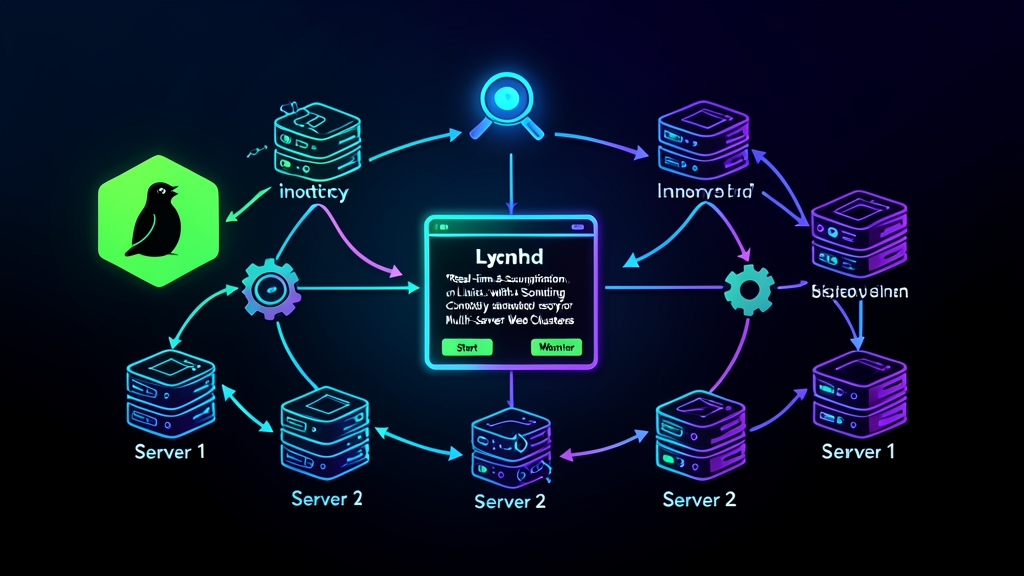
Comparing File Synchronization Approaches for Multi-Server Clusters
Scale a web app across three or four nodes, and you immediately hit a stubborn operational problem: keeping uploaded media and static assets identical everywhere. When a user uploads a 4MB profile photo to Web Node A, Web Node B needs to serve that exact file seconds later. Otherwise, visitors get broken image thumbnails or random 404 errors when hitting the load balancer.
Over the years, engineering teams have tackled this challenge using three primary strategies:
- Periodic Cron Jobs with Rsync: Running
rsyncvia cron every 60 seconds is simple to script, but it lags behind reality. If your uploads directory holds 80,000 files, traversing that tree every minute keeps disks grinding and burns CPU cycles—even when not a single byte has changed. - Shared Network Storage (NFS / GlusterFS / Ceph): Mounting a central volume over the local network eliminates sync delays immediately. However, plain NFS creates a painful single point of failure. Distributed filesystems like GlusterFS solve redundancy, but they add high metadata latency that can choke PHP or Node processes executing rapid
stat()calls. - Event-Driven Replication (Lsyncd via inotify + rsync): The Linux kernel already knows when a file changes. By using the
inotifysubsystem, Lsyncd waits silently until an actual write, move, or unlink event occurs, then launches a surgicalrsynccall targeting only those affected paths.
Pros and Cons of Lsyncd
Your choice comes down to traffic patterns, write frequency, and how much operational complexity you want on your plate. Here is how Lsyncd performs under real production conditions:
Advantages
- Sub-Second Event Triggers: Lsyncd registers filesystem events the instant the kernel closes a file descriptor, handing changes off to rsync within 2 to 5 seconds.
- Negligible Resource Usage: Lsyncd uses around 15MB to 30MB of resident memory and near-zero CPU time while idling. It never recurses through directories unless it is recovering from an interrupted stream.
- Intelligent Burst Aggregation: Extracting a 500MB zip file with 2,000 images will not trigger 2,000 separate SSH handshakes. Lsyncd batches the changes into one consolidated rsync transfer.
- Transient Failure Handling: If a target node drops off the network during a reboot or network hiccup, Lsyncd queues pending writes locally and drains the queue once connectivity returns.
Limitations
- Strictly One-Way by Default: Lsyncd shines in master-to-slave setups, like an admin backend pushing to frontend pools. Two-way master-master setups trigger race conditions and overwrite collisions unless paired with complex file locking.
- Kernel Watch Exhaustion: Inotify consumes one watch descriptor per tracked directory. On an upload directory with 200,000 nested subfolders, default distribution limits will fail abruptly unless you tune
fs.inotify.max_user_watches. - Single-Master Fan-Out Limits: Pushing heavy uploads from one master out to 15 or 20 nodes simultaneously will choke your outbound 1Gbps network interface and spike local CPU loads.
Recommended Architecture
To keep the cluster stable, route all media uploads through your primary backend or staging node. Treat this machine as your single source of truth (holding /var/www/uploads). The public-facing edge servers operate as read-only replicas.
We tested this topology on an Ubuntu 22.04 LTS master instance (2 vCPUs, 4GB RAM) serving roughly 45GB of product images across 65,000 directories. Replacing a 3-minute cron loop with Lsyncd dropped background CPU utilization from 28% down to under 2%, while replication delays shrank from up to 180 seconds to under 5 seconds.
Our target environment consists of:
- Source Node (Master):
192.168.10.10(Runs Lsyncd daemon) - Target Node 1 (Web 01):
192.168.10.11(Runs Rsync daemon / SSH) - Target Node 2 (Web 02):
192.168.10.12(Runs Rsync daemon / SSH) - Sync Directory:
/var/www/shared-media/
Implementation Guide
Step 1: Tune inotify Watch Limits on the Master Node
Every directory Lsyncd monitors uses a kernel watch handle. A modest 64-bit Ubuntu system defaults to 8,192 watches—enough for a small blog, but completely inadequate once user uploads expand into nested date-stamped trees.
# Check current inotify limits
cat /proc/sys/fs/inotify/max_user_watches

# Increase watches to 524288 (consumes ~54MB kernel memory)
echo "fs.inotify.max_user_watches=524288" | sudo tee -a /etc/sysctl.conf
sudo sysctl -p
Step 2: Configure Passwordless SSH Key Authentication
Lsyncd executes rsync via an SSH transport tunnel. Create an ED25519 keypair for root (or a restricted deployment user) so transfers run unattended without password prompts:
# Generate an ED25519 key on the master
sudo ssh-keygen -t ed25519 -N "" -f /root/.ssh/id_lsyncd

# Copy public key to target nodes
sudo ssh-copy-id -i /root/.ssh/id_lsyncd.pub [email protected]
sudo ssh-copy-id -i /root/.ssh/id_lsyncd.pub [email protected]

# Verify non-interactive login
sudo ssh -i /root/.ssh/id_lsyncd [email protected] "hostname"
Step 3: Install Lsyncd
You need both Lsyncd and Rsync on the master, but target web nodes only require Rsync and an active SSH server:
# On Ubuntu/Debian (Master)
sudo apt update
sudo apt install -y lsyncd rsync

# On RHEL/AlmaLinux (Master)
sudo dnf install -y epel-release
sudo dnf install -y lsyncd rsync

# On all target web servers
sudo apt install -y rsync   # or sudo dnf install -y rsync
Step 4: Create the Lsyncd Configuration File
Lsyncd parses native Lua syntax for its daemon directives. Write your process settings, sync blocks, and remote paths into /etc/lsyncd/lsyncd.conf.lua:
sudo mkdir -p /etc/lsyncd /var/log/lsyncd
sudo nano /etc/lsyncd/lsyncd.conf.lua
Paste the following production configuration:
settings {
    logfile = "/var/log/lsyncd/lsyncd.log",
    statusFile = "/var/log/lsyncd/lsyncd.status",
    statusInterval = 10,
    maxProcesses = 2,
    nodaemon = false
}

-- Target Node 1 (Web 01)
sync {
    default.rsync,
    source = "/var/www/shared-media/",
    target = "[email protected]:/var/www/shared-media/",
    delay = 5,
    rsync = {
        binary = "/usr/bin/rsync",
        archive = true,
        compress = true,
        verbose = true,
        _extra = {"-e", "ssh -i /root/.ssh/id_lsyncd -o StrictHostKeyChecking=no"}
    }
}

-- Target Node 2 (Web 02)
sync {
    default.rsync,
    source = "/var/www/shared-media/",
    target = "[email protected]:/var/www/shared-media/",
    delay = 5,
    rsync = {
        binary = "/usr/bin/rsync",
        archive = true,
        compress = true,
        verbose = true,
        _extra = {"-e", "ssh -i /root/.ssh/id_lsyncd -o StrictHostKeyChecking=no"}
    }
}
Three parameters deserve special attention here:
delay = 5: Lsyncd pauses for 5 seconds after receiving an initial inotify signal. This allows multiple incoming file writes to queue up, firing one compact rsync process rather than spinning up dozens of short-lived connections.archive = true: Passes the-aflag to preserve UNIX permissions, ownership, timestamps, and symbolic links across targets.StrictHostKeyChecking=no: Suppresses interactive host authenticity prompts, preventing silent background hang-ups if a remote IP changes.
Step 5: Start and Enable the Lsyncd Service
Launch the daemon through systemd and make sure it starts automatically after reboots:
# Enable service on boot and start immediately
sudo systemctl enable --now lsyncd

# Confirm the daemon is active and running
sudo systemctl status lsyncd
Step 6: Verify Real-Time Synchronization
Confirm the pipeline works by populating the master directory with test files and tailing the logs in real time:
# Generate sample image files on the master
sudo mkdir -p /var/www/shared-media/test-gallery
sudo touch /var/www/shared-media/test-gallery/banner-{01..05}.png

# Follow the Lsyncd operational log
sudo tail -f /var/log/lsyncd/lsyncd.log
Log entries should show Lsyncd detecting the events, waiting out the 5-second delay, and spawning rsync. Verify delivery directly on target node 192.168.10.11:
ls -la /var/www/shared-media/test-gallery/All five files should appear with matching timestamps. Delete one of the test banners on the master, and the target node drops it within seconds—giving your web cluster a synchronized asset tier with minimal operational overhead.