Closing the GitOps Loop
GitOps promises a single source of truth, but the reality often involves a frustrating manual step: updating image tags. You build a new Docker image, push it to ECR or Docker Hub, and then you are stuck manually editing a values.yaml file. It is a repetitive task that invites human error. In a fast-moving environment with 20+ microservices, this manual patching can easily swallow 4-5 hours of a DevOps engineer’s week.
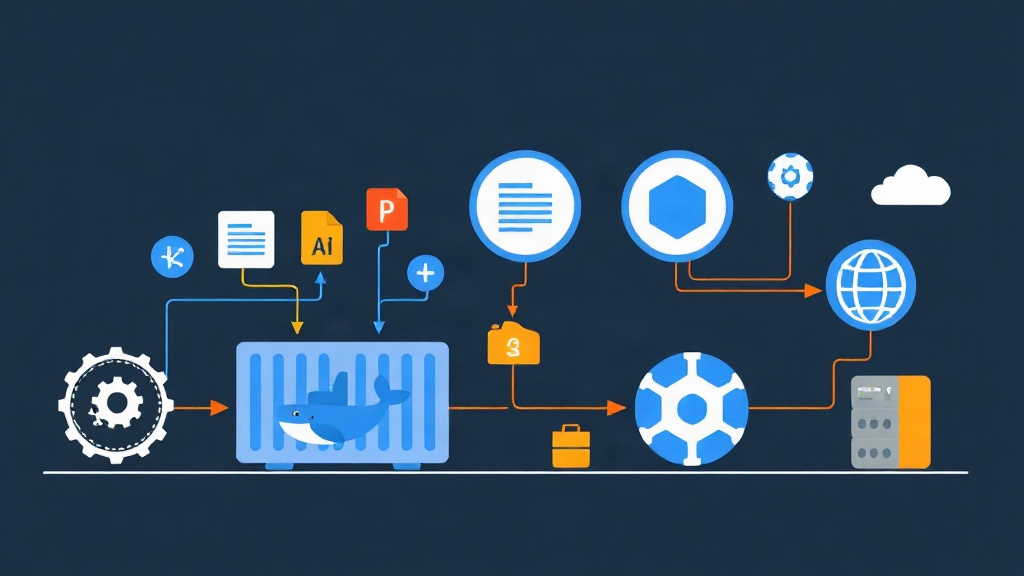
Argo CD Image Updater solves this by monitoring your container registry and automatically pushing tag changes back to Git. It bridges the gap between your CI pipeline and your GitOps repository. Instead of a developer making a tiny commit for every build, the controller handles the heavy lifting.
How the Controller Operates
Think of the Image Updater as a companion to Argo CD. It runs as a separate deployment and polls your registry—whether that is Harbor, GCR, or AWS ECR—to see if a new image version exists. When it detects a match based on your criteria, it triggers an update.
Update Strategies
You define what “new” means by choosing a strategy:
- SemVer: This is the gold standard for production. It follows Semantic Versioning rules. For example, if your current tag is
1.2.0, it can automatically grab1.2.1but ignore a breaking2.0.0release. - Latest: This strategy simply picks the image with the most recent build timestamp. It is useful for dev environments where tags like
latestordevelopare frequently overwritten. - Alphabetical: The tool sorts tags alphabetically and chooses the last one in the list.
Write-back Methods
Deciding how to apply the update is critical for your audit trail:
- Imperative (Argo CD API): The tool tells Argo CD to override the parameter in its internal state. The change never appears in Git. It is fast, but you lose the ability to see the change history in your repository.
- Git Write-back: This is the recommended approach. The tool clones your repo, creates a commit with the new tag, and pushes it back. Your Git history remains the definitive record of what is running in production.
Step-by-Step Configuration
I will assume you have a working Argo CD instance. We will install the Image Updater and configure it to track a sample app using the Git write-back method.
1. Installation
Deploy the controller using the official manifests. Run this command to get the stable version:
kubectl apply -n argocd -f https://raw.githubusercontent.com/argoproj-labs/argocd-image-updater/stable/manifests/install.yamlVerify the installation by checking for a running pod in the argocd namespace. It should be ready in about 30 seconds.
2. Granting Git Access
For the tool to commit changes, it needs a Personal Access Token (PAT). Create a Kubernetes secret to store these credentials securely:
kubectl create secret generic git-creds \
  --from-literal=username=devops-bot \
  --from-literal=password=ghp_your_secret_token_here \
  -n argocd
3. Adding Application Annotations
The Image Updater is opt-in. It only watches applications that have specific annotations. These annotations tell the tool which image to track and which strategy to use.
Here is a snippet for an Application manifest tracking a web app with SemVer:
apiVersion: argoproj.io/v1alpha1
kind: Application
metadata:
  name: inventory-api
  namespace: argocd
  annotations:
    # Track the inventory image
    argocd-image-updater.argoproj.io/image-list: my-app=docker.io/org/inventory:~
    # Use SemVer strategy
    argocd-image-updater.argoproj.io/my-app.update-strategy: semver
    # Use the Git write-back method
    argocd-image-updater.argoproj.io/write-back-method: git
    # Reference our Git credentials secret
    argocd-image-updater.argoproj.io/write-back-repository: [email protected]:org/infra-repo.git
spec:
  source:
    repoURL: https://github.com/org/infra-repo.git
    targetRevision: HEAD
    path: apps/inventory
The ~ symbol in the image list is a shorthand. It tells the updater to stay within the current minor version, such as moving from 1.1.5 to 1.1.9.
Connecting to Private Registries
Public registries work out of the box, but private ones require authentication. You can define credentials globally in the argocd-image-updater-config ConfigMap. Alternatively, use a secret for a specific application:
argocd-image-updater.argoproj.io/my-app.pull-secret: secret:argocd/registry-credsTroubleshooting and Best Practices
If your tags aren’t updating, do not guess. Check the logs immediately. Use kubectl logs -n argocd deployment/argocd-image-updater to see if there are 401 Unauthorized errors or rate-limiting issues.
- Watch your rates: Docker Hub has strict pull limits. Set the polling interval to 5 or 10 minutes in the ConfigMap to avoid being blocked.
- Branch Protection: Ensure your Git token has permissions to bypass branch protection. If your
mainbranch requires signed commits or PR approvals, the tool will fail to push. - The Override File: When using Git write-back, look for a file named
.argocd-source-<appname>.yaml. This is where the tool stores its overrides. Keep it in your repository.
Final Thoughts
Automating image updates removes the final manual hurdle in most GitOps workflows. It ensures your cluster stays in sync with your registry without human intervention. Start by migrating a single staging service to the SemVer strategy. Once the automation proves stable, you can roll it out across your production microservices to achieve true continuous delivery.