The Nightmare of “Backup Encryption”
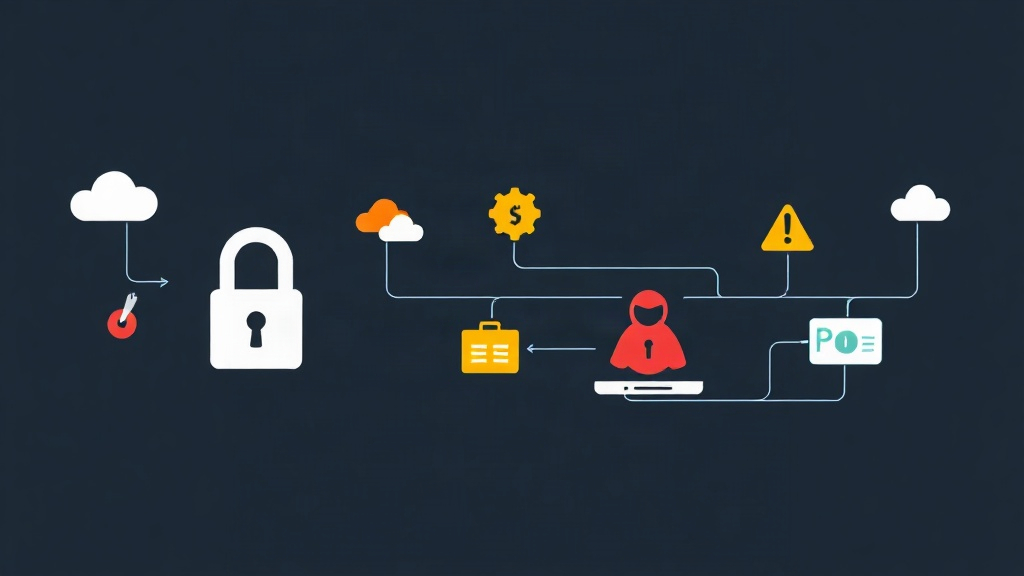
Six months ago, a colleague at a partner firm called me in a panic. Their entire infrastructure was hit by ransomware. While they had a robust backup routine, the attackers had gained lateral access to their backup server first. They wiped 4TB of cloud exports before triggering the encryption on the production database. The safety net didn’t just fail; it was cut.
Ransomware isn’t just about locking files anymore. Modern attacks actively hunt for backup credentials to ensure you have no choice but to pay. If your backup user has ‘Delete’ permissions, so does the malware that steals those keys. To stop this, I transitioned our entire Linux backup workflow to an immutable model using S3 Object Lock. After six months in production, this setup has become the most vital part of our disaster recovery plan.
What Makes a Backup Truly Immutable?
Immutability ensures data cannot be modified or deleted by anyone—including the root user or the account owner—for a set duration. In S3, this utilizes a Write Once, Read Many (WORM) model. Even if an attacker gains full administrative access to your AWS console, they cannot touch the locked data until the timer expires.
Object Lock operates in two distinct modes:
- Governance Mode: Users with the
s3:BypassGovernanceRetentionpermission can still delete objects. This is useful for testing but leaves a door open for sophisticated attackers. - Compliance Mode: The gold standard. No one, not even AWS support, can delete the object until the retention period ends. It is a digital vault with no override key.
Practical Implementation on Linux
Linux-native tools offer the best flexibility for automation. For this setup, we use the AWS CLI for configuration and Rclone for data synchronization. Rclone is particularly effective because it handles S3 Object Lock parameters directly via the command line.
1. Hardening the Environment
Secure credentials are your first line of defense. When generating IAM secret keys and server passwords, I use the browser-based generator at toolcraft.app/en/tools/security/password-generator. Because it runs locally in your browser, no sensitive strings ever cross the network. High-entropy keys are essential when you’re building a fortress.
Start by installing the AWS CLI on your Linux machine:
sudo apt update && sudo apt install awscli -y
aws configure
2. Creating an Object Lock Enabled Bucket
You cannot easily enable Object Lock on an existing bucket. It is much safer to create a fresh bucket with the feature enabled from the start. Note that versioning is a mandatory prerequisite for locking.
# Create the bucket
aws s3api create-bucket --bucket my-immutable-backups --region us-east-1

# Enable Object Lock with a 30-day compliance window
aws s3api put-object-lock-configuration \
    --bucket my-immutable-backups \
    --object-lock-configuration '{ "ObjectLockEnabled": "Enabled", "Rule": { "DefaultRetention": { "Mode": "COMPLIANCE", "Days": 30 }}}'
With this configuration, every file uploaded to my-immutable-backups is instantly shielded for 30 days. No exceptions.
3. Automating the Sync with Rclone
Rclone is the Swiss Army knife of cloud storage. It is lightweight and handles multi-threaded transfers exceptionally well. Install it using the official script:
sudo -v && curl https://rclone.org/install.sh | sudo bashAfter running rclone config to define your S3 remote (we’ll call it s3-backup), you can deploy a sync script. The bucket policy enforces the lock, so your commands remain simple. Here is the bash script I use to protect our /var/www/html directory:
#!/bin/bash
# Backup script with immutability
SOURCE="/var/www/html"
DEST="s3-backup:my-immutable-backups/web-files/$(date +%Y-%m-%d)"

rclone copy $SOURCE $DEST \
    --s3-no-check-bucket \
    --verbose \
    --transfers 8 \
    --checkers 16
The Acid Test: Verification
A backup strategy is only a theory until you test it. Try to delete a file immediately after the upload completes to confirm the policy is active.
# Attempting to delete the locked file
aws s3 rm s3://my-immutable-backups/web-files/2024-05-10/index.php
If the setup is correct, you will see: An error occurred (AccessDenied) when calling the DeleteObject operation. This error is your best friend. It proves that even with valid credentials, the data is untouchable.
Lessons from the Field
Running immutable backups at scale revealed a few nuances that documentation often skips.
Managing Storage Costs
Immutability means you cannot prune old data to save space. If you upload a 10GB database dump daily, you will pay for 300GB of storage by the end of the month. To manage this, I use S3 Lifecycle Policies. We transition locked objects to S3 Glacier Instant Retrieval after 7 days. This cut our storage bill from $0.023/GB to about $0.004/GB—a massive 80% saving for long-term retention.
Handling Object Versions
Immutability applies to specific versions of a file. If you upload a new version of a backup, the old one remains hidden but continues to consume space and stay locked. Ensure your recovery scripts are version-aware, though S3 will serve the latest version by default during a standard pull.
The Importance of Time Sync
Keep your Linux server’s clock accurate via NTP. S3 uses time-based request signing. If your server clock drifts by more than five minutes, AWS will reject your requests. More importantly, since retention is time-based, you want your local logs to align perfectly with cloud metadata.
Final Thoughts
Switching to immutable backups drastically improved my peace of mind. Knowing that a leaked API key cannot destroy our recovery points is a game-changer. The setup takes less than an hour, but it can save months of recovery work—or the business itself. If you are still using standard rsync or basic S3 uploads, add an immutability layer today.