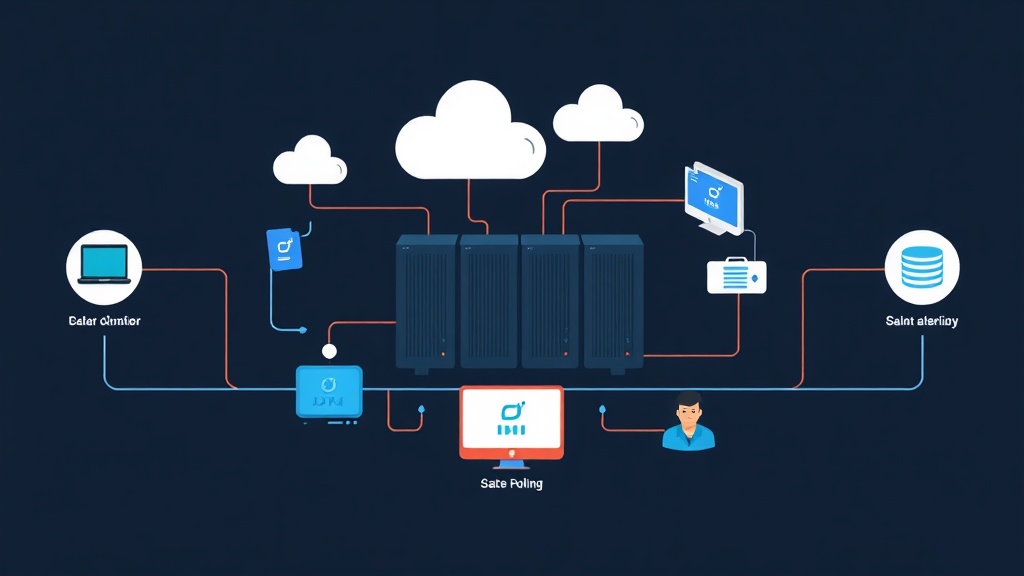
The High Availability Dilemma in HomeLabs
Most of us start our homelab journey with a dusty old laptop or a retired office desktop tucked in a corner. It works great until it doesn’t. The moment you need to perform a simple kernel update or a BIOS flash, your entire digital life—from Home Assistant to your local DNS—goes offline. While we demand 99.9% uptime at work, we often settle for much less at home because enterprise-grade hardware is usually too loud, too expensive, and eats too much power.
I decided to stop settling. I wanted a system that could survive a hardware failure without making my electricity bill skyrocket or my living room sound like a server room. After six months of testing, I found the ideal balance: a three-node cluster built on Intel N100 Mini PCs. This setup delivers professional-grade resilience for less than the cost of a single mid-range graphics card.
Why the Intel N100 is the New Gold Standard
The Intel N100 (Alder Lake-N) shifted the landscape for low-power virtualization. It packs four E-cores with a TDP of just 6W—about the same as a single LED lightbulb. These cores punch well above their weight. In my testing, a single N100 handles half a dozen Linux containers (LXCs) without breaking a sweat.
The real draw is the price. Units like the Beelink EQ12 or GMKtec G3 frequently drop to $95–$110 on Amazon or AliExpress. Snagging three of these keeps your core hardware budget right at $300. You get 12 cores and 24GB to 48GB of total RAM across the cluster, which is plenty for most home services.
The Power of Three
In Proxmox, three is the magic number because of Quorum. Think of it as a democratic vote. To make decisions—like moving a VM when a node dies—the cluster needs a majority. In a two-node setup, if one fails, the survivor only has 50% of the votes. That isn’t a majority, so the system freezes to prevent data corruption. With three nodes, if one goes dark, the remaining two maintain a 66% majority, keeping your services running smoothly.
Architecture and Networking Strategy
Planning your network is more important than picking the hardware. Proxmox relies on Corosync for cluster communication. Corosync is incredibly sensitive to latency. If your network experiences a lag spike, nodes might assume their peers have died, triggering a “fencing” event where the node abruptly reboots to protect data.
For this build, I used the following configuration:
- Nodes: 3x Beelink EQ12 (Intel N100, 16GB RAM, 500GB NVMe).
- Network: A dedicated 1GbE switch (a $20 TP-Link LS1005G works fine).
- Storage: ZFS Replication. While Ceph is powerful, it consumes too much CPU and RAM for these small nodes.
Step-by-Step: Building the Cluster
1. Initial OS Installation
Start by installing Proxmox VE 8.x on each node. Use a clear naming convention like pve-01, pve-02, and pve-03. Assign each node a static IP address immediately. Never use Wi-Fi for a cluster; High Availability requires the rock-solid stability of a physical Ethernet cable.
# Run this on every node to ensure you are up to date
apt update && apt dist-upgrade -y
2. Creating the Cluster
Open the Web UI for pve-01. Head to Datacenter > Cluster and hit Create Cluster. Give it a name like “HomeOps.” Once it’s ready, click Join Information and copy the token. On pve-02 and pve-03, simply click Join Cluster and paste that token. Proxmox handles the heavy lifting of SSH keys and Corosync setup for you.
3. Tuning the N100 for Performance
Mini PCs often try to save power by aggressively downclocking the CPU. This can cause micro-stutter in VMs. I recommend changing the CPU governor to ‘performance’ to keep things snappy. You can verify your current setting with this command:
cat /sys/devices/system/cpu/cpu*/cpufreq/scaling_governorIf it says ‘powersave,’ consider using cpufrequtils to lock it into a more responsive state.
4. Configuring High Availability (HA)
Now for the magic. Go to Datacenter > HA > Groups and create a group containing all three nodes. When you create a VM—say, your Pi-hole or Home Assistant instance—add it to this HA group. If pve-01 loses power, the cluster detects the failure within seconds. It will automatically restart your VM on pve-02 or pve-03.
Storage on a Budget: ZFS Replication
Since we are staying under $300, we aren’t using an expensive NVMe SAN. Instead, we use ZFS Replication. This feature mirrors your VM data between the local drives of each node every few minutes. If a node fails, the survivor has a nearly identical copy of the disk ready to boot. It’s a $0 solution that provides excellent protection against hardware failure.
# Check your ZFS pool health
zpool status
The catch? You might lose about 1 to 5 minutes of data depending on your replication schedule. For home use, that is a very fair trade-off.
The 6-Month Verdict
This N100 cluster has been running in my office for half a year without a single unplanned outage. I can migrate VMs between nodes to perform maintenance without my family even noticing the internet is “down.” The total power draw for all three nodes idles at 19 Watts. To put that in perspective, an old enterprise server like a Dell R720 would pull 150 Watts just sitting idle.
This setup comfortably hosts 15 LXC containers and 4 VMs. It’s quiet, it’s cheap, and it’s remarkably stable. If you want to eliminate the single point of failure in your home network, this is the most efficient way to do it.
Final Thoughts
Professional uptime doesn’t require a data center budget. By combining the efficiency of the Intel N100 with Proxmox’s clustering tools, you can build a resilient environment that fits in a shoebox. Just keep your cables tidy, your IPs static, and your Corosync traffic on a wire. You’ll quickly find that managing a cluster is far more rewarding than babying a single aging server.