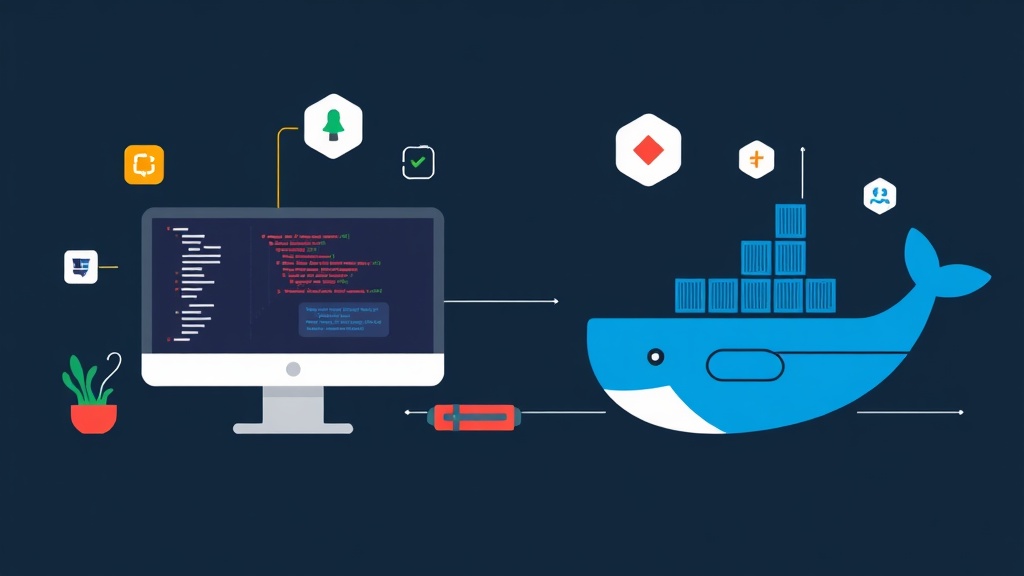
Why Your HomeLab Needs a Browser-Based IDE
Six months ago, I was stuck in a coffee shop with a $200 Chromebook and a critical bug in a side project. My primary workstation—a 64GB RAM monster—was idling at home, 50 miles away. I had a choice: pack up and drive home, or finally figure out how to bring my environment to the browser. I chose the latter, installed code-server, and it fundamentally changed how I work.
The tech is straightforward. You take VS Code, strip away the desktop Electron wrapper, and run it as a backend service. You then access the full interface through Chrome, Firefox, or Safari. It sounds like a workaround until you realize you can compile a 100,000-line Rust project using your server’s 16 cores while your fanless laptop stays completely silent.
Comparing the Options: Remote SSH vs. Web IDE
If you are building a HomeLab, you will eventually hit this fork in the road. Here is how the three main contenders stack up based on my testing.
1. VS Code Remote SSH
This is Microsoft’s official solution. You install VS Code locally, and it tunnels into your server. It is fast and responsive. However, it requires you to have a machine capable of running VS Code in the first place. Trying to fix code on an iPad or a locked-down office computer? Remote SSH won’t help you there.
2. GitHub Codespaces / Gitpod
These are polished, managed services that spin up containers in the cloud. They work great until you hit the billing ceiling. Once you exhaust the free 60 hours a month, the costs add up quickly. For HomeLab users, we want 24/7 availability with zero recurring subscription fees.
3. Self-Hosted code-server (The Sweet Spot)
By hosting code-server on your own Docker host, you own the hardware and the data. The IDE is always ‘hot.’ Terminal sessions are persistent; if your Wi-Fi drops while you are mid-deployment, the process keeps running on the server. When you reconnect, your cursor is exactly where you left it. Mastering this setup is a major step in moving from a casual tinkerer to a professional remote-first engineer.
The Reality Check: 6 Months of Daily Use
Half a year in, the novelty has worn off, leaving a clear picture of what works and what doesn’t. It isn’t a silver bullet, but for most dev workflows, the trade-offs are worth it.
The Wins
- Massive Battery Gains: Your laptop becomes a thin client. My 2015 MacBook Air, which usually survives 3 hours of local dev, now pushes past 7 hours because the server handles the heavy lifting.
- Total Consistency: ‘It works on my machine’ is dead. My HomeLab is my only machine. Whether I am on my desktop or a borrowed tablet, the compilers, ZSH aliases, and SSH keys are identical.
- Persistent Workflows: I can trigger a long database migration at the office, close my laptop, and check the logs on my phone while on the bus.
- Security: Your source code never leaves your house. If your laptop is stolen at the airport, your intellectual property remains safe on your encrypted home drives.
The Friction Points
- Shortcut Collisions: Occasionally,
Ctrl+Wwill close your browser tab instead of your code file. You can fix this by ‘installing’ the page as a PWA (Progressive Web App) to give it a dedicated window. - Network Sensitivity: You need a stable connection. While the IDE handles high latency well, a connection under 5Mbps upload at home will make typing feel ‘mushy.’
- Extension Registry:
code-serveruses the OpenVSX registry rather than the proprietary Microsoft Marketplace. Most plugins are there, but a few niche ones require manual.vsixuploads.
The Production-Grade Stack
To move beyond a ‘toy’ setup, I recommend this specific infrastructure:
- Docker: Mandatory for easy updates and environment isolation.
- LinuxServer.io Image: They provide the most stable builds with excellent permission handling.
- Nginx Proxy Manager: This handles your SSL certificates so you can access the IDE via
https://code.yourdomain.com. - Tailscale: For security, this is the gold standard. It lets you access your server without opening any ports to the public internet.
Quick Setup Guide
Let’s get your station running. I am assuming you have Docker and Docker Compose ready to go.
1. Prepare the Workspace
mkdir -p ~/homelab/code-server
cd ~/homelab/code-server
2. Configure the Container
We will use the LinuxServer.io image. It handles User IDs (PUID) and Group IDs (PGID) properly, preventing the common ‘permission denied’ errors when editing files.
nano docker-compose.ymlservices:
code-server:
image: lscr.io/linuxserver/code-server:latest
container_name: code-server
environment:
- PUID=1000
- PGID=1000
- TZ=America/New_York
- PASSWORD=your_secure_password # Use a long string here
- DEFAULT_WORKSPACE=/config/workspace
volumes:
- ./config:/config
- /var/run/docker.sock:/var/run/docker.sock # Only if you need to manage Docker from inside
ports:
- 8443:8443
restart: unless-stopped3. Spin Up
Deploy the stack with a single command:
docker compose up -dNavigate to http://[your-server-ip]:8443. On a standard Ubuntu host, the container idles at roughly 350MB of RAM—extremely lightweight for what it offers.
A Note on Customization
Avoid the temptation to keep the container ‘vanilla.’ Treat it like a real workstation. Open the integrated terminal and install your toolchains immediately:
sudo apt update && sudo apt install -y python3-pip nodejs golangImportant: Only files stored in /config survive a container update. If you find yourself installing many system-level packages, consider creating a custom Dockerfile to bake those tools into the image.
Security is Non-Negotiable
Exposing a terminal to the internet is a massive risk. If a bad actor guesses your password, they own your server. To sleep soundly, follow these rules:
- HTTPS Only: Never enter your password over a plain HTTP connection.
- Use a VPN: Instead of opening port 8443 on your router, use Tailscale. It creates a private mesh network, making your IDE accessible only to your authenticated devices.
- Multi-Factor: If you must go public, use Cloudflare Access to add a 2FA layer in front of the login page.
Final Thoughts
Moving my development workflow into my HomeLab was the most effective productivity hack I found last year. It removes the friction of ‘getting started’ on a project. I just open a browser tab and I am ready to commit code. If you have an old OptiPlex or a NAS lying around, give this a shot. You might find your heavy laptop charger gathering dust in a drawer sooner than you think.