
The Midnight Alarm: When Automated Bots Flood Your Logs
At 2:40 AM, a barrage of PagerDuty alerts woke me to CPU and disk-I/O spikes on an edge node. When I jumped into the console, /var/log/auth.log was tailing at roughly 450 lines per second. A distributed botnet had already pumped over 80,000 authentication attempts into OpenSSH within two hours, cycling through wordlists against root and service accounts—an onslaught better analyzed by deploying an SSH honeypot than absorbing it on a production bastion.
The host did not run on default port 22, and password logins were already disabled. Yet the daemon still choked on handshakes, eating 35% of a CPU core and dumping gigabytes of connection garbage to disk. An external nmap -sS -p- scan confirmed the issue immediately: custom port 2222 answered with open. Any wide-subnet scanner hitting that IP could flag the service in seconds.
Root Cause Analysis: Why Open Management Ports Invite Trouble
Exposing management daemons to public IPv4 subnets violates the principle of least privilege. Once an SSH port responds on the open internet, it creates three persistent headaches:
- Automated Discovery: Masscan can rip through an entire /16 CIDR block in under five minutes. Search engines like Shodan and Censys map responsive SYN-ACK ports continuously, indexing your machine on public adversary lists.
- Pre-Authentication Exploit Surface: Key-based authentication keeps weak passwords out, but OpenSSH still executes complex packet parsing code before verifying keys. Vulnerabilities like regreSSHion (CVE-2024-6387) prove that unauthenticated remote code execution remains a tangible risk.
- Alert Fatigue and Log Bloat: Bot traffic drowns legitimate audit events. Sifting through 200,000 auth failures makes spotting authentic lateral movement or credential stuffing nearly impossible.
Authentication alone is insufficient. Visibility is the real culprit. If untrusted IPs cannot complete a TCP handshake with your SSH port, attackers have nothing to probe.
Solutions Compared: Rate-Limiting vs. Filtering vs. Port Knocking
Platform teams typically pick between three defensive architectures:
1. Fail2ban and Log Parsers
Fail2ban parses log files and drops offending IP addresses via temporary firewall rules. The catch? It is entirely reactive. Mitigation begins only after an attacker has already fired dozens of handshakes. It offers zero protection against single-packet pre-auth exploits or distributed botnets rotating thousands of distinct IPs.
2. Static IP Allowlisting
Locking port 22 down to static office blocks or WireGuard subnets provides rock-solid defense. But this strategy falls apart fast during incident response. Engineers on hotel Wi-Fi, dynamic residential broadband, or cellular failover connections lose out-of-band access the second an upstream VPN gateway drops offline. While organizations with mature infrastructure often adopt zero trust access for SSH using certificate authorities, port knocking offers an ultra-lightweight alternative without managing complex identity clusters.
3. Dynamic Port Knocking with knockd
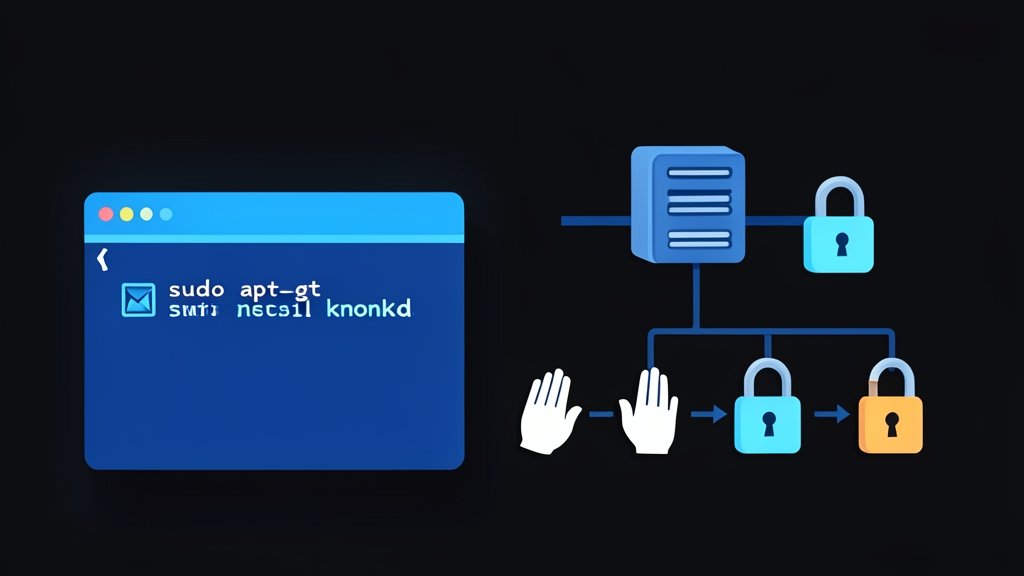
Port knocking sets the firewall default policy to silently drop all incoming packets on port 22. Port scanners see only a filtered response, indistinguishable from an offline host. Meanwhile, a lightweight packet sniffer called knockd monitors raw interface traffic using libpcap. When it detects a secret sequence of SYN packets across closed ports, it inserts an ephemeral iptables permit rule strictly for the knocking IP.
Step-by-Step knockd Implementation
This production-ready setup uses Debian/Ubuntu. We will configure knockd alongside persistent firewall rules, lock port 22, and enforce an automatic teardown timer.
Step 1: Install knockd and Persistent Firewall Packages
Pull in the daemon along with netfilter persistence packages:
sudo apt update
sudo apt install -y knockd iptables-persistent netfilter-persistent
Step 2: Configure the Knock Daemon
Open /etc/knockd.conf. Replace its contents with a hardened sequence and explicit timeouts:
[options]
    UseSyslog
    LogFile = /var/log/knockd.log
    Interface = eth0

[opencloseSSH]
    sequence      = 8412:tcp,9231:tcp,7154:tcp
    seq_timeout   = 10
    tcpflags      = syn
    start_command = /usr/sbin/iptables -I INPUT -s %IP% -p tcp --dport 22 -j ACCEPT
    cmd_timeout   = 15
    stop_command  = /usr/sbin/iptables -D INPUT -s %IP% -p tcp --dport 22 -j ACCEPT
Pay attention to these core parameters:
sequence: Pick three or four non-sequential, unassigned high ports (above 5000). Avoid textbook defaults like 7000, 8000, 9000.seq_timeout = 10: Demands the full sequence arrive within ten seconds, thwarting random multi-port scan triggers.tcpflags = syn: Ensuresknockdresponds exclusively to TCP SYN packets and ignores stray payload data or ACK traffic.cmd_timeout = 15: Strips the firewall permit rule 15 seconds after activation. Linux connection tracking keeps your shell alive, so you only need the door unlocked long enough to complete the three-way handshake.
Step 3: Bind the Network Interface and Start knockd
Find your primary network interface name using ip -br link. If your interface is enp3s0 rather than eth0, adjust the Interface directive in /etc/knockd.conf accordingly.
Enable the systemd service in /etc/default/knockd:
sudo sed -i 's/START_KNOCKD=0/START_KNOCKD=1/' /etc/default/knockd
sudo systemctl daemon-reload
sudo systemctl enable knockd
sudo systemctl restart knockd
Check daemon status with sudo systemctl status knockd to make sure pcap attached to the interface cleanly.
Step 4: Lock Down iptables Rules
Keep your existing SSH session active in one window while applying these rules in another. We must preserve established connections before dropping new traffic:
# 1. Allow local loopback traffic
sudo iptables -A INPUT -i lo -j ACCEPT

# 2. Maintain active and related stateful connections
sudo iptables -A INPUT -m conntrack --ctstate ESTABLISHED,RELATED -j ACCEPT

# 3. Drop incoming SSH attempts by default
sudo iptables -A INPUT -p tcp --dport 22 -j DROP

# 4. Save rules across reboots
sudo netfilter-persistent save
Direct connection tests will now hang. An external ssh user@your-server-ip will time out after 60 seconds with zero banner information leaked.
Step 5: Test the Knock Sequence from a Remote Machine
From your local client, trigger the knock using the native knock utility:
knock -v your-server-ip 8412 9231 7154If your laptop does not have the knock package installed, run this nc (Netcat) loop instead:
for port in 8412 9231 7154; do nc -z -w 1 your-server-ip $port; doneNow initiate your connection within the 15-second window:
ssh -i ~/.ssh/id_ed25519 user@your-server-ipCheck the server log via sudo tail -f /var/log/knockd.log. You will observe the sequence detection, the initial iptables -I execution, and the subsequent iptables -D rule removal after 15 seconds. The active session continues unhindered.
Step 6: Automate the Sequence in Local SSH Config
Typing multi-port triggers manually before every login adds friction. Automate the entire sequence inside ~/.ssh/config on your local workstation:
Host production-bastion
    HostName 198.51.100.24
    User ops
    IdentityFile ~/.ssh/id_ed25519
    ProxyCommand bash -c 'for p in 8412 9231 7154; do nc -z -w 1 %h $p; done; sleep 0.2; exec nc %h %p'
Now, running ssh production-bastion dispatches the stealth knock, pauses 200 milliseconds for rule application, and connects directly through Netcat. You get instant access with zero workflow friction, while Shodan and internet scanning bots hit an absolute black hole.