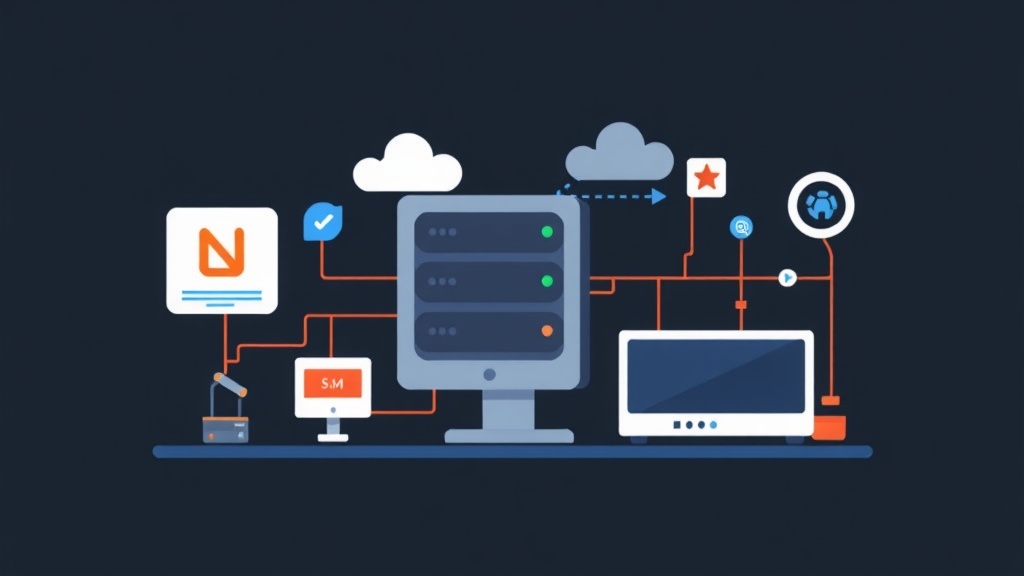
Why Traditional File Sharing Falls Short in HomeLabs
Building a HomeLab is exciting, but as your setup grows, managing files across multiple machines can quickly become a headache. You’ll soon accumulate virtual machines for testing, containers running various services, maybe a dedicated media server, and a dedicated file server.
Suddenly, you’re not just dealing with a few files; you might need to share media with your Jellyfin server, distribute configuration backups across multiple nodes, or maintain a common codebase for development. While copying files manually or using simple tools like scp works for one-off tasks, this approach quickly falls apart when different clients need persistent, real-time access to shared data.
The Limitations of Ad-Hoc Sharing
The core problem with informal file sharing is the absence of a unified, network-attached storage solution. Without a central hub that all your HomeLab machines can transparently access, you’ll constantly battle data inconsistencies and spend hours on manual synchronization.
Permissions become a constant struggle; reconciling user IDs and group IDs across various operating systems or even different installations is a frustrating chore. Furthermore, relying on less optimized protocols for continuous access can introduce significant performance bottlenecks, making applications sluggish or even unreliable. What you truly need is a system that feels like local storage to each client, but actually lives on your network.
Exploring Network File Sharing Options
When considering network file sharing for a HomeLab, a few common options usually come to mind:
Samba (SMB/CIFS)
Samba is fantastic for mixed environments, especially if you have Windows machines in your HomeLab setup. It’s the de facto standard for Windows file sharing.
However, for a purely Linux-centric HomeLab, Samba can sometimes feel a bit overkill. Configuring user and group mappings can be more complex – for instance, trying to sync user1 on Linux with user1 on a Windows machine requires careful setup. While performance is generally good, it might not be as lightweight as alternatives for native Linux clients.
FTP/SFTP
FTP (File Transfer Protocol) and its secure counterpart, SFTP (SSH File Transfer Protocol), are excellent for transferring files. They’re straightforward to set up for basic file movement, like uploading a file from your PC to a server.
However, their major limitation is that they aren’t designed for mounting a network share as if it were local storage. Applications won’t be able to directly read and write files on an FTP share as they would on a local disk. This makes them unsuitable for scenarios where services demand continuous, direct file system access to data.
Cloud Storage Sync
Options like Nextcloud or commercial cloud storage solutions (e.g., Google Drive, Dropbox) offer synchronized file access.
While convenient, they often require an internet connection, introduce latency (even on a fast connection, transferring a 10GB file might take minutes compared to seconds locally), and might incur costs (e.g., $10/month for 2TB). For many HomeLab enthusiasts, the goal is often self-hosting and keeping data local, so cloud solutions, while powerful, often defeat that core purpose.
Why NFS Shines in a Linux-Centric HomeLab
For HomeLabs built primarily on Linux machines, Network File System (NFS) stands out as the superior choice. This protocol is purpose-built for sharing files between Unix-like systems.
NFS offers significant performance benefits, especially over a local network, largely because it’s deeply integrated into the Linux kernel. It’s lightweight, incredibly efficient, and once configured, it operates quietly in the background, allowing your client machines to access shared data as if it were a local drive.
From my own experience, mastering NFS configuration is an incredibly valuable skill for any HomeLab enthusiast or DevOps engineer. Setting up NFS correctly from the start can save hundreds of hours in the long run by centralizing data management and streamlining deployments across your entire infrastructure.
Setting Up Your NFS Server on Ubuntu
Let’s walk through setting up an NFS server on your Ubuntu machine.
Prerequisites: Getting Ready
- An Ubuntu Server installation (this guide assumes 20.04 LTS or newer).
- Basic networking configured (a static IP address is highly recommended for your NFS server).
- Root or sudo access to your server.
Install NFS Server Packages
To begin, we need to install the necessary packages on your Ubuntu server. The following command will fetch and install nfs-kernel-server, which provides all the essential server-side components for NFS.
sudo apt update
sudo apt install nfs-kernel-server -y
Create Shared Directories
Next, define the directory (or directories) you want to share. It’s a best practice to create a dedicated location for your NFS shares, often under /srv or /export for organizational clarity.
sudo mkdir -p /srv/nfs/shared_data
Now, set appropriate permissions. For a HomeLab, broad access is often desired. Using nobody:nogroup ensures that files created by NFS clients are owned by the anonymous user, which effectively prevents common permission conflicts. Setting 777 grants full read, write, and execute permissions to everyone. Be cautious with 777 in production environments; it’s generally too permissive for security reasons. However, for a personal HomeLab, it greatly simplifies permissions management.
sudo chown nobody:nogroup /srv/nfs/shared_data
sudo chmod 777 /srv/nfs/shared_data
Configure NFS Exports: The /etc/exports File
The /etc/exports file is where you define exactly which directories are shared and with whom. Each line in this file specifies a shared directory, followed by the client(s) permitted to access it, and finally, the specific export options.
Open the file with your favorite text editor:
sudo nano /etc/exports
Add a line similar to this example, remembering to replace 192.168.1.0/24 with your HomeLab’s actual network range:
/srv/nfs/shared_data 192.168.1.0/24(rw,sync,no_subtree_check)
Let’s break down these critical options:
rw: Allows both read and write access to the share. Userofor read-only access.sync: This ensures that changes are written to disk before the server confirms the operation to the client. This prioritizes data integrity but can slightly impact performance compared toasync. For HomeLabs,syncis generally the safer and preferred default.no_subtree_check: This option disables subtree checking. When an NFS client mounts a subdirectory of an exported file system, the server typically performs checks to ensure the client isn’t accessing files outside that subdirectory. Disabling this improves reliability and can sometimes speed up transfers, especially with deeply nested directories.no_root_squash: (Use with extreme caution!) By default, NFS “squashes” root user access from clients. This means requests originating from a client’s root user are treated as if they came from the less privilegednobodyuser on the server. This is a crucial security measure. Disabling this option withno_root_squashallows the client’s root user to have full root privileges on the NFS server’s exported directory. This represents a significant security risk and is generally not recommended unless you fully understand its implications and operate in a highly controlled environment.
Save and close the file.
Apply Export Changes and Restart NFS Service
After you’ve modified /etc/exports, you must instruct NFS to re-read its configuration and apply the new changes. Then, restart the NFS server to ensure all settings are initialized correctly.
sudo exportfs -a
sudo systemctl restart nfs-kernel-server
sudo systemctl enable nfs-kernel-server # Ensures NFS starts on boot automatically
sudo systemctl status nfs-kernel-server # Verify the service is running as expected
Firewall Configuration: Allowing NFS Connections
If you’re running a firewall (and you absolutely should be!), you need to explicitly allow incoming connections to your NFS server. Assuming you’re using UFW (Uncomplicated Firewall) on Ubuntu, here’s how:
sudo ufw allow from 192.168.1.0/24 to any port nfs
# If UFW is not active, enable it first:
sudo ufw enable
sudo ufw status # Confirm your rules are active
Remember to replace 192.168.1.0/24 with your client network range. This rule permits traffic on the standard NFS port (2049) and dynamically assigned ports used by services like rpcbind and mountd, specifically from your designated network.
Connecting Your NFS Clients
Now that your NFS server is fully configured and ready, let’s set up your client machines to mount the shared directory.
Install NFS Client Packages
On each client machine that needs to access the NFS share, you’ll need to install the nfs-common package. This provides the necessary tools for NFS client operations.
sudo apt update
sudo apt install nfs-common -y
Create a Mount Point
Before mounting the share, create a local directory on the client where the NFS share will appear. This directory acts as the gateway to your shared files.
sudo mkdir -p /mnt/nfs_share
Mount the NFS Share
You can manually mount the share using the mount command for immediate access:
sudo mount <NFS_SERVER_IP>:/srv/nfs/shared_data /mnt/nfs_share
Replace <NFS_SERVER_IP> with the actual IP address of your NFS server. After mounting, verify it:
df -h
ls -l /mnt/nfs_share
You should see the mounted share listed in the df -h output. Try creating a file in /mnt/nfs_share; it should immediately appear on the server.
Automating Mounts with /etc/fstab
For permanent access, you’ll want your NFS share to mount automatically every time your client machine boots. You can achieve this by adding an entry to the /etc/fstab file on the client.
Open /etc/fstab:
sudo nano /etc/fstab
Add the following line, again replacing <NFS_SERVER_IP> and considering adding the _netdev option for network-dependent mounts:
<NFS_SERVER_IP>:/srv/nfs/shared_data /mnt/nfs_share nfs defaults,_netdev 0 0
The _netdev option is crucial as it tells the system to wait until the network is up before attempting to mount the share, preventing boot errors. Save and close the file. To test if the fstab entry is correct without rebooting, unmount the share and then run mount -a:
sudo umount /mnt/nfs_share
sudo mount -a
df -h
If mount -a runs without errors and df -h shows the share, you’re all set for automated mounting!
Troubleshooting Common NFS Issues
- “Permission denied” errors: Start by double-checking file system permissions on the server (using
chownandchmod) and reviewing the/etc/exportsoptions (specificallyrw). You might also need to ensure client and server UIDs/GIDs align, or simplify things for HomeLab setups by usingnobody:nogroupfor ownership and theall_squashexport option on the server. - “Mount: Stale file handle”: This error often occurs if the NFS server was restarted or the shared directory changed while clients were actively connected. Unmounting and then remounting the share on the client usually resolves this:
sudo umount /mnt/nfs_share && sudo mount /mnt/nfs_share. - Connection Timeout/Firewall Issues: Verify your firewall rules on the NFS server are correctly configured. Ensure UFW (or your chosen firewall) allows connections on NFS ports from your client network range. A quick check with
sudo ufw statuscan confirm this. - Checking Logs: The system logs on both your server and client are invaluable resources for diagnosing issues. Commands like
journalctl -xeor reviewing/var/log/syslogcan provide crucial insights into what went wrong.
Final Thoughts: Empowering Your HomeLab
Configuring an NFS server on Ubuntu is a fundamental skill for anyone serious about building a robust HomeLab. It provides a reliable, high-performance method for centralized file sharing that integrates smoothly into Linux environments. You’ve now gained a scalable way to share everything from media libraries to application configurations across your entire HomeLab infrastructure. Now, go forth, experiment, and enjoy your newly empowered shared storage!