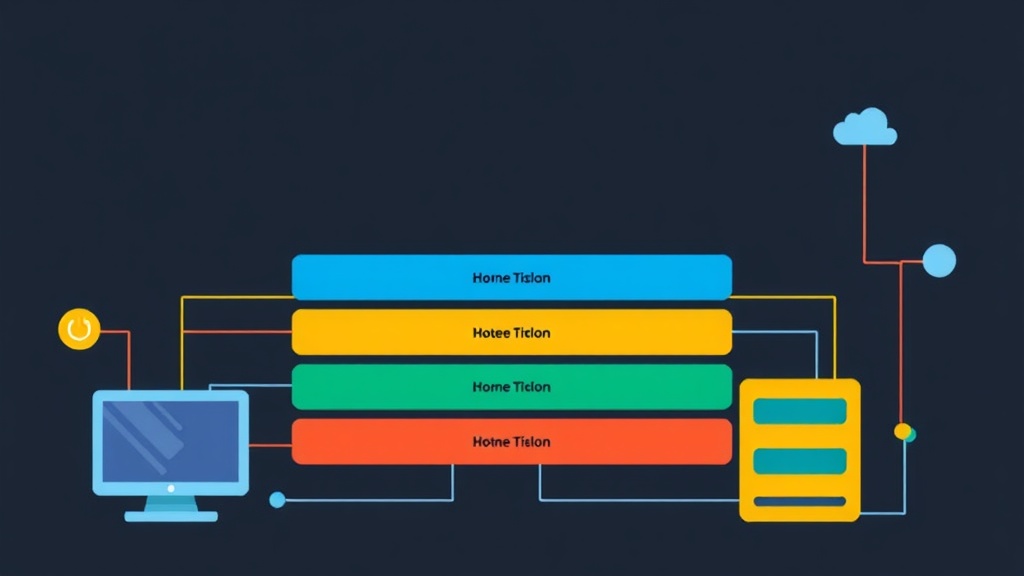
Quick Start: The OSI Model in 5 Minutes
Have you ever faced a network problem, unsure where to start troubleshooting? Or struggled to debug an application that just won’t connect to another service? The OSI (Open Systems Interconnection) model is incredibly useful in these situations.
Picture the OSI model as a clear blueprint for network device communication. It breaks down the intricate process of data transmission into seven distinct, manageable layers. Each layer is responsible for a specific set of tasks. By understanding each layer’s role, you can diagnose issues far more quickly and build resilient systems.
From my experience, mastering the OSI model is crucial. When you can identify the exact layer where a problem lies – whether it’s a faulty physical cable or an application-level misconfiguration – you move beyond guesswork to precise diagnosis. This knowledge is fundamental for anyone in networking, from developers and system administrators to full-stack DevOps engineers.
Here’s a quick glance at the 7 layers, from top to bottom:
- Application Layer: What your apps use (e.g., HTTP, DNS).
- Presentation Layer: Data format and encryption.
- Session Layer: Managing communication sessions.
- Transport Layer: End-to-end reliability (e.g., TCP, UDP).
- Network Layer: Logical addressing and routing (e.g., IP).
- Data Link Layer: Physical addressing and error checking (e.g., MAC, Ethernet).
- Physical Layer: Cables, bits, and electrical signals.
With that overview, let’s explore what each of these layers entails in a practical sense.
Deep Dive: Unpacking Each OSI Layer
Layer 7: Application Layer
This is the layer you interact with most directly, even if you don’t realize it. It’s where network services support applications. When your web browser fetches a page, your email client sends a message, or your SSH client connects to a remote server, you’re operating at the Application layer.
- Purpose: Provides network services directly to end-user applications.
- Examples: HTTP, HTTPS (web browsing), FTP (file transfer), SMTP (email), DNS (name resolution), SSH, Telnet.
If your website isn’t loading, but you can ping the server, you might have an Application layer problem – perhaps a web server (like Nginx or Apache) isn’t running or is misconfigured. For instance, a common issue is a misconfigured virtual host on port 80 or 443.
Layer 6: Presentation Layer
The Presentation layer focuses on how data is represented and exchanged. It acts as a translator, ensuring that data from one system is intelligible to another. This layer handles crucial tasks like data formatting, encryption, and compression.
- Purpose: Data format translation, encryption/decryption, compression.
- Examples: JPEG, MPEG, GIF (image/video formats), ASCII, EBCDIC (text formats), SSL/TLS (encryption).
When you access an HTTPS website, the SSL/TLS encryption and decryption occur here. If you’re seeing corrupted data, or your encrypted connection fails due to a certificate mismatch, examine the Presentation layer.
Layer 5: Session Layer
After data is formatted, the Session layer takes charge of managing the communication dialogue between two applications. It establishes, maintains, and ultimately terminates these connections, ensuring orderly conversations.
- Purpose: Establishes, manages, and terminates communication sessions between applications.
- Examples: NetBIOS, RPC (Remote Procedure Call). More broadly, many modern applications manage their own session-like states over Transport layer connections.
Imagine a phone call where the Session layer ensures you can hear and speak in turns without talking over each other. If a remote desktop session keeps disconnecting, or certain application-specific connections drop unexpectedly, the Session layer could be involved. A common example is a long-running database connection timing out.
Layer 4: Transport Layer
This is a fundamental layer for end-to-end communication. The Transport layer ensures that data segments are delivered reliably, in order, and without errors. It also handles flow control, segmentation (breaking data into smaller chunks), and reassembly.
- Purpose: Provides reliable or unreliable end-to-end data transfer between applications.
- Protocols:
- TCP (Transmission Control Protocol): Connection-oriented, reliable, ordered, error-checked delivery. Used for web, email, file transfers.
- UDP (User Datagram Protocol): Connectionless, unreliable, fast. Used for streaming, DNS lookups, VoIP.
- Key Concepts: Port numbers (e.g., HTTP uses port 80, HTTPS 443, SSH 22), segmentation, flow control, error recovery.
When your application needs to ensure every packet arrives and in the correct order, it uses TCP. If you’re streaming video and a dropped packet is less critical than speed, UDP is preferred. You can see active TCP/UDP connections and their ports using ss (socket statistics) or netstat:
# List all listening TCP sockets
ss -tln

# List all listening UDP sockets
ss -uln

# Or with netstat (might be deprecated in some Linux distributions)
netstat -tulpn
If an application isn’t communicating, checking if the correct ports are open and listening at the Transport layer is often the first step. For example, if a web server isn’t accessible, verify port 80 or 443 is listening.
Layer 3: Network Layer
The Network layer is responsible for logical addressing (IP addresses) and routing data packets across different networks. It determines the optimal path for data to travel from its source to its destination.
- Purpose: Logical addressing and routing of packets between different networks.
- Protocols: IP (Internet Protocol), ICMP (Internet Control Message Protocol – used by
pingandtraceroute). - Key Concepts: IP addresses (IPv4, IPv6), routers, routing tables.
Every device on the internet has an IP address, and routers use these addresses to forward packets efficiently. If your server can’t reach another subnet, or a remote host is unreachable, you’re likely troubleshooting the Network layer.
Let’s check the routing table on a Linux system:
ip route show

# Example output:
# default via 192.168.1.1 dev eth0 proto dhcp metric 100
# 172.17.0.0/16 dev docker0 proto kernel scope link src 172.17.0.1
# 192.168.1.0/24 dev eth0 proto kernel scope link src 192.168.1.100 metric 100
This output tells you how your system knows to reach different networks. The default route, for instance, acts as your gateway to the internet.
Layer 2: Data Link Layer
The Data Link layer handles communication within a single network segment, like your local Ethernet network. It’s concerned with physical addressing (MAC addresses), error detection, and controlling access to the shared physical medium.
- Purpose: Node-to-node data transfer, error detection and correction, media access control.
- Protocols: Ethernet, PPP (Point-to-Point Protocol), Wi-Fi (802.11).
- Key Concepts: MAC addresses, switches, ARP (Address Resolution Protocol).
When your computer sends data to another device on the same Ethernet switch, the Data Link layer is in charge. Each network interface card (NIC) has a globally unique MAC address. If you have an issue with two devices on the same subnet not seeing each other, or ARP requests are failing, start here.
To see your network interfaces and their MAC addresses on Linux:
ip link show

# Example output (trimmed):
# 1: lo: <LOOPBACK,UP,LOWER_UP> mtu 65536 qdisc noqueue state UNKNOWN mode DEFAULT group default qlen 1000
#    link/loopback 00:00:00:00:00:00 brd 00:00:00:00:00:00
# 2: eth0: <BROADCAST,MULTICAST,UP,LOWER_UP> mtu 1500 qdisc pfifo_fast state UP mode DEFAULT group default qlen 1000
#    link/ether 00:11:22:33:44:55 brd ff:ff:ff:ff:ff:ff
The link/ether line clearly displays the MAC address.
Layer 1: Physical Layer
This is the foundational layer – the actual hardware that transmits raw bits. It defines the electrical, mechanical, procedural, and functional specifications for establishing, maintaining, and deactivating the physical connection.
- Purpose: Transmits raw bit streams over a physical medium.
- Components: Cables (Ethernet, fiber optic), connectors (RJ45), hubs, repeaters, network interface cards (NICs – the physical part).
- Key Concepts: Voltage levels, signaling methods, cable types, physical topology.
If you have a ‘No link’ light on your switch or NIC, or a cable is visibly damaged, you’re dealing with a Physical layer problem. There’s no fancy software command to debug this; it’s often a case of checking the cable, ports, or NIC hardware directly. For instance, ensure your Cat6 Ethernet cable is properly seated and undamaged.
Advanced Usage: The OSI Model as a Troubleshooting Lens
More than just definitions, the OSI model helps us troubleshoot effectively. When network connectivity issues arise, you can systematically diagnose them, often starting from Layer 1 and moving upwards:
- Layer 1 (Physical): Is the cable plugged in correctly? Is the Wi-Fi connected and showing signal? Are link lights illuminated on both ends?
- Layer 2 (Data Link): Are MAC addresses resolving? Are switches forwarding correctly? Can devices on the same subnet communicate? (
pingby local IP, check ARP cache). - Layer 3 (Network): Does your device have a valid IP address? Can it reach other subnets or external IPs? Is routing configured correctly? (
pingexternal IPs,traceroute). - Layer 4 (Transport): Are the correct ports open and listening? Is the firewall blocking connections? Is the TCP handshake completing successfully? (
netstat,telnet <IP> <PORT>,nc -vz <IP> <PORT>). - Layer 5-7 (Session, Presentation, Application): Is the application configured correctly? Is the web server running and serving content? Are there authentication issues? Is data formatted as expected, and is the correct encryption being used?
This layered approach helps eliminate possibilities quickly. Often, a Layer 7 application issue is mistakenly blamed on network infrastructure, when a quick check of the lower layers reveals everything is functioning as expected there.
While the OSI model is a theoretical concept, the more practical TCP/IP model (which simplifies things into 4 or 5 layers) is what’s predominantly used in the real world. However, the OSI model provides a more granular understanding, which is invaluable for deep-dive diagnostics. It helps you mentally map where a network protocol or device fits into the overall communication stack, providing a structured way to think about network interactions.
For advanced analysis, tools like Wireshark are indispensable. They capture network traffic and can often interpret it through the lens of the OSI model, displaying packets broken down by their respective layers. This allows you to verify, for example, if a TCP handshake completed successfully at Layer 4 or if an HTTP request (Layer 7) was malformed, saving hours of guesswork.
Practical Tips for Mastering the OSI Model
- Mnemonic Devices: Many people use mnemonics to remember the layers. A common one from Layer 7 (Application) down to Layer 1 (Physical) is: "Please Do Not Throw Sausage Pizza Away." Find one that sticks for you!
- "Think in Layers": When debugging, consciously ask yourself: "Is this a Layer 1 problem? A Layer 3 problem?" This mental model will dramatically speed up your troubleshooting.
- Relate to Real-World Tools: Associate specific layers with the tools and commands you use daily. For example,
ping(Network Layer),ss(Transport Layer), Wireshark (all layers). Understanding which tools operate at which layers reinforces your knowledge. - Understand Encapsulation: As data moves down the layers, each layer adds its own header (and sometimes a footer). This process is called encapsulation. When data is received, it’s decapsulated as it moves up the layers. Understanding this helps you visualize how data is packaged and unpackaged for transmission.
- Practice with Scenarios: Search for common network troubleshooting scenarios online and try to identify which OSI layer is most likely involved. For instance, if a website is slow, it could be anything from a congested physical link (L1) to a poorly optimized database query (L7) or even a DNS resolution issue (L7).
Mastering the OSI model goes beyond memorizing definitions; it’s about developing a structured approach to understanding and resolving complex network problems. This is a skill that will prove invaluable throughout your IT career, empowering you to build, maintain, and troubleshoot resilient systems effectively.