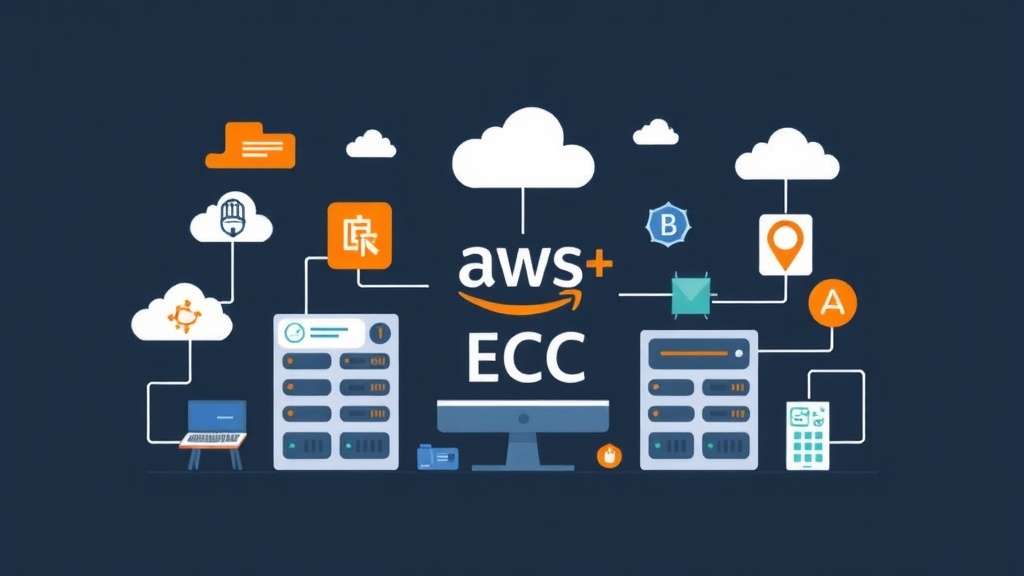
Quick Start: Launching Your First EC2 Instance (5 min)
AWS EC2 can feel overwhelming at first, but launching your initial virtual server (an ‘instance’) is surprisingly simple. Think of an EC2 instance as your own virtual machine in the cloud, offering scalable compute power. Having managed critical workloads on EC2 for over six months, I can attest to its consistent stability when configured correctly. Let’s quickly get your first instance online with the bare necessities.
Step 1: Choose Your AMI (Amazon Machine Image)
Think of an AMI (Amazon Machine Image) as a template for your instance. It bundles the operating system and any pre-installed software. To get started quickly, I typically opt for an Amazon Linux 2 AMI or an Ubuntu Server AMI. These are reliable choices for most general-purpose tasks.
# Example: List available Amazon Linux AMIs (you'd filter for the latest)
aws ec2 describe-images --owners amazon --filters "Name=name,Values=amzn2-ami-hvm*" --query 'reverse(sort_by(Images, &CreationDate))[:1].ImageId' --output text
Step 2: Select an Instance Type
Instance types define the hardware specifications of your virtual server, covering CPU, memory, storage, and network performance. For quick tests or development, the t2.micro or t3.micro (Free Tier eligible) is usually sufficient. For production, instance sizing depends heavily on your application’s demand. This often means choosing more powerful types like the m5 or c5 families, which offer better CPU or memory resources.
Step 3: Configure Security Group (Firewall Rules)
A Security Group functions as a virtual firewall for your instance, meticulously controlling all inbound and outbound traffic. For web servers, it’s common to allow HTTP (port 80) and HTTPS (port 443) from anywhere (0.0.0.0/0). When configuring SSH access (port 22), always follow the best practice of restricting access to your specific IP address. This significantly reduces your attack surface.
# Example: Create a Security Group and add rules
aws ec2 create-security-group --group-name MyWebServerSG --description "Security group for web server"
aws ec2 authorize-security-group-ingress --group-name MyWebServerSG --protocol tcp --port 22 --cidr 0.0.0.0/0 # NOT recommended for production, restrict to your IP
aws ec2 authorize-security-group-ingress --group-name MyWebServerSG --protocol tcp --port 80 --cidr 0.0.0.0/0
Step 4: Launch and Connect
After choosing an AMI and instance type, and configuring both a security group and a key pair (essential for SSH access), you’re ready. It’s time to launch your instance. You can do this conveniently via the AWS Management Console or the AWS CLI. Connecting typically involves SSH using your private key file.
# Example: Launch an instance (simplified)
aws ec2 run-instances \
    --image-id ami-0abcdef1234567890 \
    --count 1 \
    --instance-type t2.micro \
    --key-name MyKeyPair \
    --security-group-ids sg-0123456789abcdef0 \
    --tag-specifications 'ResourceType=instance,Tags=[{Key=Name,Value=MyFirstEC2}]'

# Example: Connect via SSH
ssh -i MyKeyPair.pem ec2-user@<your-instance-public-ip>
Deep Dive: Understanding Core EC2 Concepts
With your first instance now running, let’s peel back a few more layers. EC2 offers far more capabilities than simply spinning up a server. A solid understanding of these core concepts is crucial for building robust, scalable, and cost-effective cloud solutions.
Amazon Machine Images (AMIs)
AMIs are foundational elements in EC2. They bundle the operating system, application server, and any applications. You can choose from public AMIs (provided by Amazon, AWS Marketplace, or the community) or create your own custom AMIs. Custom AMIs are invaluable for standardizing deployments and ensuring consistency across all your instances. In our production environments, I rely heavily on custom AMIs; this ensures every new server starts with our precisely approved software stack.
Instance Types and Families
AWS thoughtfully categorizes instance types into families, each optimized for specific use cases:
- General Purpose (M, T instances): These offer a balanced mix of compute, memory, and networking resources. They’re excellent for web servers and development environments.
- Compute Optimized (C instances): Featuring high-performance processors, these are ideal for CPU-intensive applications like scientific modeling or gaming servers.
- Memory Optimized (R, X instances): Designed with large amounts of RAM, they are perfectly suited for memory-intensive workloads such as high-performance databases or big data analytics.
- Storage Optimized (I, D instances): Providing high sequential read/write access to massive local datasets, these are great for data warehousing or distributed file systems.
- Accelerated Computing (P, G, F instances): These instances leverage hardware accelerators (like GPUs) for specialized tasks such as machine learning training, graphics processing, or scientific simulations.
Selecting the correct instance type directly influences both performance and overall cost efficiency.
Elastic Block Store (EBS) Volumes
EBS volumes are network-attached block storage that persists independently from the life of an instance. This means your data remains safe even if the instance is terminated. AWS offers several EBS volume types, each tailored for different performance and cost requirements:
- gp3/gp2 (General Purpose SSD): These provide a balanced price/performance ratio for a wide variety of workloads. I typically make this my default choice for most applications, striking a great balance between cost and performance.
- io1/io2 (Provisioned IOPS SSD): These are ideal for mission-critical, I/O-intensive workloads like large relational or NoSQL databases, where consistent high performance is paramount.
- st1 (Throughput Optimized HDD): Best for frequently accessed, throughput-intensive workloads such as streaming data, log processing, or big data applications.
- sc1 (Cold HDD): Suited for less frequently accessed data, such as archival storage or large backups, offering the lowest cost per GB.
Crucially, snapshotting EBS volumes provides a robust backup mechanism. This is absolutely critical for effective data recovery strategies.
Key Pairs for Secure Access
Key pairs are fundamental for secure access. They consist of a public key (stored by AWS) and a private key (stored securely by you). This cryptographic pair is your gateway to securely connecting to your Linux instances via SSH. Losing your private key means permanently losing access to your instance, so treat it with the utmost care and safeguard it diligently!
Advanced Usage: Scaling and Automation
Once you’re comfortable with the basics, you’ll unlock EC2’s true potential through its robust automation and scalability features. I’ve found these capabilities indispensable for achieving the consistent stability needed in production environments.
Auto Scaling Groups (ASGs)
Auto Scaling Groups (ASGs) automatically adjust the number of EC2 instances serving your application. This adjustment happens based on demand, predefined schedules, or robust health checks. This capability is transformative; it allows you to manage fluctuating traffic seamlessly, without manual intervention, ensuring both high availability and optimal cost efficiency.
# Example: Create a Launch Configuration (for ASG, defines instance properties)
aws autoscaling create-launch-configuration \
    --launch-configuration-name MyWebLC \
    --image-id ami-0abcdef1234567890 \
    --instance-type t2.micro \
    --key-name MyKeyPair \
    --security-groups sg-0123456789abcdef0

# Example: Create an Auto Scaling Group
aws autoscaling create-auto-scaling-group \
    --auto-scaling-group-name MyWebASG \
    --launch-configuration-name MyWebLC \
    --min-size 1 \
    --max-size 3 \
    --desired-capacity 2 \
    --vpc-zone-identifier "subnet-01234567,subnet-89abcdef" \
    --health-check-type ELB \
    --target-group-arns arn:aws:elasticloadbalancing:us-east-1:123456789012:targetgroup/MyTargetGroup/1234567890abcdef
Elastic Load Balancing (ELB)
Elastic Load Balancing (ELB) automatically distributes incoming application traffic across multiple EC2 instances. This intelligent distribution not only significantly improves your application’s fault tolerance but also enhances its overall performance. AWS provides three main types: Application Load Balancers (ALB) are perfect for HTTP/HTTPS traffic, Network Load Balancers (NLB) deliver extreme performance for TCP/UDP, and Classic Load Balancers (CLB) serve legacy requirements.
User Data for Instance Bootstrap
When launching an EC2 instance, you have the option to pass a shell script (or cloud-init directives) as ‘user data’. This script executes automatically the very first time the instance boots. It allows you to automate software installation, configuration, or any other setup tasks. This feature is exceptionally valuable, especially when adopting Infrastructure as Code (IaC) approaches.
# Example: User data script to install Apache and start it
#!/bin/bash
yum update -y
yum install -y httpd
systemctl start httpd
systemctl enable httpd
echo "<h1>Hello from EC2!</h1>" > /var/www/html/index.html
IAM Roles for EC2 Instances
Instead of hardcoding AWS credentials directly onto your instance, always assign an IAM Role. This grants temporary, rotating credentials to your instance. It allows applications running on it to securely interact with other AWS services (such as S3, DynamoDB, or RDS) without ever storing static access keys. Implementing an IAM Role is a critical security best practice that I consistently apply in all environments.
Practical Tips for EC2 Management
Beyond the technical configurations, effective management of your EC2 fleet is essential for maintaining a robust and cost-efficient cloud presence. My experience in production has shown that applying these strategies consistently leads to stable operations.
Monitoring with CloudWatch
AWS CloudWatch offers comprehensive monitoring for your EC2 instances. It collects and tracks crucial metrics, aggregates log files, and allows you to set up alarms. Configure alarms for key indicators like CPU utilization exceeding 70% for more than 5 minutes, network I/O, or disk usage, to receive alerts proactively before minor issues escalate into major problems.
Cost Optimization Strategies
- Right-sizing: Continuously monitor instance usage with tools like CloudWatch and adjust instance types to precisely match workload requirements. Don’t pay for resources you don’t fully utilize.
- Reserved Instances (RIs): For predictable, long-term workloads, RIs offer significant discounts—up to 75%—compared to On-Demand pricing.
- Savings Plans: A more flexible alternative to RIs, Savings Plans provide discounts of up to 72% in exchange for a commitment to a consistent amount of compute usage over a 1 or 3-year term.
- Spot Instances: For fault-tolerant or flexible applications, Spot Instances can be up to 90% cheaper than On-Demand prices, although AWS can reclaim them with as little as a two-minute notice.
- Stop unused instances: Simple yet highly effective. Development or staging instances that aren’t continuously needed should be stopped when not in use to avoid unnecessary charges.
Security Best Practices
- Least Privilege: Always grant only the absolute minimum necessary permissions to IAM roles and security groups.
- Regular Patching: Keep your instance operating systems and applications diligently updated with the latest security patches to mitigate vulnerabilities.
- VPC Flow Logs: Actively monitor network traffic to and from your EC2 instances. This helps detect anomalies and potential security threats.
- Endpoint Security: Consider leveraging AWS Systems Manager to manage and scan your instances for vulnerabilities, ensuring a secure posture.
- Data Encryption: Encrypt both EBS volumes and their snapshots. This critical step protects your data at rest and complies with many regulatory requirements.
Automation with AWS Systems Manager
AWS Systems Manager provides a unified interface to gain deep operational insights and take action across your AWS resources. I find it incredibly useful for tasks like patch management, running commands across hundreds of instances, and collecting inventory. Its extensive use in our production servers directly contributes to the stable operation I’ve observed.
Managing EC2 instances effectively demands balancing performance, cost, and security. By starting with a solid understanding of the core services and gradually incorporating advanced features like Auto Scaling and IAM roles, you can build a highly resilient and efficient infrastructure. The experience from production has shown me that consistent application of these principles yields truly stable and predictable results.