Context & Why: Taking Control of Your Smart Home
The appeal of a smart home is undeniable. Imagine lights that respond to your presence, climate control that anticipates your needs, and security systems that offer peace of mind.
For years, like many, I relied on various commercial off-the-shelf solutions. While convenient, these often came with drawbacks: vendor lock-in, reliance on cloud services, and persistent privacy concerns. I always had a lingering feeling of not truly owning my smart home data or having full control over its operations.
The Promise of Home Automation, and the Walled Gardens
Many popular smart home devices connect to their manufacturer’s cloud. This means your data often leaves your home. Even worse, a device’s functionality can vanish if the company goes out of business or changes its service model. This dependency bothered me. I wanted a system that was local, resilient, and entirely under my command.
Why Home Assistant on Raspberry Pi or Old Hardware?
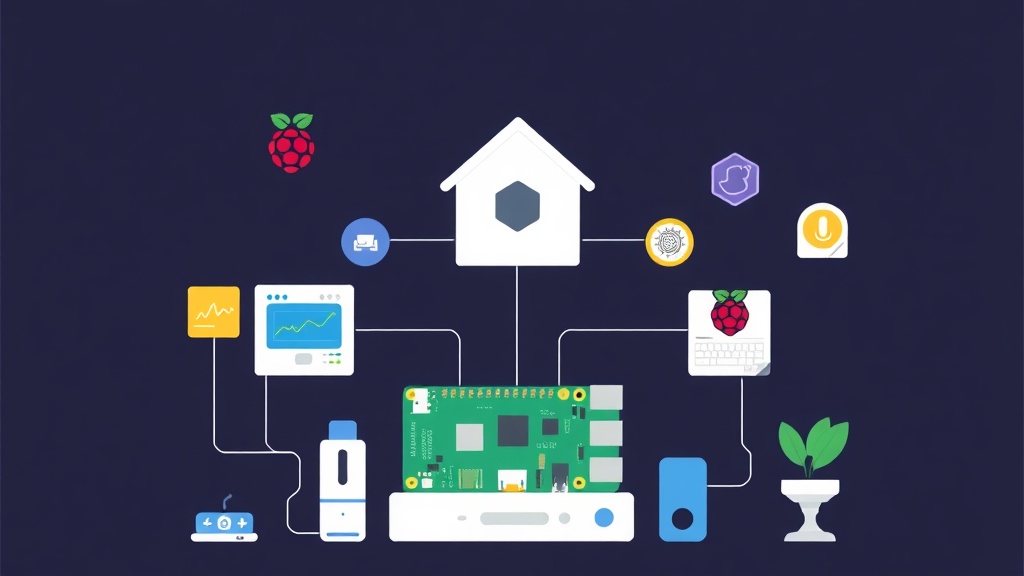
This is precisely where Home Assistant becomes essential. It’s an open-source platform that puts you back in charge. This powerful system runs locally on your own hardware, integrating with an astonishing array of devices and services. Crucially, it doesn’t need constant internet access for basic functionality. Choosing to run it on a Raspberry Pi or an old computer offers fantastic flexibility and purpose.
- Raspberry Pi: It’s ideal for its low power consumption (typically 3-5W), small footprint, and quiet operation. A Raspberry Pi 4 (or newer, if available) provides ample power for most smart home setups. It’s perfect for a dedicated, always-on server.
- Old PC/Laptop: If you have an unused desktop or laptop gathering dust, repurpose it into a powerful Home Assistant server! This gives you more processing power and RAM for larger installations, more complex automations, or running additional services alongside Home Assistant (like a media server or network ad-blocker).
I’ve been running Home Assistant in my own production setup for six months now. It orchestrates everything from lighting and climate control to security monitoring and media integration. I can confidently say the results have been consistently stable. It’s a robust and reliable foundation for any smart home.
Installation: Getting Home Assistant Up and Running
Let’s start by choosing your hardware and installing Home Assistant. For most beginners, Home Assistant OS is the recommended path. It provides a complete, optimized operating system tailored specifically for Home Assistant.
Choosing Your Hardware: Raspberry Pi vs. Old PC
- For Raspberry Pi: I recommend a Raspberry Pi 4 (with at least 4GB RAM, 8GB preferred) or a Raspberry Pi 5. You’ll also need a high-quality microSD card (32GB A2-rated minimum is fine, but for enhanced reliability and speed, a small SSD connected via USB 3.0 is a much better choice), a suitable power supply, and an Ethernet cable.
- For Old PC/Laptop: Ensure it has at least 4GB of RAM and a reliable hard drive. You can install Home Assistant OS directly, or if you’re already running a Linux distribution, you can use Docker.
Installation Method: Home Assistant OS (Recommended for Beginners)
This method flashes a complete operating system designed for Home Assistant onto your chosen storage. It simplifies management and provides an optimized environment right out of the box.
- Download Raspberry Pi Imager: Grab it from the official Raspberry Pi website. It’s available for Windows, macOS, and Linux.
- Download Home Assistant OS Image:
- Flash the Image:
- Initial Boot:
- Access Home Assistant:
Open the Raspberry Pi Imager. Under ‘Choose OS’, select ‘Other specific-purpose OS’ -> ‘Home assistants and home automation’ -> ‘Home Assistant’. Then pick the image corresponding to your Raspberry Pi model (e.g., ‘Home Assistant OS for Raspberry Pi 5’).
Insert your microSD card (or SSD via USB adapter) into your computer. In the Raspberry Pi Imager, choose your downloaded Home Assistant OS image and select your storage device. Click ‘Write’. Confirm the action. This process will erase all data on the selected drive.
# Example of flashing using a command-line tool like 'dd' (advanced users only)
# Replace /dev/sdX with your actual device path (e.g., /dev/mmcblk0 or /dev/sda)
# BE EXTREMELY CAREFUL WITH THIS COMMAND - INCORRECT DEVICE PATH CAN LEAD TO DATA LOSS
# sudo dd if=/path/to/ha-os-image.img of=/dev/sdX bs=4M status=progressOnce flashing is complete, safely eject the storage. Insert it into your Raspberry Pi. Connect an Ethernet cable from your Pi to your router, then connect the power supply. The first boot can take 5-10 minutes as Home Assistant downloads necessary components and initializes.
After a few minutes, open a web browser on a computer connected to the same network and navigate to http://homeassistant.local:8123. If that doesn’t work (some routers don’t handle .local addresses well), you’ll need to find your Pi’s IP address from your router’s connected devices list and use http://<YOUR_PI_IP>:8123.
Alternative: Docker Installation (For Advanced Users)
If you prefer more control or already have a Linux server running, Home Assistant Core can be installed via Docker. This keeps Home Assistant isolated and makes it easy to manage alongside other services you might be running.
First, ensure Docker is installed on your Linux system. Then, you can run Home Assistant with a command like this:
docker run -d \
  --name homeassistant \
  --privileged \
  --restart=unless-stopped \
  -e TZ=Europe/London \ # Replace with your actual timezone, e.g., America/New_York
  -v /path/to/your/homeassistant/config:/config \
  --network=host \
  ghcr.io/home-assistant/home-assistant:stable
Remember to replace /path/to/your/homeassistant/config with a directory on your host machine where Home Assistant will store its configuration and Europe/London with your local timezone identifier.
Configuration: Bringing Your Smart Home to Life
With Home Assistant accessible, the real fun begins: integrating your devices and setting up automations.
First Boot & Onboarding
The first time you access the web interface, Home Assistant will guide you through a brief onboarding process. You’ll create your initial user account, set your home’s location (crucial for location-based automations like sunrise/sunset), and acknowledge any automatically discovered devices.
Adding Integrations: Connecting Your Devices
Home Assistant communicates with devices through ‘integrations’ – and there are thousands of them! To add one:
- Navigate to
Settings->Devices & Services->Integrationstab. - Click the
+ ADD INTEGRATIONbutton in the bottom right. - Search for your device or service (e.g., ‘Philips Hue’, ‘ZHA’ for Zigbee, ‘Z-Wave JS’ for Z-Wave).
- Follow the on-screen prompts to connect it. This might involve entering IP addresses, API keys, or initiating a pairing process on a hub.
For local devices like Zigbee or Z-Wave, you’ll need a compatible USB dongle plugged into your Raspberry Pi or host machine, and then install the respective integration (ZHA or Z-Wave JS) in Home Assistant.
Crafting Automations & Scenes
Automations are the heart of a smart home, allowing devices to react to events without manual intervention. Scenes, on the other hand, set multiple devices to a specific state with a single command.
- Automations: Head to
Settings->Automations & Scenes->Automations. You can build these visually or edit them directly in YAML. An automation always has a trigger (what starts it), conditions (optional, when it should run), and actions (what it does). - Scenes: In the same menu, navigate to
Scenes. Create a scene, set your devices to their desired states (e.g., ‘Movie Night’ scene: dim lights, close blinds), and save.
Here’s a simple YAML automation that turns on a light when motion is detected, but only after sunset:
# Example: Turn on light when motion is detected after sunset
- alias: 'Motion Light After Sunset'
  trigger:
    platform: state
    entity_id: binary_sensor.motion_sensor_living_room
    to: 'on'
  condition:
    condition: sun
    after: sunset
  action:
    service: light.turn_on
    entity_id: light.living_room_lamp
    data:
      brightness_pct: 75
Custom Dashboards: Your Control Center
Home Assistant’s user interface, Lovelace, is highly customizable. You can create multiple dashboards with different layouts and cards to visualize and control your devices. This allows for a truly personalized and intuitive smart home experience.
Verification & Monitoring: Ensuring Reliability and Performance
Maintaining a stable smart home system requires occasional checks and a good understanding of its overall health. After all, reliability is the ultimate goal.
Basic Health Checks
Regularly check Home Assistant’s logs for any errors or warnings. You can find these under Settings -> System -> Logs. This is often the first place to look if something isn’t behaving as expected. The ‘System Health’ dashboard also provides a quick overview of your system’s resources and integration statuses.
Staying Updated Safely
Home Assistant releases updates frequently, bringing exciting new features and crucial bug fixes. Before updating, always ensure you have a backup! Home Assistant OS has a built-in backup function (`Settings` -> `System` -> `Backups`). I usually download these full backups to an external storage location for safekeeping.
To update, simply navigate to Settings -> System -> Updates and follow the prompts. It’s a straightforward process, but remember: a backup is always your safety net.
Performance Monitoring
Especially when running on a Raspberry Pi, it’s a good idea to keep a close eye on system resources. Home Assistant itself provides some metrics, but you might want to log into your host machine via SSH for a deeper dive.
# Check CPU, Memory usage
htop

# Check disk space usage
df -h

# Check for running processes
ps aux | grep homeassistant
Monitoring these commands can help you identify bottlenecks or issues before they impact your smart home’s responsiveness. For a more sophisticated setup, consider integrating Home Assistant metrics with Grafana and InfluxDB, though that’s a topic for another article entirely.
Backup Strategy: Your Safety Net
Beyond the built-in backups, implement a regular routine for off-device backups. If your primary storage (SD card/SSD) fails, a recent backup means you can restore your entire smart home configuration quickly to new hardware. This diligence has saved me significant headaches in the past.