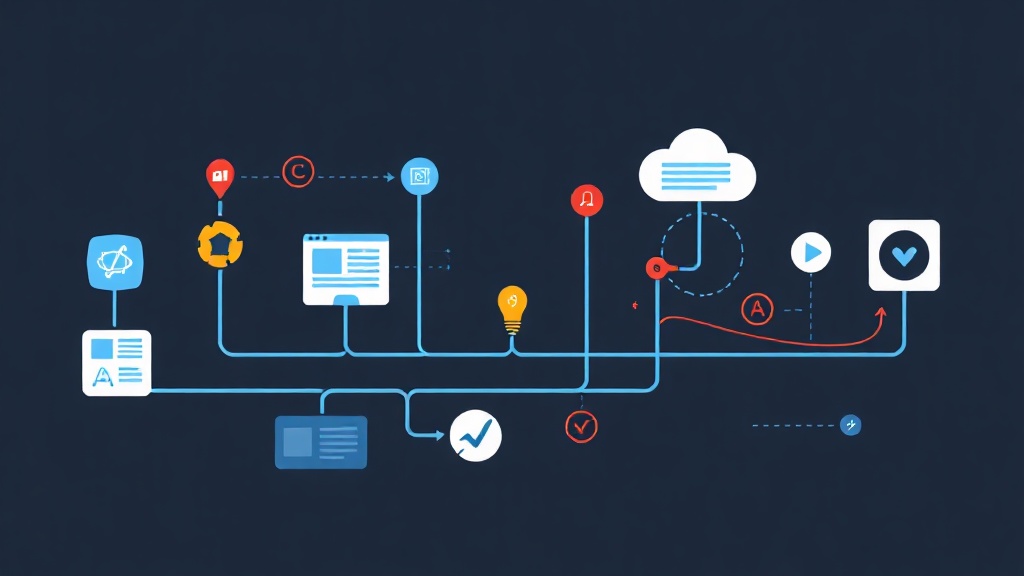
Beyond the Chatbox: Connecting Local LLMs to the Real World
Running a local LLM with Ollama and Open-WebUI has become the go-to setup for privacy-conscious developers. It mirrors the ChatGPT experience while keeping every token on your own hardware. However, a standalone LLM is often an isolated silo. It cannot query your PostgreSQL databases, it doesn’t know your current Jira ticket status, and it won’t enforce specific corporate style guides on its own.
Open-WebUI Pipelines bridge this gap by acting as programmable middleware. Think of them as interceptors for your conversation. You can scrub sensitive data from a prompt before it reaches the model or format the model’s output before it hits the screen. In my experience deploying these for regulatory-heavy environments, pipelines are the most reliable way to ensure an AI assistant stays within its lane.
How the Pipeline Architecture Works
Pipelines function as a secondary service. They usually run in a lightweight Docker container alongside your Open-WebUI instance. When you click ‘Send,’ Open-WebUI transmits the message payload to the Pipeline server via an API call. This setup typically adds less than 50ms of overhead, making the transition feel instantaneous to the user.
The Three Pillars of a Pipeline
- The Pipe Class: This is your entry point. It is the Python class that Open-WebUI recognizes and loads into the interface.
- Valves: These act as your configuration dashboard. Instead of hardcoding API keys for services like Tavily or LangChain, you define them as Valves. They appear as text fields in the UI settings, allowing for quick updates.
- Filters and Actions: Filters modify the text stream in real-time. Actions trigger specific events, like sending a Slack notification when a specific topic is mentioned.
Spinning Up Your Pipeline Engine
You need the Pipeline engine running before you can write any Python. If you are using Docker, you can launch the official image with a single command. This container monitors your scripts and reloads them whenever you save a change.
docker run -d -p 9099:9099 --add-host=host.docker.internal:host-gateway -v pipelines:/app/pipelines --name pipelines ghcr.io/open-webui/pipelines:mainAny Python file you move into the /app/pipelines directory is automatically detected. You don’t even need to restart the container to see your new logic appear in the Open-WebUI dashboard.
Practical Tutorial: Building a PII Sanity Filter
Let’s build a filter that prevents the LLM from leaking internal project names. We want to replace sensitive terms like “Project-X” or “Internal-Vault” with a redacted placeholder before the user sees them.
1. Creating the Script
Create a file named security_filter.py. We will use Pydantic to define our UI settings. This allows non-technical users to update the restricted word list directly from the browser.
from typing import List, Optional, Union, Generator
from pydantic import BaseModel, Field

class Pipeline:
    class Valves(BaseModel):
        # These fields appear as settings in Open-WebUI
        blacklisted_terms: str = Field(default="Project-X,Internal-Vault,Top-Secret")
        replacement_label: str = Field(default="[REDACTED]")

    def __init__(self):
        self.type = "filter"
        self.name = "Security Scrub Filter"
        self.valves = self.Valves()

    async def outlet(self, body: dict, user: Optional[dict] = None) -> dict:
        # This runs after the LLM generates a response
        terms = self.valves.blacklisted_terms.split(",")
        content = body.get("messages", [])[-1].get("content", "")

        for term in terms:
            clean_term = term.strip()
            if clean_term in content:
                content = content.replace(clean_term, self.valves.replacement_label)

        body["messages"][-1]["content"] = content
        return body
2. Connecting to External APIs
Pipelines can also act as “virtual models.” Instead of just filtering, you can route queries to external tools. For instance, if a user asks for a weather update, the pipeline can call the OpenWeather API and return the data directly, bypassing the standard LLM generation.
import requests

class Pipeline:
    def __init__(self):
        self.name = "Live Data Assistant"

    async def pipe(self, body: dict, user: Optional[dict] = None) -> str:
        last_message = body.get("messages", [])[-1].get("content", "").lower()

        if "weather in hanoi" in last_message:
            # In a real scenario, use a secure API call here
            return "It is currently 28°C in Hanoi with 80% humidity."

        return "I only have access to Hanoi weather data at the moment."
Lessons from Production Environments
I have spent months refining these workflows for internal teams. Moving from a local experiment to a tool used by twenty people requires a focus on stability and speed.
Prioritize Asynchronous Calls
Never use standard Python requests for external APIs. It blocks the main thread. If your API takes three seconds to respond, the entire UI freezes for everyone. Use httpx with async/await to keep the interface snappy.
Build Robust Error Fallbacks
APIs fail. If your pipeline crashes, Open-WebUI returns a generic “Server Error” which frustrates users. Always wrap your logic in try-except blocks. If a tool fails, program the pipeline to return a helpful message or route the query to a local backup model like Llama 3.
Keep Logic Portable with Valves
Avoid hardcoding your secrets. Use the Valves class for everything from database strings to API tokens. This allows you to share your .py scripts with your team without exposing your personal credentials. They can simply enter their own keys in the Settings > Pipelines menu.
The Bottom Line
Open-WebUI Pipelines turn a basic chat interface into a powerful orchestration layer. By writing a few lines of Python, you can transform how your local AI interacts with your data. Start with a simple text filter to get comfortable. Once you see how easily it integrates, you can begin building complex, multi-tool workflows that make your AI truly useful.