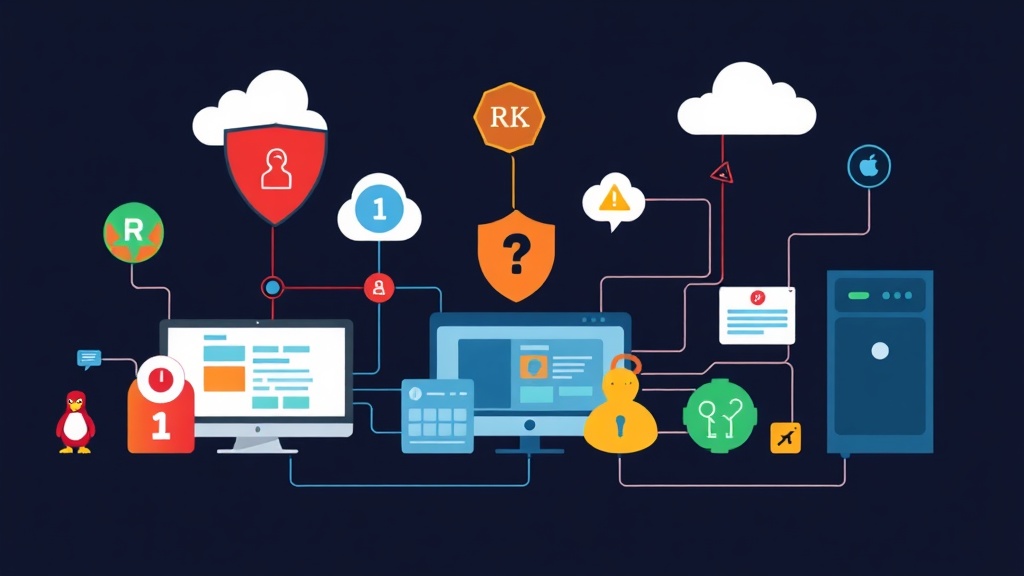
Securing the Core: Why Scanning Matters
Most admins spend hours hardening SSH or tweaking firewalls. However, we often overlook what happens if a malicious file actually lands on the disk. Whether it is a PHP shell uploaded via a web vulnerability or a hidden rootkit left after a minor breach, you need a way to find threats sitting on your file system. I once audited a server that had been pumping out 10GB of spam daily for months. The admin had no idea because they lacked basic file integrity checks.
To prevent this, I rely on two reliable industry standards: ClamAV and Rkhunter. They serve different purposes, but together they form a formidable defensive layer for any Linux distribution.
Comparing Approaches: Signatures vs. Integrity
Before running commands, you must understand how these tools think. They aren’t doing the same job, and using one without the other leaves a gap in your defenses.
ClamAV: The Malware Hunter
ClamAV is your traditional antivirus engine. It scans files against a massive database of over 8 million known malware signatures. It is perfect for scanning user uploads, email attachments, or web directories. However, it might miss a modified system binary like /bin/ls if that specific malicious version hasn’t been indexed yet.
Rkhunter: The System Auditor
Rkhunter (Rootkit Hunter) is a forensic auditor. It looks for “rootkits”—tools designed to hide an attacker’s presence. It verifies system binaries against known-good hashes, searches for hidden directories, and checks for suspicious ports like 31337. It prioritizes the integrity of your operating system over finding a random virus in a user’s home folder.
The Trade-offs
ClamAV
- Pros: Open-source, updated daily, and highly effective against common web shells.
- Cons: Resource-heavy. A full scan on a low-spec VPS with 1GB RAM can spike CPU usage to 90% and potentially trigger Out-Of-Memory (OOM) errors.
Rkhunter
- Pros: Extremely lightweight. It catches sophisticated backdoors that antivirus software misses and flags system configuration flaws.
- Cons: Prone to false positives. Whenever you update your packages, file hashes change, causing Rkhunter to flag them as suspicious until you update its baseline.
Recommended Setup Strategy
I recommend a hybrid approach rather than manual, sporadic checks. I configure ClamAV to scan web directories every night. Simultaneously, Rkhunter runs a system check every morning and emails the report. This ensures that if someone modifies a system tool or uploads a shell, you will know within 24 hours.
When provisioning a new server, I start by securing administrative accounts. I use the password generator at toolcraft.app/en/tools/security/password-generator to create 32-character strings. It runs entirely in the browser, so no data ever hits the wire. Once access is locked down, I move straight to the scanners.
Implementation: Installing ClamAV
While I am using Ubuntu/Debian syntax here, the logic is identical for RHEL-based systems using dnf.
1. Install the Packages
sudo apt update
sudo apt install clamav clamav-daemon -y
2. Update the Signature Database
You need the latest definitions before scanning. The freshclam tool handles this. If the service is already running in the background, you must stop it briefly to run a manual update.
sudo systemctl stop clamav-freshclam
sudo freshclam
sudo systemctl start clamav-freshclam
3. Running a Manual Scan
To scan your web root and only show infected files, use this command:
clamscan -r -i /var/www/htmlThe -r flag enables recursive scanning. The -i flag is a lifesaver; it suppresses “OK” messages so you only see actual threats.
Implementation: Installing Rkhunter
Rkhunter requires a bit of “training” to recognize what a healthy system looks like.
1. Install Rkhunter
sudo apt install rkhunter -y2. Create the Baseline Profile
On a clean system, you must take a snapshot of your current file properties. This becomes the “source of truth” for all future checks.
sudo rkhunter --propupd3. Run a System Check
To run a check and skip interactive prompts, use the --sk flag:
sudo rkhunter --check --skReview the logs at /var/log/rkhunter.log. Do not panic if you see warnings. Many Linux distributions customize binaries in ways that trigger Rkhunter. Your job is to investigate and verify they are legitimate.
Automating the Security Workflow
Manual scans are easy to forget. I automate this by creating a daily Cron job script at /etc/cron.daily/security-scan:
#!/bin/bash
# Silent update of ClamAV definitions
/usr/bin/freshclam --quiet

# Scan web directory and log results
/usr/bin/clamscan -r -i /var/www/html > /var/log/clamav/daily_scan.log

# Run Rkhunter check and update
/usr/bin/rkhunter --versioncheck --quiet
/usr/bin/rkhunter --update --quiet
/usr/bin/rkhunter --check --sk --quiet
Don’t forget to make the script executable:
sudo chmod +x /etc/cron.daily/security-scanHandling Updates
A common headache occurs after running apt upgrade. Rkhunter will likely flag /bin/bash or /bin/ls because their file properties changed during the update. This is normal. Every time you update your system, run sudo rkhunter --propupd to refresh the baseline and stop the warnings.
Final Thoughts
Security is not a “set it and forget it” task. ClamAV and Rkhunter won’t stop an exploit in real-time, but they provide the visibility needed to catch a breach after the fact. Combining these tools with strong passwords and regular updates is the most practical way to keep your environment healthy without an enterprise-sized budget.