
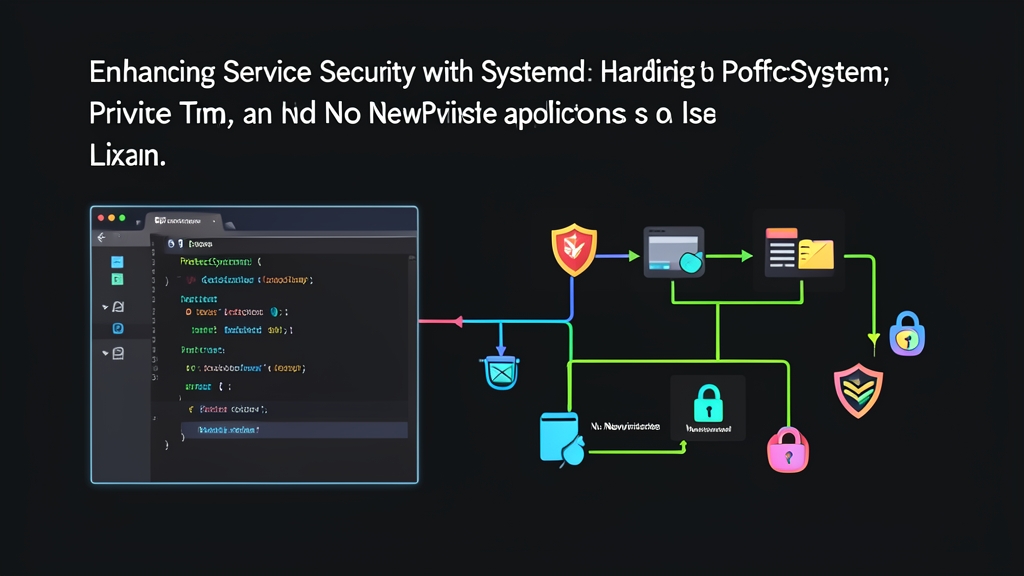
Context & Why: The Hidden Attack Surface of Linux Services
Most server setups look solid on paper: strict firewalls, SSH keys only, and hashed passwords. But what happens when an attacker finds a remote code execution bug in your Python backend or Node.js API? Once they exploit that flaw, they inherit the privileges of whichever system account runs that background process.
Even an unprivileged account created with useradd -r can poke around world-readable files in /etc, drop scripts into /tmp, and run binaries that have SUID bits enabled. If someone breaks in, they immediately look for ways to turn that low-privilege foothold into root access.
You don’t need a full Docker or Kubernetes stack just to confine a standalone Python script or worker daemon. Systemd already ships with native sandboxing primitives powered by Linux cgroups, namespaces, and seccomp filters. You can enforce these boundaries straight from the unit file using three essential directives:
- ProtectSystem: Mounts OS directories like
/usr,/boot, and/etcas read-only for the process. - PrivateTmp: Gives the service an isolated namespace for
/tmpand/var/tmp. Host users and other processes cannot peek into or hijack its temporary files. - NoNewPrivileges: Stops child processes from elevating privileges through SUID or SGID binaries like
sudo,su, orpkexec.
Locking down paths blindly will break things. If your application tries to write cached data, upload chunks, or generate PID files in unmapped directories, systemd will cut it off instantly. Always audit an application’s write targets before locking it down.
Installation: Preparing the Environment and Baseline Service
You don’t need custom kernel patches or external security agents to set this up. Modern distributions—including Ubuntu 20.04+, Debian 11+, and Rocky Linux 8+—support these systemd directives out of the box.
Let’s build a minimal Python HTTP service to demonstrate how these isolation knobs work. First, create a system user without an interactive login shell, along with the project directories:
# Create a dedicated system user without login shell
sudo useradd -r -s /bin/false -d /opt/webworker webworker

# Create application directories
sudo mkdir -p /opt/webworker/app /var/log/webworker
sudo chown -R webworker:webworker /opt/webworker /var/log/webworker
Save this small mock daemon script to /opt/webworker/app/server.py:
import http.server
import socketserver
import os

PORT = 8085

class SecureHandler(http.server.SimpleHTTPRequestHandler):
    def do_GET(self):
        # Attempt to write a status marker in /tmp
        try:
            with open("/tmp/worker_status.txt", "w") as f:
                f.write("Service running normally\n")
        except Exception as e:
            print(f"Tmp write error: {e}")

        self.send_response(200)
        self.send_header("Content-type", "text/plain")
        self.end_headers()
        self.wfile.write(b"Worker active.")

with socketserver.TCPServer(("127.0.0.1", PORT), SecureHandler) as httpd:
    print(f"Serving on port {PORT}")
    httpd.serve_forever()
Next, define an unhardened baseline unit file at /etc/systemd/system/webworker.service:
[Unit]
Description=Web Worker Microservice
After=network.target

[Service]
Type=simple
User=webworker
Group=webworker
WorkingDirectory=/opt/webworker/app
ExecStart=/usr/bin/python3 /opt/webworker/app/server.py
Restart=always

[Install]
WantedBy=multi-user.target
Reload systemd, start the daemon, and check its initial state:
sudo systemctl daemon-reload
sudo systemctl start webworker.service
sudo systemctl status webworker.service
Configuration: Step-by-Step Systemd Hardening Directives
Avoid editing vendor-supplied unit files in /lib/systemd/system/. Package managers overwrite those files during routine system updates. Instead, use systemd override snippets, which live safely under /etc/systemd/system/ and persist across upgrades.
Open an override file in your editor:
sudo systemctl edit webworker.serviceThis creates a drop-in configuration at /etc/systemd/system/webworker.service.d/override.conf. Now apply our three core hardening flags alongside supporting security options.
1. Prevent Escalation with NoNewPrivileges
Attackers who gain shell execution as a service user often search for vulnerable SUID binaries—such as misconfigured utilities or known exploits like CVE-2021-4034 (PwnKit)—to jump straight to root. Setting NoNewPrivileges=yes invokes the prctl(PR_SET_NO_NEW_PRIVS, 1, 0, 0, 0) system call at launch.
[Service]
NoNewPrivileges=yes
Once set, neither the service nor any child processes it spawns can acquire elevated rights, even when executing binaries with SUID bits attached. Unless your daemon explicitly needs sudo, keep this turned on.
2. Isolate Temporary Storage with PrivateTmp
Shared directories like /tmp and /var/tmp are classic targets for symlink race conditions, arbitrary file overwrites, and data leaks. Turning on PrivateTmp=yes assigns the service its own isolated mount namespace containing clean, private temporary folders.
[Service]
PrivateTmp=yes
When the Python worker writes to /tmp/worker_status.txt, systemd places that file inside a masked host path like /tmp/systemd-private-1a2b3c...-webworker.service-xyz789/tmp/. Other users and daemons cannot read or hijack it. When the service stops, systemd wipes the folder automatically.
3. Locking Down the Filesystem with ProtectSystem and Explicit Paths
The ProtectSystem directive controls filesystem write access across core system trees. It provides three levels of protection:
true: Mounts/usrand/bootas read-only.full: Extends read-only protection to/etcas well.strict: Locks the entire filesystem tree as read-only, except for virtual APIs like/proc,/sys, and/dev.
For high-security setups, use ProtectSystem=strict and explicitly declare which folders require write access using ReadWritePaths=:
[Service]
ProtectSystem=strict
ReadWritePaths=/var/log/webworker /opt/webworker/app
ProtectHome=yes
ProtectKernelTunables=yes
ProtectControlGroups=yes
Complete Hardened Drop-in Configuration
Here is a complete, production-ready snippet for your drop-in file:
### Editing /etc/systemd/system/webworker.service.d/override.conf
[Service]
# Privilege & Execution Boundary
NoNewPrivileges=yes

# Namespace & Path Isolation
PrivateTmp=yes
ProtectSystem=strict
ReadWritePaths=/var/log/webworker

# User Space & Kernel Protections
ProtectHome=yes
ProtectKernelTunables=yes
ProtectKernelModules=yes
ProtectControlGroups=yes
RestrictRealtime=yes
MemoryDenyWriteExecute=yes
Save the file and apply the changes:
sudo systemctl daemon-reload
sudo systemctl restart webworker.service
Verification & Monitoring: Audit Security Scores with systemd-analyze
With the override active, verify that systemd is enforcing the rules as expected.
Step 1: Check Namespace Isolation
Send an HTTP request to trigger the Python script’s file-writing function:
curl http://127.0.0.1:8085Now check the global /tmp directory against systemd’s isolated path:
# Checking global /tmp returns nothing for worker_status.txt
ls -l /tmp/worker_status.txt
# Output: ls: cannot access '/tmp/worker_status.txt': No such file or directory

# Inspect the private systemd namespace folder on the host
sudo ls -la /tmp/systemd-private-*-webworker.service-*/tmp/
The status file sits tucked away inside the isolated namespace folder. Regular users on the system will never see it.
Step 2: Benchmark Service Exposure Score
Systemd includes an auditing tool called systemd-analyze security. It evaluates unit files against dozens of security flags and scores risk from 0.0 (maximum isolation) to 10.0 (completely exposed).
Run the check on your hardened unit:
systemd-analyze security webworker.serviceYou will see a line-by-line audit:
NAME                                  DESCRIPTION                                                        EXPOSURE
✓ MemoryDenyWriteExecute=             Service cannot create writable & executable memory mappings
✓ NoNewPrivileges=                    Service cannot acquire new privileges
✓ PrivateTmp=                         Service has no access to other software's /tmp
✓ ProtectControlGroups=               Service cannot modify the control group file system
✓ ProtectHome=                        Service has no access to home directories
✓ ProtectKernelModules=               Service cannot load or read kernel modules
✓ ProtectKernelTunables=              Service cannot alter kernel sysctl settings
✓ ProtectSystem=                      Service has strict read-only access to OS directories

→ Overall exposure level for webworker.service: 2.1 OK 🙂
Default, unhardened units typically score between 8.5 and 9.6 (UNSAFE). Dropping that score down to ~2.1 drastically limits what an attacker can do if they compromise the application.
Step 3: Monitor Violations in Journald
When an application tries to write to a protected path or call a blocked syscall, the kernel denies the request with EROFS (Read-only file system) or EPERM (Operation not permitted).
Stream real-time service logs to catch denied actions:
sudo journalctl -u webworker.service -f -o short-preciseIf you see errors like Read-only file system: '/etc/myapp.conf' or Permission denied: '/var/cache', don’t revert your entire security posture. Simply add the missing folder to ReadWritePaths= in your override configuration.