The Friction of Copy-Paste AI Coding
Most developers still use AI assistants by juggling two screens. You keep an IDE open on the left and a chat interface on the right. You copy a 40-line function, paste it into a web browser, type out your prompt, wait for the response, and manually paste the diff back into your file. Within an hour, your clipboard history fills with fragments, indentation drifts, and you eventually overwrite working code by mistake.
Editor extensions do not always fix the problem either. Many plugins regenerate 300 lines of code just to update two variables, or they hallucinate imports because they lack visibility into adjacent modules. When a generated patch breaks your build, your working tree ends up dirty and untracked. Good luck finding what broke.
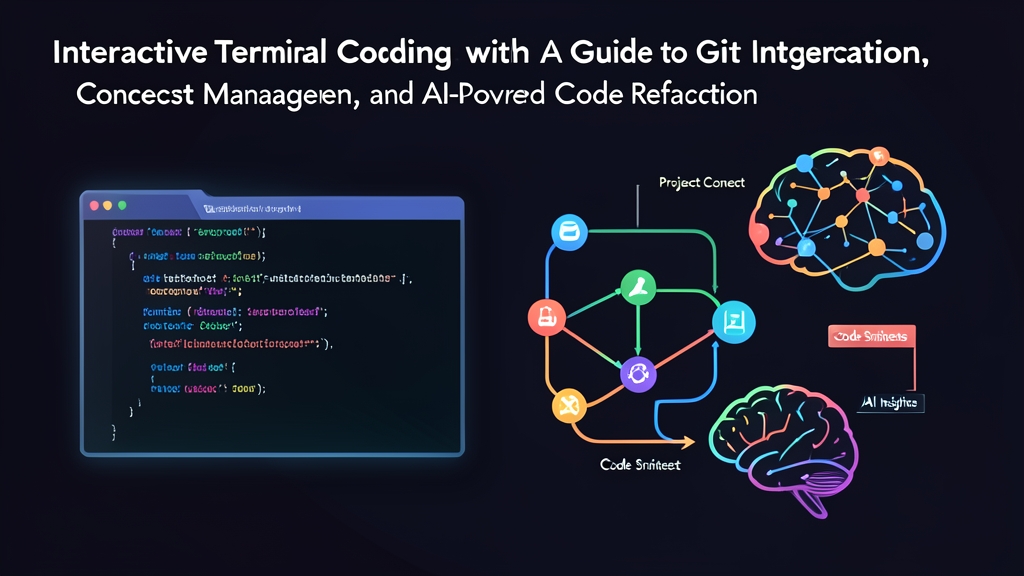
Terminal-first pair programming eliminates this churn. An in-terminal agent connects straight to your local Git repository. It reads files directly, writes unified diffs, runs your test suite, and commits every passing change automatically. Once you get used to this workflow, clicking between browser tabs feels painfully slow.
Core Concepts: How Aider Interacts with Your Codebase
Aider is an open-source command-line tool built around local terminal workflows. Rather than treating an LLM like an isolated chatbot, Aider treats it like a junior developer working on your branch with direct shell and file access.
1. Native Git Integration
Every time Aider edits code, it records an atomic Git commit with a descriptive message. You never have to mash Ctrl+Z twenty times when a prompt goes off the rails. Run /undo in the Aider shell, and your working tree immediately snaps back to the commit before that prompt ran.
2. Repository Map and Semantic Context
Dumping an entire codebase into an LLM context window quickly burns tokens and slows down response times. Even with 200k-token windows, flooding the model degrades reasoning accuracy.
Aider avoids this by using tree-sitter parsers to build a structural repository map (the repo-map). This map compresses thousands of lines of code into a compact ~1,000-token summary of classes, signatures, and call hierarchies. The model understands how services link across files without loading full file bodies into memory.
3. Explicit Context Control
Aider does not guess which files you want to touch. You choose them explicitly. Files added via /add enter the active editable scope. Files added with /read-only give the model read access for type definitions and signatures without allowing accidental modifications.
Hands-On Practice: Setting Up and Refactoring with Aider
Here is a step-by-step setup using Anthropic’s Claude 3.5 Sonnet to clean up a brittle, untyped Python script.
Step 1: Installation and Environment Configuration
Install Aider with pipx to isolate its dependencies while keeping the executable on your system path:
# Install pipx if missing
python3 -m pip install --user pipx
pipx ensurepath

# Install Aider globally
pipx install aider-chat
Export your provider key in your shell configuration (~/.bashrc or ~/.zshrc). Aider supports Anthropic, OpenAI, DeepSeek, and local Ollama endpoints. We will use Anthropic for this guide:
export ANTHROPIC_API_KEY="sk-ant-api03-..."Step 2: Initializing a Test Project
Aider requires an active Git repository to track checkpoints. Set up a scratch directory and initialize tracking:
mkdir aider-refactor-demo && cd aider-refactor-demo
git init
git commit --allow-empty -m "Initial empty commit"
Next, create a sample script named data_processor.py that contains unclosed file handles and missing type checks:
# data_processor.py
import json

def run(p, out):
    f = open(p, 'r')
    d = json.load(f)
    f.close()

    res = []
    for item in d:
        if item.get('status') == 'active':
            if item.get('score') > 50:
                res.append({
                    'id': item['id'],
                    'normalized_score': item['score'] / 100.0
                })

    out_f = open(out, 'w')
    json.dump(res, out_f)
    out_f.close()
    return len(res)
Commit this baseline to Git so you have an explicit rollback point:
git add data_processor.py
git commit -m "feat: add raw data processor script"
Step 3: Launching Aider and Managing Context
Start Aider inside your demo directory. The CLI picks up your local repository and reads ANTHROPIC_API_KEY automatically:
aider --sonnetCheck your active token budget before prompting. You only want the model spending attention on files that matter:
# Add the file we plan to edit
/add data_processor.py

# Inspect current token usage
/tokens
If you have an architectural guideline or schema file, add it as a reference using /read-only schema.json. The model will consult it for type validation while leaving the original file untouched.
Step 4: Executing an Automated Refactoring Task
Send a prompt specifying explicit architectural requirements. Give clear constraints rather than vague suggestions:
Refactor data_processor.py with these rules:
1. Use context managers (`with` statements) for all file I/O.
2. Define a frozen dataclass for output records.
3. Add Google-style docstrings and explicit type hints.
4. Catch FileNotFoundError and json.JSONDecodeError, raising a custom ProcessingError.
5. Keep the public function signature clean and backwards-compatible.
Aider streams a unified diff to your console, applies the patch to disk, and commits the result. Your cleaned-up file will look like this:
import json
from dataclasses import asdict, dataclass
from pathlib import Path
from typing import Any, Dict, List

class ProcessingError(Exception):
    """Base exception for data processing failures."""

@dataclass(frozen=True)
class ProcessedRecord:
    id: str
    normalized_score: float

def process_records(input_path: str | Path, output_path: str | Path) -> int:
    """Reads raw record data, filters active items, and saves normalized scores.

    Args:
        input_path: Path to source JSON file.
        output_path: Path where filtered results will be saved.

    Returns:
        The count of processed active records.

    Raises:
        ProcessingError: If the file is missing or contains invalid JSON.
    """
    in_file = Path(input_path)
    out_file = Path(output_path)

    try:
        with in_file.open('r', encoding='utf-8') as f:
            raw_data: List[Dict[str, Any]] = json.load(f)
    except (FileNotFoundError, json.JSONDecodeError) as err:
        raise ProcessingError(f"Failed reading input file {in_file}: {err}") from err

    results: List[ProcessedRecord] = [
        ProcessedRecord(id=item['id'], normalized_score=item['score'] / 100.0)
        for item in raw_data
        if item.get('status') == 'active' and item.get('score', 0) > 50
    ]

    out_file.parent.mkdir(parents=True, exist_ok=True)
    with out_file.open('w', encoding='utf-8') as f:
        json.dump([asdict(record) for record in results], f, indent=2)

    return len(results)
Step 5: Verifying Changes and Running In-Chat Tests
Do not switch terminal windows to run your tests. Generate and run them directly within Aider:
# Ask Aider to scaffold a pytest suite
/add test_data_processor.py
Create pytest test cases covering successful processing and exception handling for data_processor.py.
Execute pytest right from the Aider prompt:
/run pytest test_data_processor.pyIf any test assertion fails, Aider captures the stdout traceback and automatically suggests a follow-up patch to fix the failure.
Step 6: Inspecting and Undoing Unwanted Changes
Review the Git log from your project root:
git log --oneline -n 3Notice that Aider created clean, distinct commits for both the refactored code and the test suite. If an implementation direction misses the mark, roll it back instantly:
/undoYour working tree reverts to the previous commit without leaving uncommitted diffs or orphaned artifacts behind.
Building a Fast, Disciplined Terminal Workflow
Terminal pair programming changes how you spend your energy. Instead of rewriting boilerplate loops, you spend time defining specifications, reviewing diffs, and setting test boundaries. Git remains your safety net at every step.
A few practical habits keep sessions fast and token costs low. Drop completed files with /drop so old context does not inflate future prompts. Mark read-only docs with /read-only, and run your test suite via /run before pushing commits upstream.